What Is the Best Computer for Video Editing?
Many content creators shoot videos on their phones and even edit them on their phones, too. But if you want more stable visuals and a faster editing workflow, a computer is still the better choice in the long run.
However, today's video editing software is much more powerful than before, but it also asks more from your computer. If your computer is not strong enough, it may not even run these programs smoothly.
So, in this article, let's talk about what the best computer is for video editing.

In this article, you will learn:
- What Kind of Computer Do You Need for Video Editing?
- Key Computer Specs for Video Editing
- What Is the Best Computer for Video Editing?
- Common Questions About Video Editing Computer Specs
What Kind of Computer Do You Need for Video Editing?
Let us start with the bottom line: most major editing software already gives very clear system requirements on their official websites. These usually include both the minimum requirements and the recommended requirements.
Take Premiere Pro as an example. Adobe already lists its minimum system requirements and recommended system requirements.
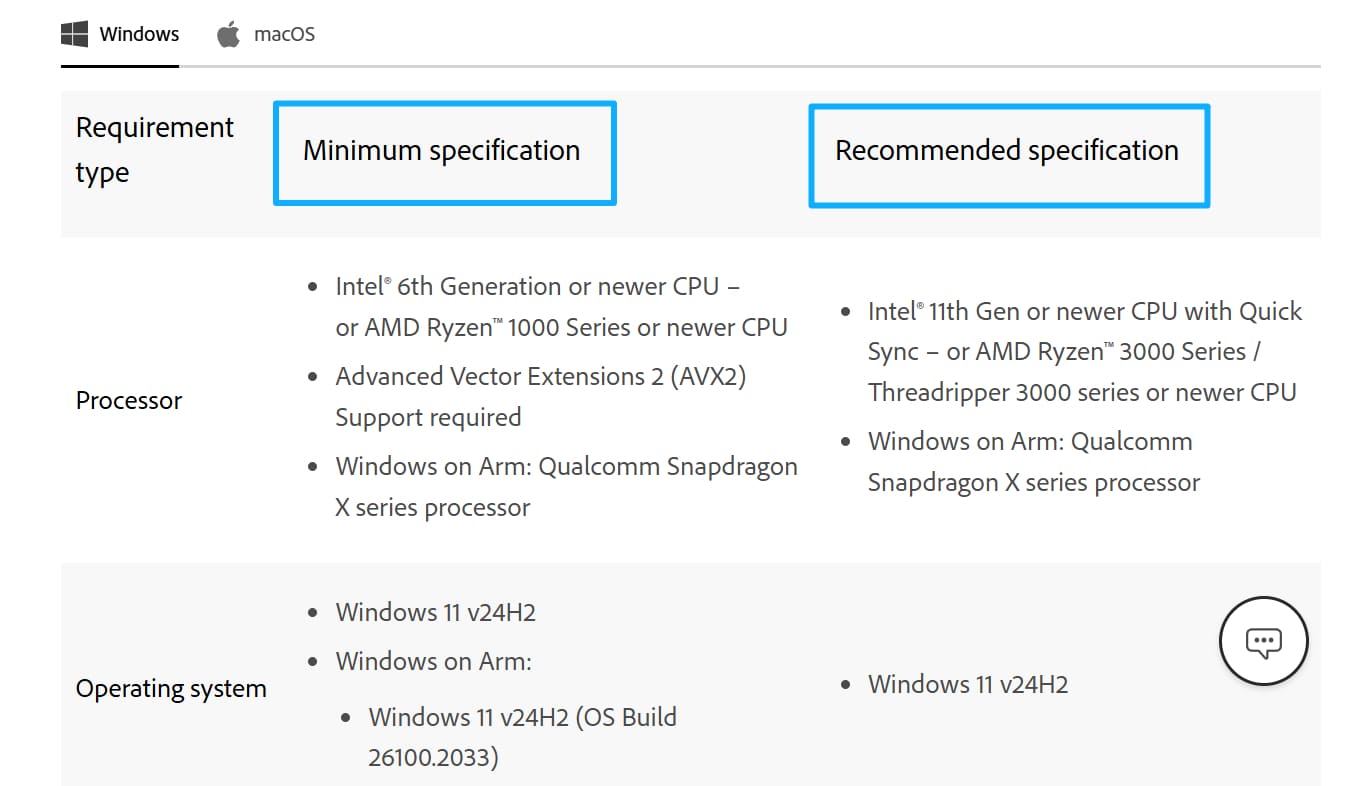
As the names suggest, the minimum requirements are the bare basics. The software can open, and you can do simple editing, but it may lag during use. The recommended requirements will give you a smoother experience. It will be easier to work with your footage, and the whole process will feel much more comfortable.
So in fact, you can simply check the system requirements for the video editing software you use, or plan to use, and then buy or upgrade your computer based on that.
That said, not everyone can fully understand these specs. If you are not very familiar with computer hardware, these terms may not mean much to you. So next, let us look at the key things you should pay attention to when you want to edit videos on a computer.
Key Computer Specs for Video Editing
For most content creators and video editors who are not working on film-level production, the main hardware specs to look at for video editing are the CPU, RAM, and storage.
Here is a simple way to think about them:
- Storage: the "warehouse" that holds your files
- RAM: the "desk" where you spread out your files and work
- CPU: the "brain" that does the calculations and processing
When you edit video, your footage is usually read from storage into RAM, then the CPU decodes, calculates, and processes it. After that, the data is written back to storage. So the whole process is really like an assembly line:
Storage → RAM → CPU → RAM → Storage
From an editing point of view, the usual priority looks like this: CPU and RAM matter most, then storage speed, and finally storage size.
The reason is simple. If your "desk" is too small, meaning you do not have enough RAM, the software can lag or even crash. If your "brain" is too slow, meaning the CPU is weak, effects, rendering, and exporting will all take a long time. If your "warehouse" does not have enough space, that is usually the easiest problem to fix, since you can add an external hard drive at a low cost.
1. CPU
This is the computer's "brain." It decides how smooth your editing feels and how fast your videos export. The rule for buying one is simple: go newer, not older.
For Mac, it is best to choose an M-series chip. For Windows, you can look at newer Intel Core i5/i7 processors, or even higher-end ones, and AMD Ryzen 7 processors.
In one sentence: do not buy a CPU that is too old.
2. RAM
This is the computer's "desk." Even if the CPU is good, the computer can still slow down if the RAM is too small and you have too many apps or too many files open.
Let us take CapCut as an example. Its RAM needs are roughly like this:
- 8GB: minimum. You can edit, but it may lag
- 16GB: usually smooth enough for everyday 1080p editing
- 32GB: better for 4K editing or larger projects
So a safe choice is 16GB to start, while 32GB is better for long-term use.
3. Storage
This is the computer's "warehouse." Editing software websites often say that 8GB of available space is enough. But that only refers to the space needed to install the software. It does not mean that it is enough for real use. Video files take up a lot of space.
A more practical choice is at least 512GB of storage, and 1TB will feel much more comfortable.
If you plan to keep shooting video, taking photos, and creating content for a long time, it is also common to get an external hard drive. You can use it to store footage and project files.
Of course, this is not something you must buy when you first start learning video editing. You can add it later based on your needs.
4. Graphics Card
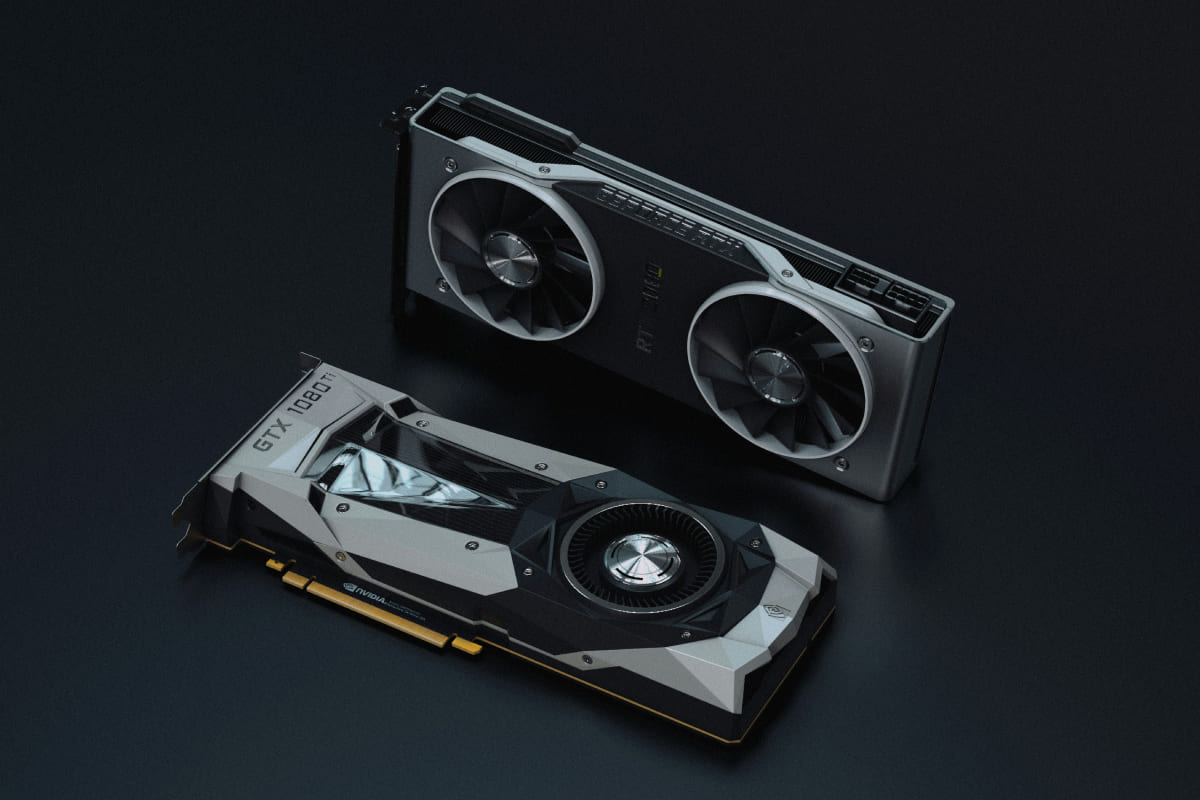
The graphics card mainly handles image and visual processing. Some computers use an integrated graphics card, which is built into the CPU and can handle basic graphics tasks. A dedicated graphics card, on the other hand, has stronger graphics performance.
Many video editing programs also use the graphics card to speed things up, such as video playback, color grading, effects, and exporting. A common rule is: at least 2GB of VRAM, and 6GB or more is recommended.
In simple terms, if you are editing video on a Windows computer, try to choose a model with a dedicated graphics card. An entry-level dedicated GPU is enough for basic editing. If you plan to edit higher-quality videos later, a mid-range GPU will give you more room to work.
For Mac computers, since they use Apple's M-series chips, the GPU is built into the chip itself. So you usually do not need to worry about the graphics card separately.
5. Sound Card
The sound card handles audio input and output, but most content creators do not need a separate one for video editing. In most cases, the built-in sound card in your computer is already good enough. If you care more about recording quality, upgrading your microphone first is usually the more practical choice.
6. Monitor
On new computers, screen resolution is usually not a big issue. Most screens now start at 1080p or higher. What matters more are two things:
- Color accuracy: the screen should not shift colors too much, or it will affect how you judge your footage.
- Screen size: for laptops, 14-inch or 16-inch screens both work well. For desktop computers or external monitors, a larger screen makes it easier to see the timeline while editing.
7. Operating System
The operating system also affects software compatibility. For Mac, it is better to use a newer version of macOS. For Windows computers, Windows 10 or Windows 11 is recommended. If the system is too old, it may sometimes affect how well the software runs.
Product Recommendation:
Of course, having a computer with strong specs can help your video editing software run better. But an external TourBox creative controller can also speed up your editing workflow a lot.

Compared with dragging the timeline and adjusting settings with a mouse and keyboard, TourBox's physical buttons and dials give you a faster and more precise way to work. You can make small adjustments again and again until you reach the best result, and it is easier to notice the tiny details that can make or break an edit.

To learn more about how TourBox can improve your video editing speed and overall experience, please visit our Video Editing page.
What Is the Best Computer for Video Editing?
A better way to ask this is: what kind of computer is better for video editing? We have already explained the hardware setup in detail before. From low-end to high-end, what you should buy really depends on your own needs and budget.
Before looking at specific models, though, there are three things that may help you decide: think about your short-term needs, your budget, and your long-term needs too.
Tech changes fast. Some people try to save money by buying the cheapest machine that can barely get the job done. But after six months, their skills improve, and the computer becomes the bottleneck. In the end, they still have to buy another one.
So our advice is: buy what you can afford, but do not go too cheap.
If your budget is enough, choose a setup that feels solid within your price range and try to make it last three to five years. If your budget is tight, still try to meet the basic standards. If the specs are too low, you will probably regret it very soon.
To make this easier to understand, we have broken common needs into two rough tiers. This is not meant to tell you to buy exactly the same thing. It is just a guide to help you judge your options.
1. Entry-level, enough to use | Lower budget
Good for light editing, organizing phone footage, and everyday videos.
Apple side:
- MacBook Air (M-series chip)
- 16GB RAM
- 512GB SSD
Windows side:
- A thin-and-light laptop or an all-purpose laptop
- Recent i5 or R7 processor
- 16GB RAM
- 512GB SSD
If you already know you will be editing videos for a long time, try to choose a Windows model with a dedicated GPU first.
2. Long-term use | Higher budget
Good for people who plan to edit video for a long time, or who expect to work with more 4K footage and want better speed.
Apple side:
- MacBook Pro (M-series chip)
- 32GB RAM
- 1TB storage
Windows side:
- A high-performance laptop with a more complete setup, or a desktop with a dedicated graphics card
- 32GB RAM
- 1TB SSD
If you already know you will keep creating, publish often, or even take on paid work, then buying a stronger machine from the start will actually save you trouble later.
So once you are clear on your needs and your budget, there is not much left to overthink. Just pick the right one and go for it.
At the end of the day, though, a computer is still just a tool. A better computer will make editing much easier, of course. But what really makes a project stand out is still how you see life, how you organize your shots, and how you tell a story.
Common Questions About Video Editing Computer Specs
1. Can an old computer still be used for video editing?
Before you spend money, ask yourself one question first: are you editing video just to record your life once in a while, or are you planning to do it seriously for the long run?
If you just want to record everyday life, and your home computer is not very old, we suggest not rushing to replace it. First, download an editing app and try it with a few clips. If it can run and only lags a little sometimes, that is still okay. Use it first, learn the basic ideas and workflow, and then upgrade later if you really need to.
But there is one case where we really do recommend replacing it right away: if your computer is an old machine with only 4GB of RAM, and it freezes as soon as you import HD footage, or even has trouble opening the editing software, then there is no need to keep pushing it. A computer like that is not just slow. It will also wear down your patience for learning.
If you are using a Mac, today's video editing software usually expects at least a 2016 or newer MacBook Pro, or a 2018 or newer MacBook Air. If your model is older than that, we do not really recommend forcing it. Even basic editing may feel very hard.
Tip: If you are using a desktop and the CPU is not too old, but you just do not have enough memory, you can also think about adding another RAM stick. Just make sure the model matches your motherboard. In many cases, more RAM can make a big difference.
If your old computer is no longer usable, or works badly, and you plan to keep editing video for a long time, or even use it to make a living, then you should not try to save money on your main work tool. A computer that feels good to use really can help you do much more with less effort.
2. Is a laptop or a desktop better for video editing?
It mostly depends on how you use it, and what you like.
Choose a laptop if you travel a lot, work or study in different places, or may need to bring it on location to handle footage.
Choose a desktop if you mostly use your computer in one fixed place. With the same budget, a desktop is usually more powerful.
3. Should I choose Mac or Windows for video editing?
This really depends a lot on your habits. If you are already used to one system and know it well, sticking with it will naturally feel easier.
But from the point of view of everyday convenience, we actually suggest looking at one thing first: what phone you use.
The first step in editing video is often not editing itself, but bringing in the files. If your phone and computer are in the same ecosystem, file transfer is usually much easier. For example, if you use an iPhone, a Mac will usually feel more convenient. If you use an Android phone, a Windows computer will often feel more natural.
That does not mean they must match exactly. But if you do not want to deal with extra steps, keeping your phone and computer in the same ecosystem can save you a lot of time.


