Best Photo Editing Software: Top Picks Reviewed
Choosing the right photo editing software can make a huge difference in both your workflow and the quality of your final images. So, in this guide, we will compare the best photo editing software in 2026. The goal is to help you find the right option based on your needs, budget, and experience level. Without further ado, let's get started.

In this article, you will learn:
- Best Photo Editing Software: Top Picks Reviewed
- Frequently Asked Questions About Photo Editing Software
- Conclusion
Best Photo Editing Software: Top Picks Reviewed
There are many photo editing software options out there. Some are professional tools like Photoshop and Affinity Photo. Others are powerful open-source programs and fully free editors. For example, many open-source photographers use Darktable and GIMP together as their standard setup.
These photo editing tools each have their own strengths in performance, features, and ease of use, but not every one is right for everyone.
That is why we took a close look at the best image editing software for 2026, based on different user needs and skill levels. Each recommendation includes a short overview, its strengths, and why it is worth trying.
To make sure our recommendations are accurate and practical, we judged each program based on these factors:
- Features and tools: Whether it supports layers, masks, RAW files, AI tools, filters, and batch processing.
- Ease of use: The interface, learning curve, and how friendly it is for beginners and professionals.
- Performance: Speed, stability, and how well it runs on Windows 10 and 11, including lower-end computers.
- Free vs. paid: The limits of the free version and the value of the paid version.
- Compatibility and updates: Supported file types, plugin support, and how often the software is updated.
1. Adobe Photoshop
- Best for: Professional image editing
- Price: Subscription, starting at $20.99/month
- Compatibility: Windows 10, Windows 11, macOS
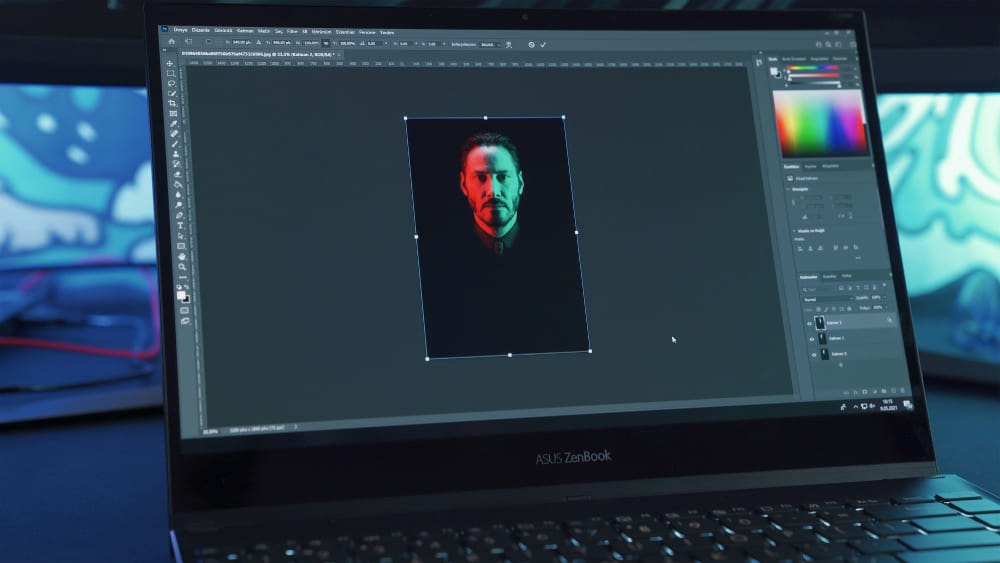
One of the most powerful image editing tools in the world. Its layer system, masks, and adjustment layers give you precise control over every detail in an image. AI-based tools like Neural Filters and Sky Replacement can also speed up complex edits a lot. Portrait retouching, image compositing, and color grading are all easy once you get used to the interface.
But to be honest, it can be a heavy load on your system. If your project has a lot of layers, you may need at least 32GB of RAM to keep things running smoothly.
For users who need full control, it is one of the best choices. But if you only need basic exposure fixes, a monthly subscription may feel like more than you need.
Pros:
- Industry-standard professional tool
- Rich plugin ecosystem and integrations
- Strong AI features and automation
- Supports all major file formats and color spaces
Cons:
- High subscription cost
- Steep learning curve for beginners
- Large projects need a powerful computer
2. GIMP
- Best for: Free, advanced image editing
- Price: Free
- Compatibility: Windows 10, Windows 11, Linux, macOS
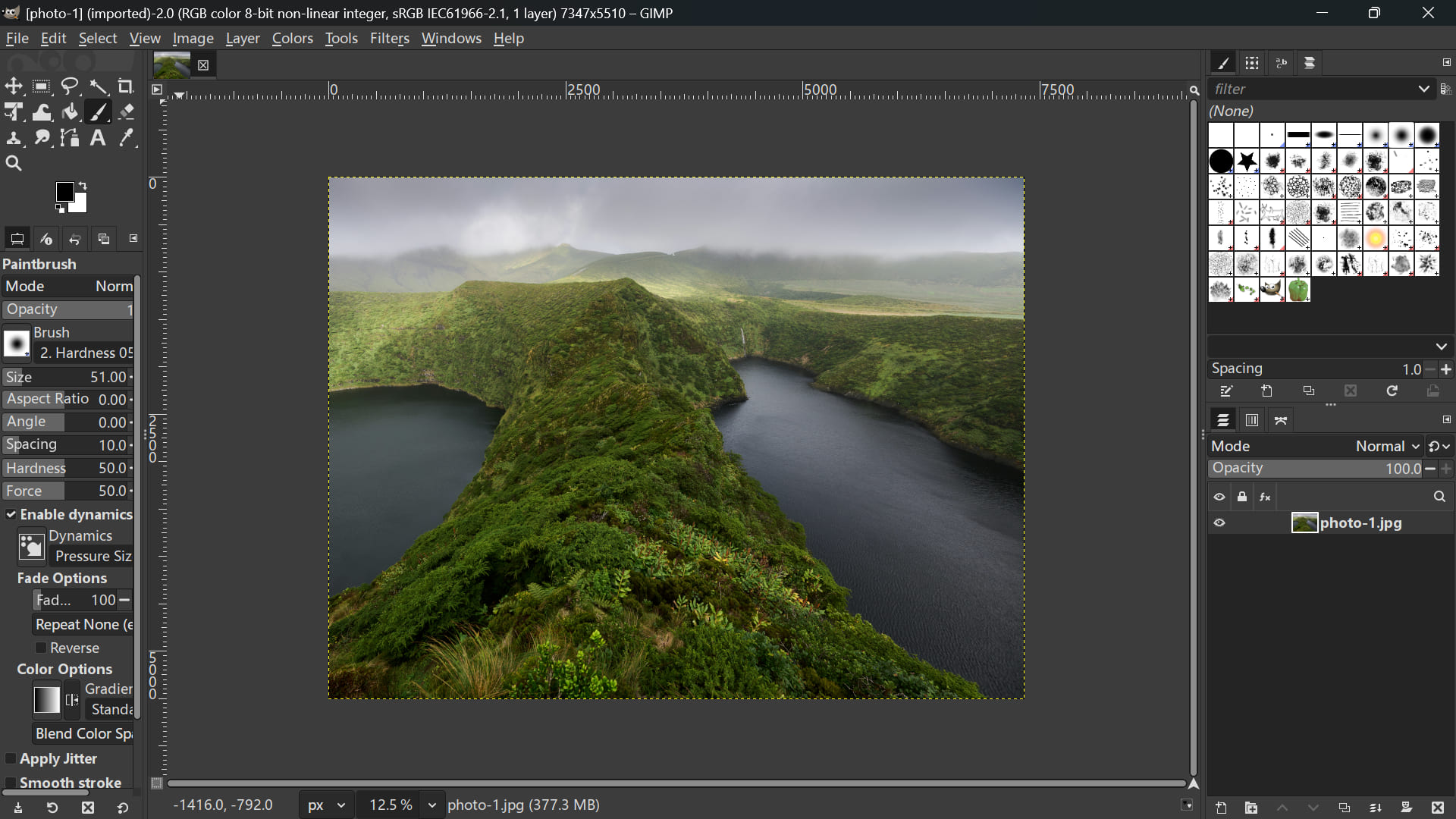
GIMP is the gold standard among free image editors. Over the years, the open-source community has made big improvements to its interface. Even though it is free, it can handle complex image compositing without much trouble, and its masking tools are surprisingly powerful.
That said, its steep learning curve is well known. To be honest, the icon-heavy interface can feel overwhelming at first, and it may seem complicated and hard to understand. But once you install a patch like "PhotoGIMP" to make it look more like Photoshop, it becomes an extremely powerful free image editor.
Pros:
- Completely free and open source
- Supports layers, masks, and many plugins
- Works with most major file formats
- Powerful and great for advanced users
Cons:
- The interface is less polished than paid software
- Steeper learning curve for beginners
- Some features need plugins to reach their full potential
3. Adobe Lightroom Classic
- Best for: Professional photographers who need to work with large batches of RAW files and advanced local file management
- Price: Subscription, starting at $11.99/month
- Compatibility: Windows 10/11, macOS
In the 2026 update, Lightroom Classic added an AI-powered Assisted Culling feature that helps photographers quickly find the sharpest shot in a burst sequence.
It is no exaggeration to say that Lightroom Classic is one of the best photo editing tools for professional photographers. It is also a very safe choice for hobbyists who want a reliable workflow. That said, it still has a learning curve for beginners.
Compared with the cloud version of Lightroom, Lightroom Classic is not as simple. But for users who want to store files on a local hard drive and need more professional tools, that can actually be a plus.
Even in 2026, though, Lightroom Classic still has one old problem: it can slow down when you export a lot of files. Adobe's code is still a bit bloated.
Pros:
- Top-tier digital asset management (DAM), with smart filters and collections
- Can apply presets to hundreds of photos at once
- Accurate AI masking for subjects, skies, and backgrounds
- Reliable tethered shooting with instant image previews
Cons:
- Ongoing subscription cost, with no one-time purchase option
- Steep learning curve that may feel intimidating for beginners
- Needs a strong computer and enough RAM to run smoothly
- Cloud sync is more limited than the mobile-friendly Lightroom version
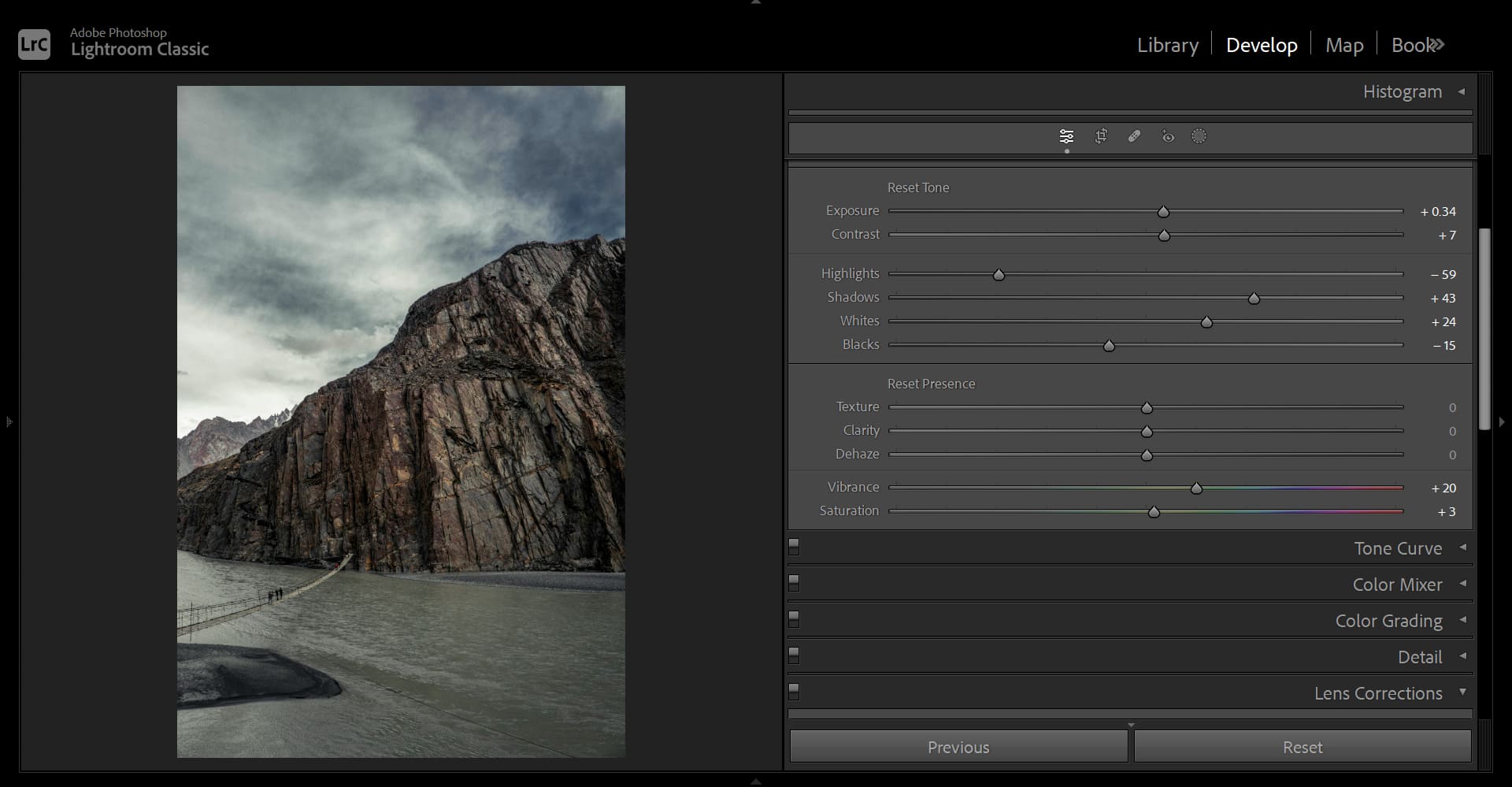
Instead of struggling with a traditional mouse to drag Lightroom Classic sliders for color grading, you can use a more efficient controller like TourBox to help with photo editing and color work.

TourBox includes a built-in Dynamic Panel for Lightroom Classic and Lightroom workflows. It is a customizable floating panel that lets you work in full-screen Lightroom Classic while seeing small color changes more clearly.
With TourBox's physical dials, you can adjust settings without having to keep your eyes on the slider position. The tactile feedback also makes it much easier to make fine adjustments and dial in the look you want, which can improve the final quality of your work.

If you are interested in how TourBox can improve your Lightroom Classic workflow, please visit our Dedicated Page to learn more.
4. Darktable
- Best for: Free RAW editing and professional photography
- Price: Free
- Compatibility: Windows 10, Windows 11, Linux, macOS
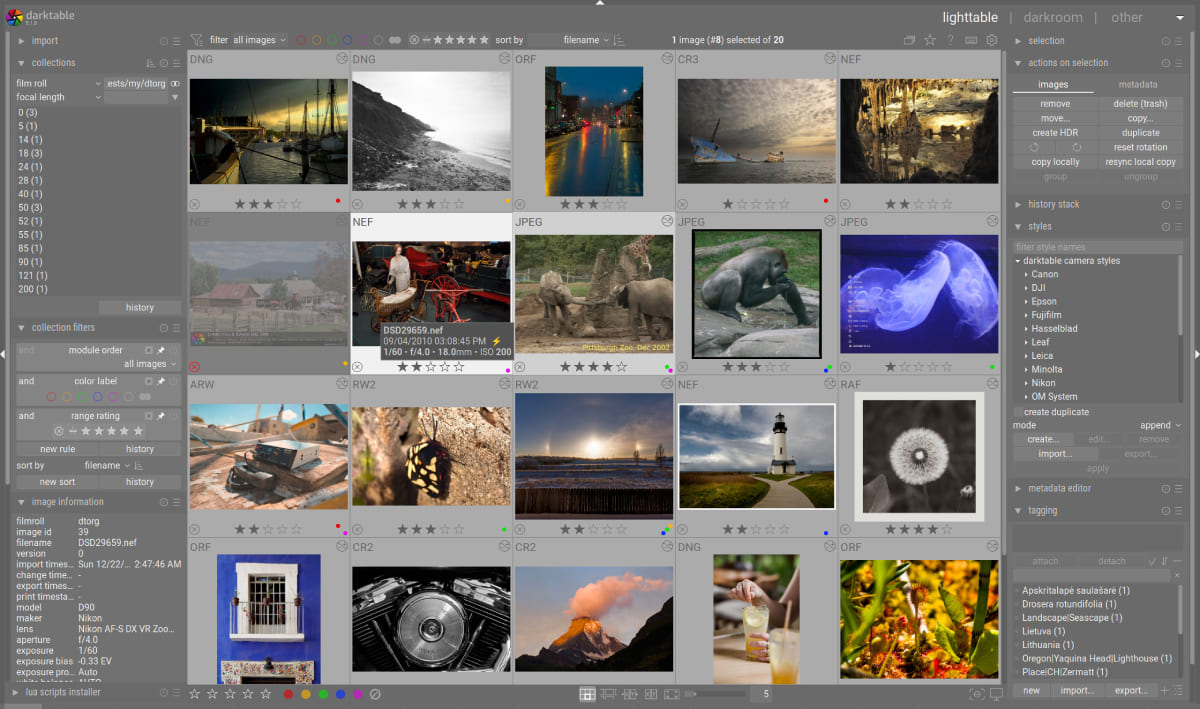
If you want a free photo editor that can go head-to-head with Lightroom for RAW processing, Darktable may surprise you. It is a great choice for photographers who want non-destructive editing and precise color control, but do not want to pay for a subscription.
Darktable handles large RAW files very smoothly, and even on lower-end laptops, its performance is surprisingly stable. For anyone looking for free photo editing software, Darktable offers features that can stand up to many paid programs.
Its workflow is very professional. You can adjust exposure, fine-tune color, apply lens corrections, and organize your photo library all in one program. It is a strong choice for serious photography work, batch editing, and any situation that calls for high-quality RAW editing.
Pros:
- Advanced non-destructive RAW editing
- Free and open source
- Accurate color correction and photo management
- Efficient for large photo libraries
Cons:
- The interface can feel overwhelming for beginners, and there are fewer learning resources available
- Steeper learning curve than simpler editors
- Some advanced tools take time to learn
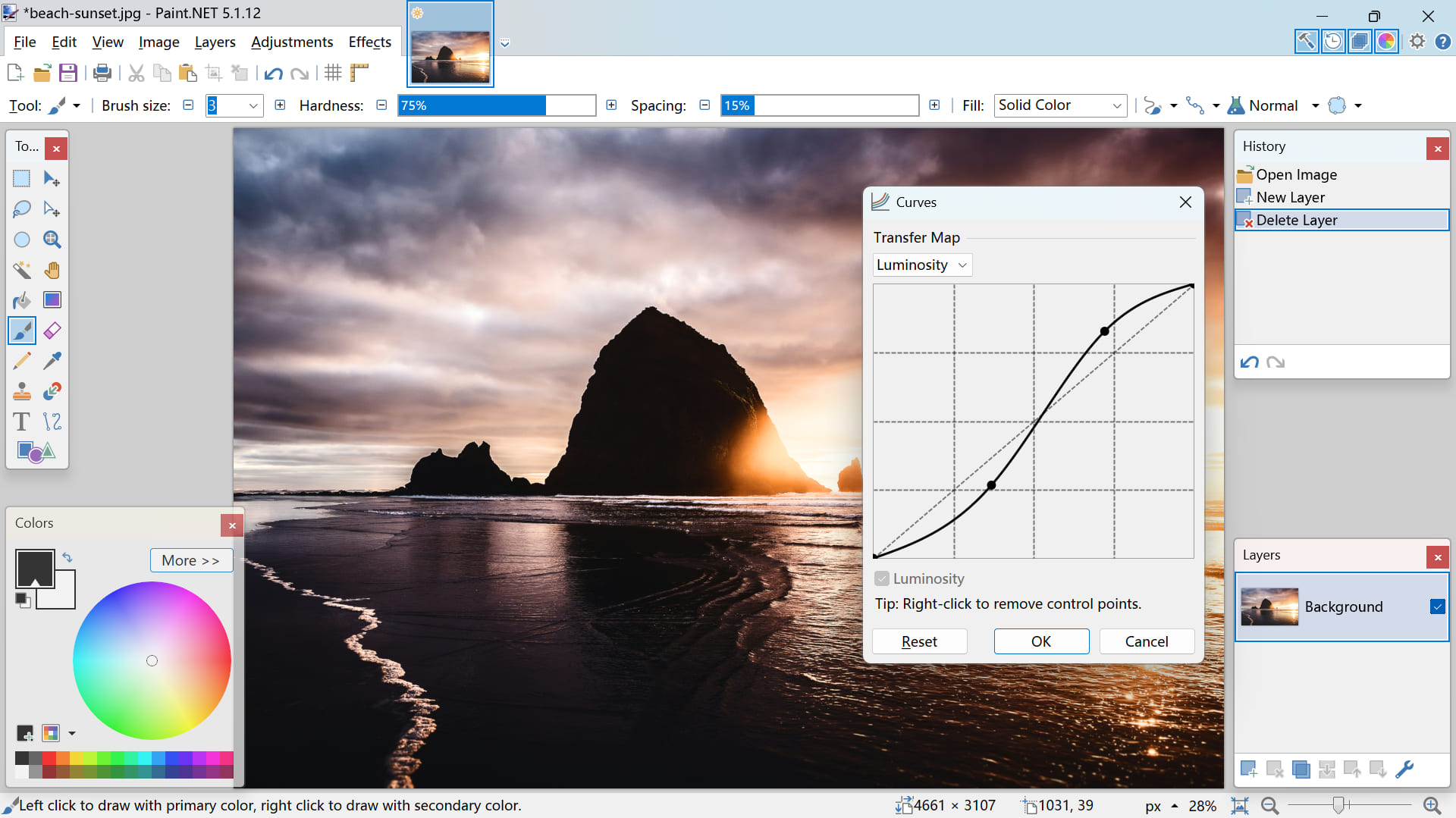
5. Paint.NET
- Best for: Fast, lightweight image editing on Windows
- Price: Free
- Compatibility: Windows 10, Windows 11
When you need to crop a screenshot or make a quick social media image and do not feel like opening Photoshop, Paint.NET is a great choice. It is one of the fastest free image editors on Windows, and it can launch in about two seconds even on a low-end laptop.
Do not let the word "Paint" fool you. It supports layers, blend modes, and a large community plugin library. That gives it features like 3D rotation and advanced noise reduction.
It does not support RAW files, so it is not made for professional photography. But for everyday quick edits on Windows, it is hard to beat.
Pros:
- Lightweight, fast, and smooth even on low-end computers
- Easy to learn and beginner-friendly
- Supports layers and basic plugins
- Completely free
Cons:
- Lacks advanced features like RAW editing and complex retouching
- Not ideal for professional-level projects
- Smaller plugin ecosystem than GIMP or Photoshop
6. Capture One Pro
- Best for: Professional studio photographers who want excellent color accuracy and the most reliable tethered shooting in the industry
- Price: Subscription ($17/month) or perpetual license ($329)
- Compatibility: Windows 10/11, macOS
If color is your top priority, Capture One Pro is the photo editing software you need. For portrait photographers, especially those who shoot studio portraits, its tethered shooting feature is hard to beat.
You can connect your camera to your computer, and the image will appear on screen almost instantly for the client to review. Its color editor is more precise than Lightroom's. You can select a specific skin tone and adjust its saturation without affecting the background.
Of course, it is not cheap. But for high-end professional work, its image quality and clean RAW processing make it worth the price.
Pros:
- Known for natural skin tones and precise color grading tools
- Offers one of the most stable and fastest tethered studio shooting experiences in the industry
- Let you fully rearrange the interface to fit a specific editing workflow
- Supports keyboard shortcuts for slider control, so you do not need to use the mouse as much
Cons:
- One of the most expensive photo editing tools
- Its interface may feel unfamiliar to users who are used to Adobe software
- Fewer third-party plugins and less mobile integration than Adobe Creative Cloud
- Can be demanding on regular computers when handling high-resolution RAW files with complex layers
_260409105706.jpg)
7. Luminar Neo
- Best for: Content creators who want pro-looking results fast with generative AI, without getting into technical details
- Price: One-time purchase, from $119 to $179, with different features depending on the license
- Compatibility: Windows 10/11, macOS
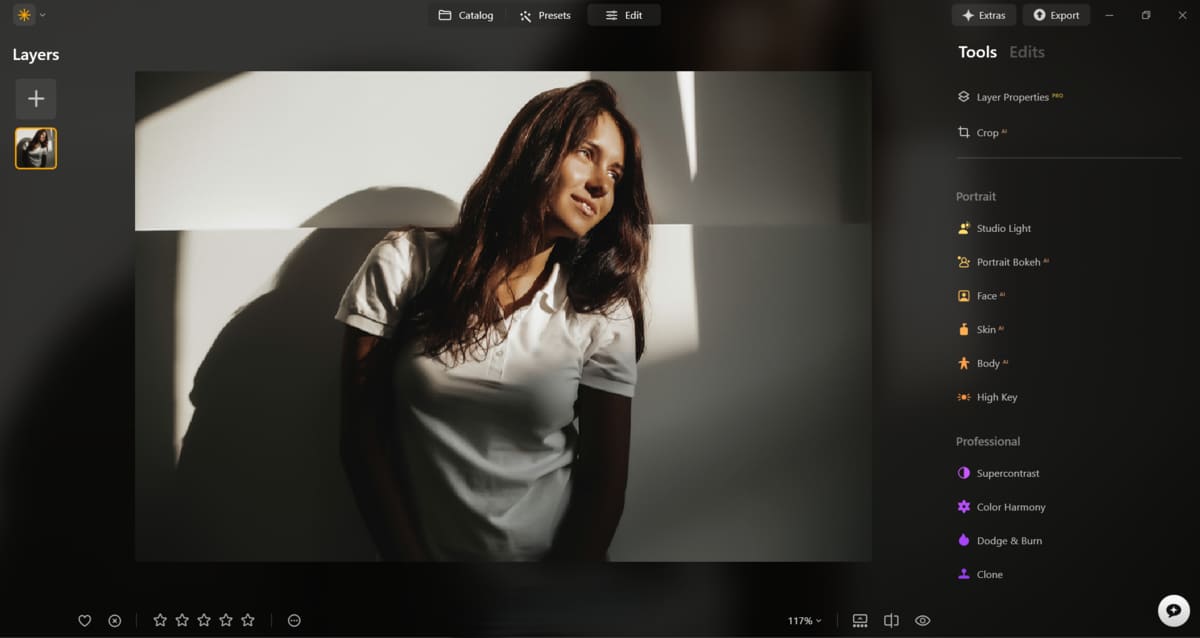
If you want professional-looking edits but have no interest in learning what a histogram is, Luminar Neo is probably the right photo editor for you. It is built around AI and is very easy to use. For example, its AI Sky Replacement tool can turn a dull afternoon photo into a beautiful sunset in just a couple of clicks.
It feels more like a creative playground than a technical tool.
Luminar Neo can be heavy on system resources, and if you use too many AI effects, the result can sometimes look a little fake. But for social media creators who need fast, eye-catching results, it is a very strong image editing tool.
Pros:
- One-click tools for sky replacement, AI erase, portrait relighting, and more
- Modern, clean interface that is easier to learn than Photoshop
- Focused on creative effects like light, mood, and AI background blur
- Offers both subscription and one-time purchase options
Cons:
- Can be slow or lag on mid-range computers when running complex AI tasks
- Lacks advanced photo organization features like face tagging in Lightroom
- Some professionals may find the simplified sliders too limited
8. Photopea
- Best for: Online editing and quick projects
- Price: Free, with an optional paid version to remove ads
- Compatibility: Windows 10, Windows 11, macOS, Linux (browser-based)
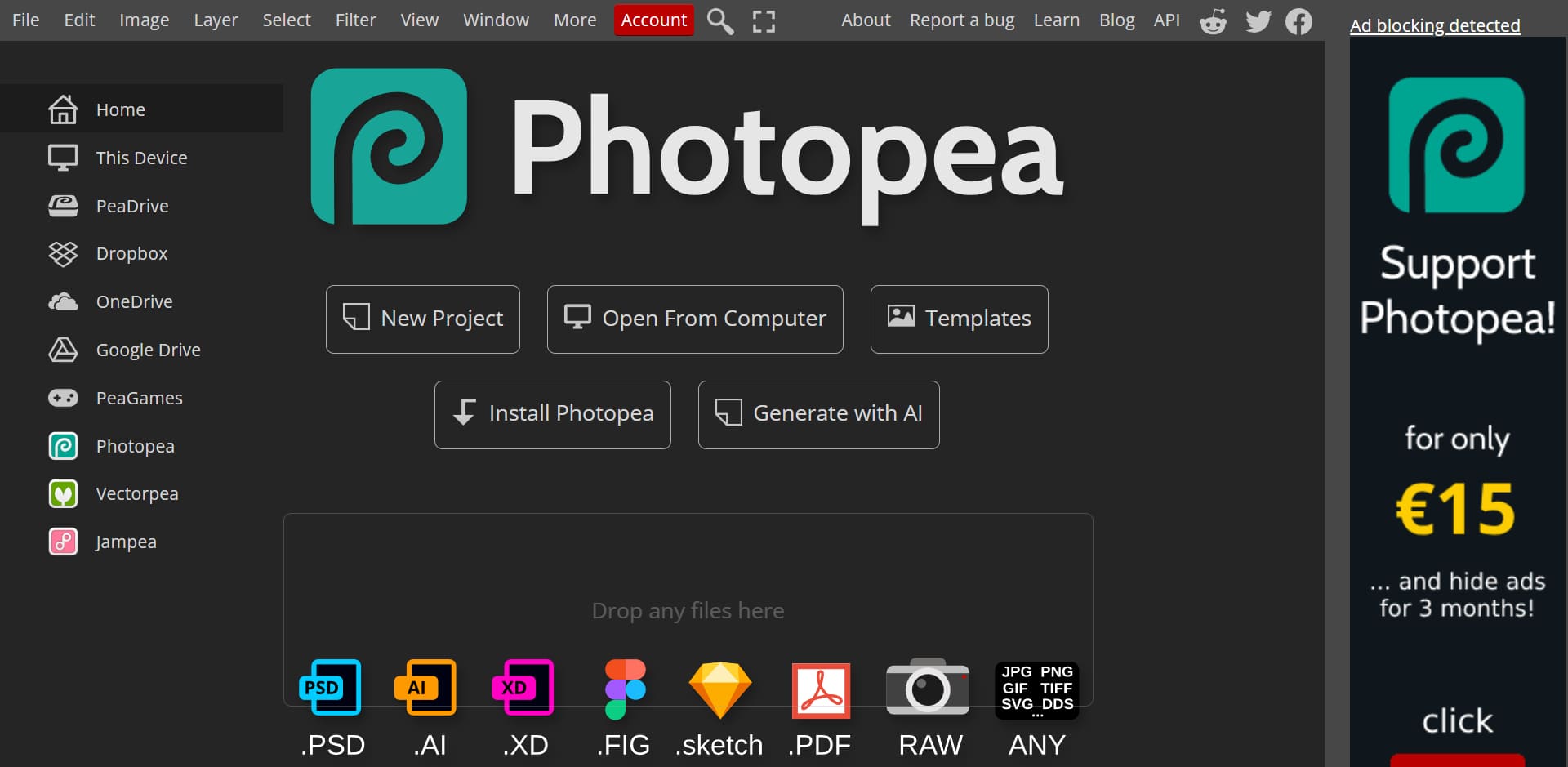
When you are working on a temporary computer and do not want to install a professional editor like Photoshop, Photopea can save the day.
It is very handy for quick edits, resizing images, or working on PSD files sent by a client. You can start working right away on almost any computer, and you still get access to the layers, masks, and advanced tools you need.
This online image editor offers strong features at no cost. It is a great choice for students, remote workers, or anyone who wants a flexible, portable editing option.
Pros:
- Runs entirely in the browser, so no installation is needed
- Photoshop-like interface and tools
- Supports PSD, XCF, Sketch, and RAW files
- Great for quick edits and remote work
Cons:
- Depends on a stable internet connection
- Large files can lag in the browser
- Some advanced features require the paid version
9. Affinity Photo 2
- Best for: Designers and photographers on a budget
- Price: Now free after Canva's acquisition, but you need a Canva account to log in
- Compatibility: Windows 10, Windows 11, macOS
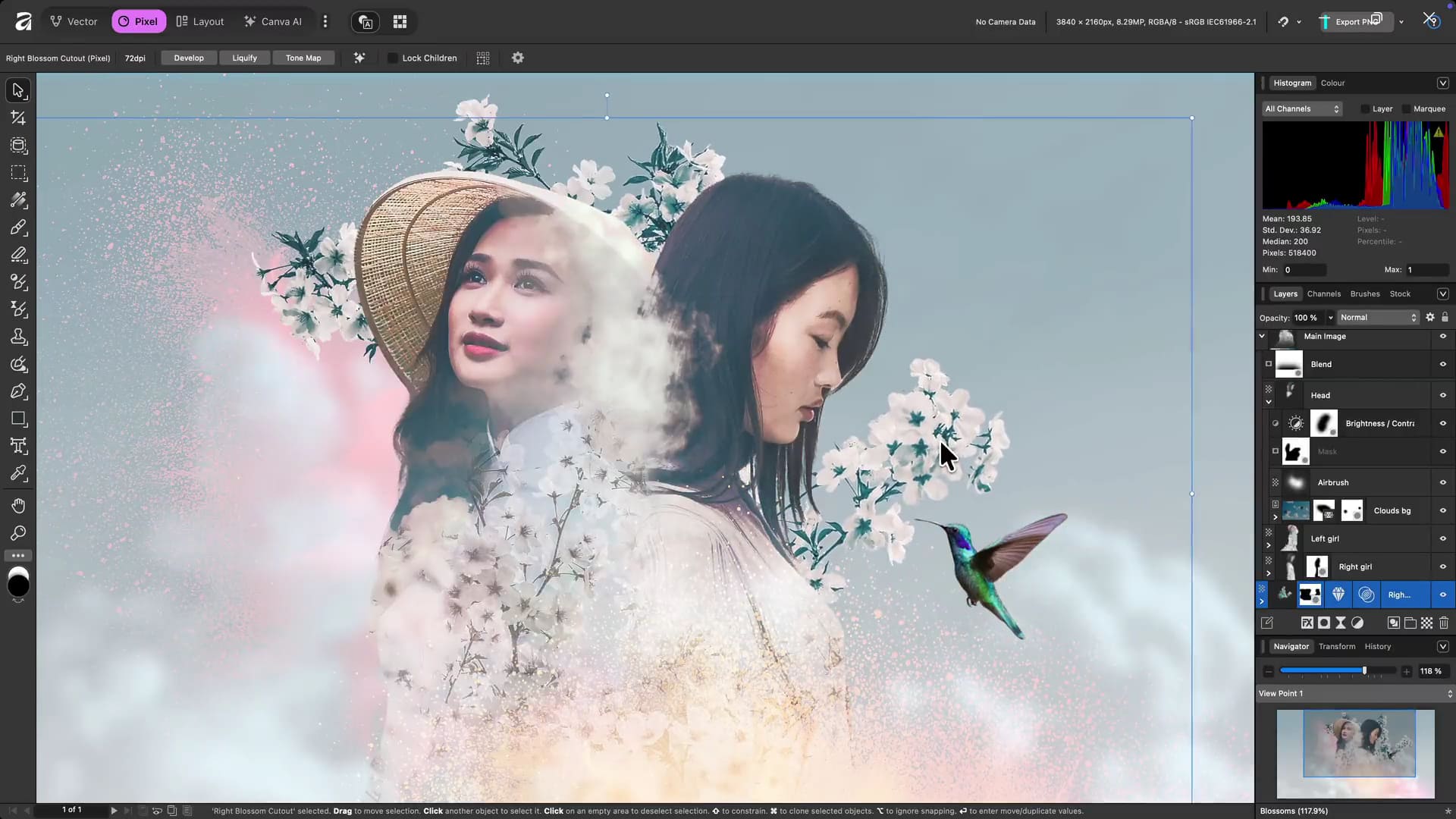
After Canva acquired Affinity, the original one-time-purchase Affinity Photo was integrated into Canva's online design platform. This was a major change in creative software, especially for users looking for professional design tools without a subscription. The combination of Affinity and Canva gives users a new option.
In real use, Affinity Photo's ability to handle PSD files is impressive. You can open old Photoshop projects in Affinity Photo, and the layers stay intact. You can also apply blur or sharpening effects and still adjust them later without damaging the original pixels.
It does not have some of Adobe's newer AI features yet, but Canva will likely keep improving that area as it competes with Adobe. And its desktop performance is incredibly fast. It feels lighter and quicker than Photoshop, though its brush behavior is a little different and may take some getting used to.
Pros:
- Smooth performance on desktop
- Advanced RAW editing and color correction
- Great for client work and social media graphics
Cons:
- Missing some advanced Photoshop plugins
- Moderate learning curve for beginners
- Some features take time to discover and master
10. DxO PhotoLab
- Best for: Photographers who want the best possible RAW image quality and top-tier noise reduction
- Price: One-time purchase, starting at $149.99
- Compatibility: Windows 10/11, macOS
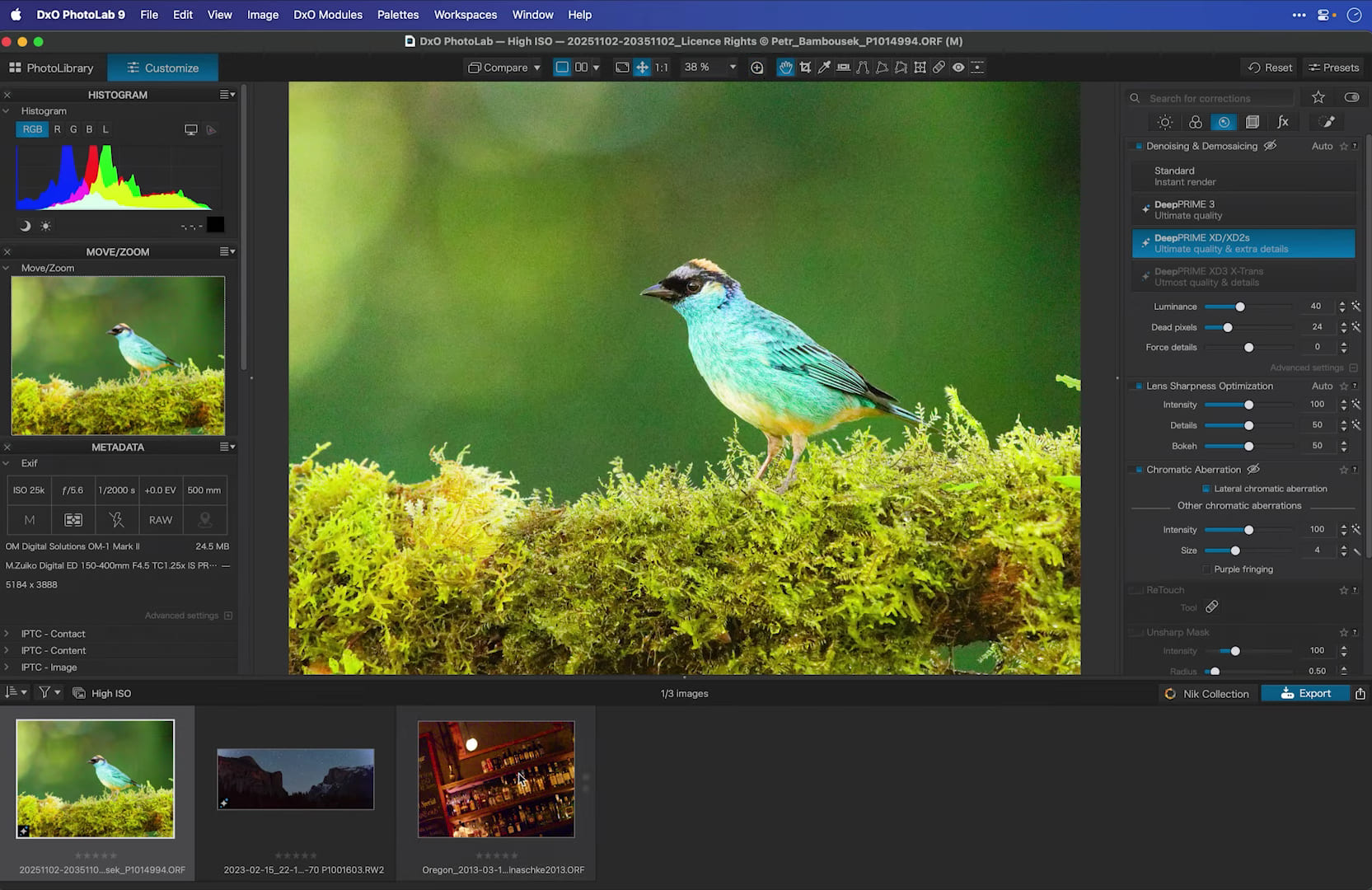
If you shoot in low light and end up with noisy photos, DxO's DeepPRIME AI is one of the best tools for cleaning them up without making the image look blurry. It also has one of the best lens correction databases out there. It knows exactly how your specific lens behaves at 24mm and corrects the distortion automatically.
That said, it is not really built for creative art editing. But as a technical tool for getting the best image quality possible, it is world-class.
Pros:
- DeepPRIME AI can save high-ISO photos with amazing detail and no visible artifacts
- Automatically applies lab-level lens correction based on your camera and lens combo
- No catalog import needed; you can browse and edit photos directly from your hard drive
- Very intuitive local adjustment tools, with control points for precise, natural masks
Cons:
- DeepPRIME processing is very demanding and needs a strong GPU for fast exports
- Lacks some creative tools, like generative AI, multi-image layers, and advanced photo organization
- Some key tools, like perspective correction, require separate add-ons such as ViewPoint or FilmPack
- The full power of its top noise reduction usually becomes clear only after the final image is exported
11. Canva
- Best for: Content creators who need to make template-based graphics fast and do simple AI photo fixes
- Price: Free, or Canva Pro (about $15/month or $120/year). Team plans cost more
- Compatibility: Windows, macOS, mobile devices
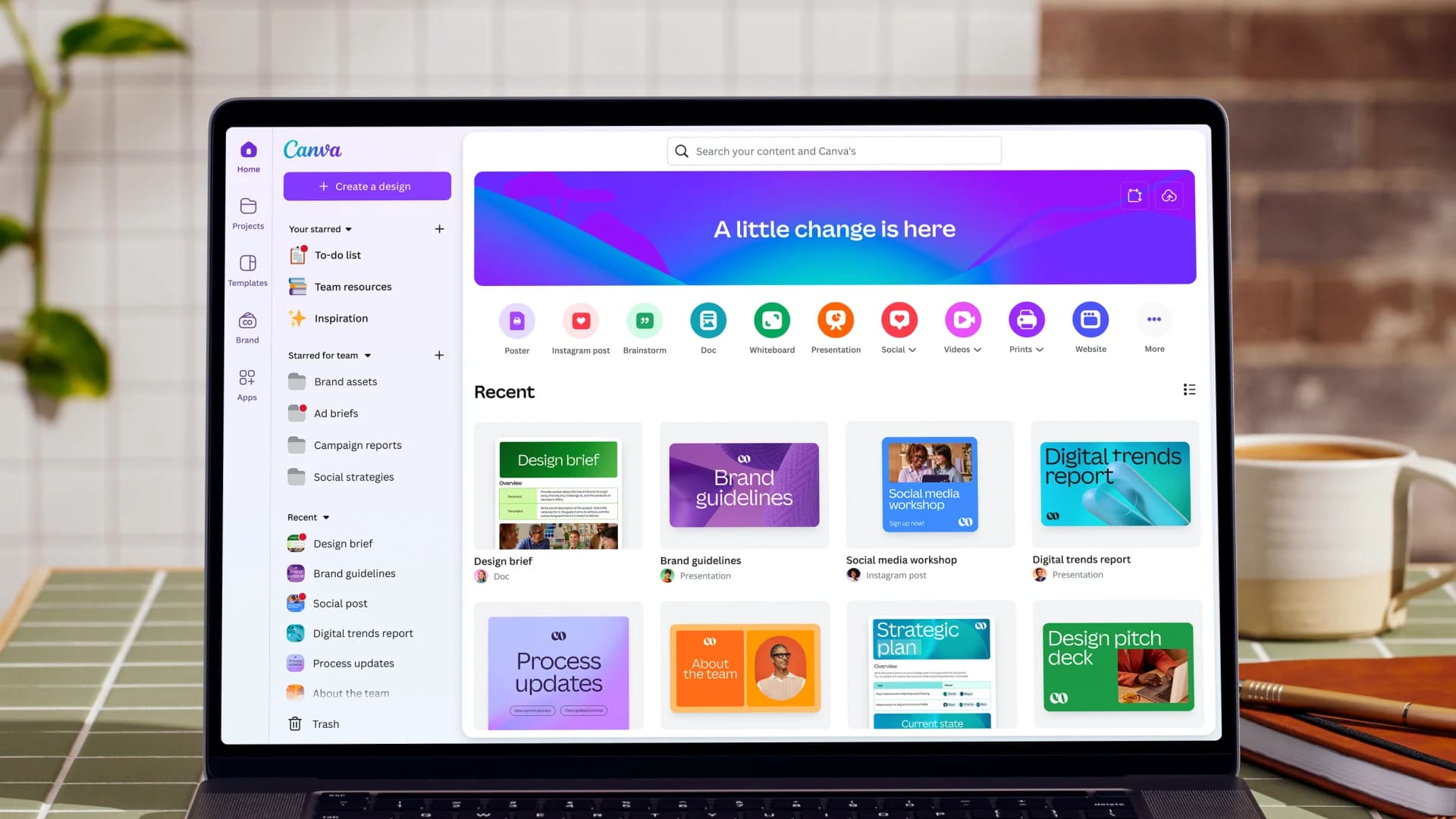
You may think Canva is not really a photo editing app, but in a fast-paced world, you may use it more often than any other image tool at work.
If you want to take a photo, remove the background, add text, and make a YouTube thumbnail, Canva can do it in seconds. But it is not built for working with RAW photos.
Pros:
- Drag-and-drop interface that anyone can learn in minutes, even without design experience
- Access to millions of templates, stock images, and fonts inside the Windows app
- Fast, easy tools for background removal, Magic Edit, and object removal
- Excellent real-time team collaboration and cloud sharing tools
Cons:
- Lacks advanced photo editing features like RAW processing, manual color grading, and high-end retouching
- Even the desktop app needs a stable internet connection for most features
- Print options and high-resolution controls are more limited than in dedicated editors
- Many of the best assets and AI features require a Canva Pro subscription
12. ON1 Photo RAW
- Best for: Photography enthusiasts who want a powerful all-in-one RAW editor and prefer a one-time purchase
- Price: Subscription, which gives you the latest version of Photo RAW MAX at all times, or a one-time purchase between $90 and $140, but it does not include major version upgrades in the following years
- Compatibility: Windows 10/11, macOS
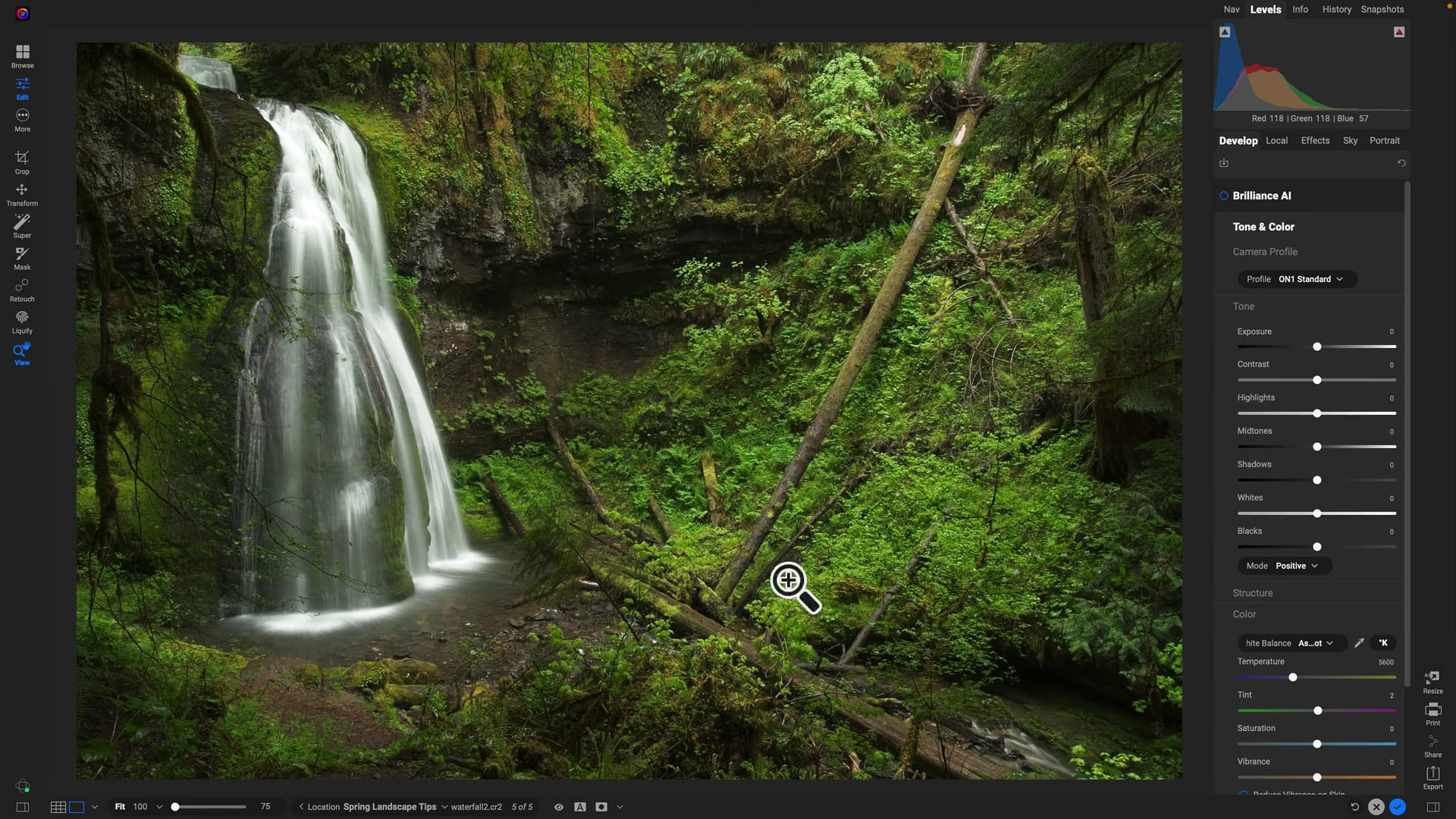
ON1 is a photo editor that tries to do everything. It combines catalog management, RAW editing, layers, and AI effects. Even with all those features, it is surprisingly fast. Just hover your mouse over someone's hair, and it can create a perfect mask.
For users who want an all-in-one photo editing solution, it offers strong value. The only real downside is that the interface can feel a little crowded at times, because it tries to fit too many tools into one window.
Pros:
- Combines RAW editing, layer editing, and catalog management in one app
- Strong AI tools for noise reduction, upscaling, and one-click masking
- Optimized for fast image browsing and culling on desktop
- Offers a perpetual license as a long-term alternative to Adobe products
Cons:
- The interface can feel crowded and messy, especially on smaller laptop screens
- Some advanced AI tasks may be slower or less reliable than in more mature tools
- Noise reduction is excellent, but the default sharpening is not always as refined as DxO or Lightroom
Frequently Asked Questions About Photo Editing Software
1. What Is the Best Photo Editing Software?
The best photo editing software depends on your needs.
For photographers, a common workflow is Photoshop + Lightroom Classic or Capture One. If you are into open-source tools, Darktable + GIMP is also a solid setup. For content creators who only need light photo editing, Affinity Photo + Photopea + Canva is a great combination.
Of course, you can also choose software based on your own preferences. Paint.NET and ON1 Photo RAW are also good options.
2. Which Free Photo Editing Software Is Best for Me?
Popular free options include GIMP, Darktable, Photopea, and Paint.NET. These programs range from basic editing tools to professional RAW processing, so they work well for both hobbyists and professionals.
3. Can I Use Free Image Editing Software for Professional Projects?
Absolutely. Free programs like GIMP, Darktable, and Photopea offer professional-level tools, including RAW editing, layer management, masking, and advanced color correction. While some features may work differently from paid software, these tools are more than enough for many professional photo editing workflows.
Conclusion
Whether you are a photographer working with RAW files, a designer building layered compositions, a content creator making social media assets, or a beginner who just wants to improve personal photos, the right tool can help you work faster and get better results.
We hope this photo editing software review helps you find the best photo editor for your workflow.


