Best Pixel Art Software for Artists
Pixel art is different from other traditional art forms. It is a kind of digital art, so it can only be created in digital software. In the early days, pixel art was made with very basic tools and devices. Because the technology was limited and the equipment was complicated, ordinary hobbyists could not easily create this kind of art.
But as technology improved, computers became more advanced, and operating systems were developed. Today, all you need is a computer and a drawing app. Then you can freely create fun pixel art in that software.
If you are interested in making pixel art, you may be wondering whether there is any software that is good for it. In this blog, we will share some software that is suitable for creating pixel art.

In this article, you will learn:
Professional Pixel Art Software
Let's start with professional pixel art software. This refers to drawing software made for professional pixel artists and pixel art creators. These tools usually focus on pixel art features rather than the features found in regular drawing software.
Over time, more and more pixel art programs have appeared, and that has made it much easier for artists to create pixel art today.
1. Aseprite
Recommendation: ★★★★★
Platforms: Windows, macOS, Linux
Aseprite is a pixel art program developed by David Capello. It started as a tool mainly for hobby users, but as pixel art became more popular and artists asked for more features, Aseprite gradually grew into a professional drawing tool.
It is also one of the most familiar tools among pixel artists, and it is widely used in game development. Of course, its strengths and weaknesses are very clear. If you only use it to create pixel art, Aseprite is basically like Photoshop made just for pixel art and pixel animation.
Pros:
- It is made specifically for pixel art. Many of its features are built for pixel work, such as pixel-perfect drawing, fixed color palettes, and timeline animation. These feel much more natural to use than in Photoshop.
- It is very strong for pixel animation. Features like the timeline and onion skin are especially useful for pixel animation.
- Besides pixel art, it can also handle game asset work, especially small assets like characters and UI elements.
Cons:
- Its biggest strength is also its biggest weakness. It is not a good all-purpose drawing tool. It is more focused on pixel art.
- It is not hard to learn, but the interface looks more complex than Photoshop, so it takes some time to get used to.
- It is not free. You need to pay $19.99 to buy it.
2. GraphicsGale
Recommendation: ★★★★★
Platform: Windows
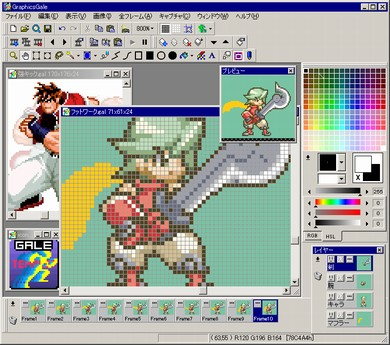
GraphicsGale is a pixel-level animation tool developed by HUMANBALANCE in Japan. It was first released in the 1990s, and sales ended in 2017, so it is now free software. The developer still updates it, but the updates are very slow.
Its focus is very clear. It is not a "do everything" tool like Photoshop. Instead, it is an old-school but very focused pixel art tool. When it comes to making pixel animation, it is a very useful program.
Pros:
- Its core pixel art features are very strong, especially for animation. It feels like it was made for pixel animation.
- It is light, smooth, and has low system requirements. The program is small, and even older computers with weaker specs can run it well. It also responds very quickly.
- It is free, free, free!
Cons:
- The UI looks very old, almost like software from the Windows 98 era.
- It only works on Windows, with no macOS or Linux version, and that is a serious drawback today.
- It is not very beginner-friendly.
- Its features are not as rich as modern software. It is good enough, but not very advanced. Compared with Aseprite, it has fewer brushes and no vector tools.
- Updates are slow, and the ecosystem is old. It is not ideal for teams or modern workflows. It is better for small personal projects.
3. Pro Motion NG
Recommendation: ★★★★☆
Platforms: Windows, macOS, Linux
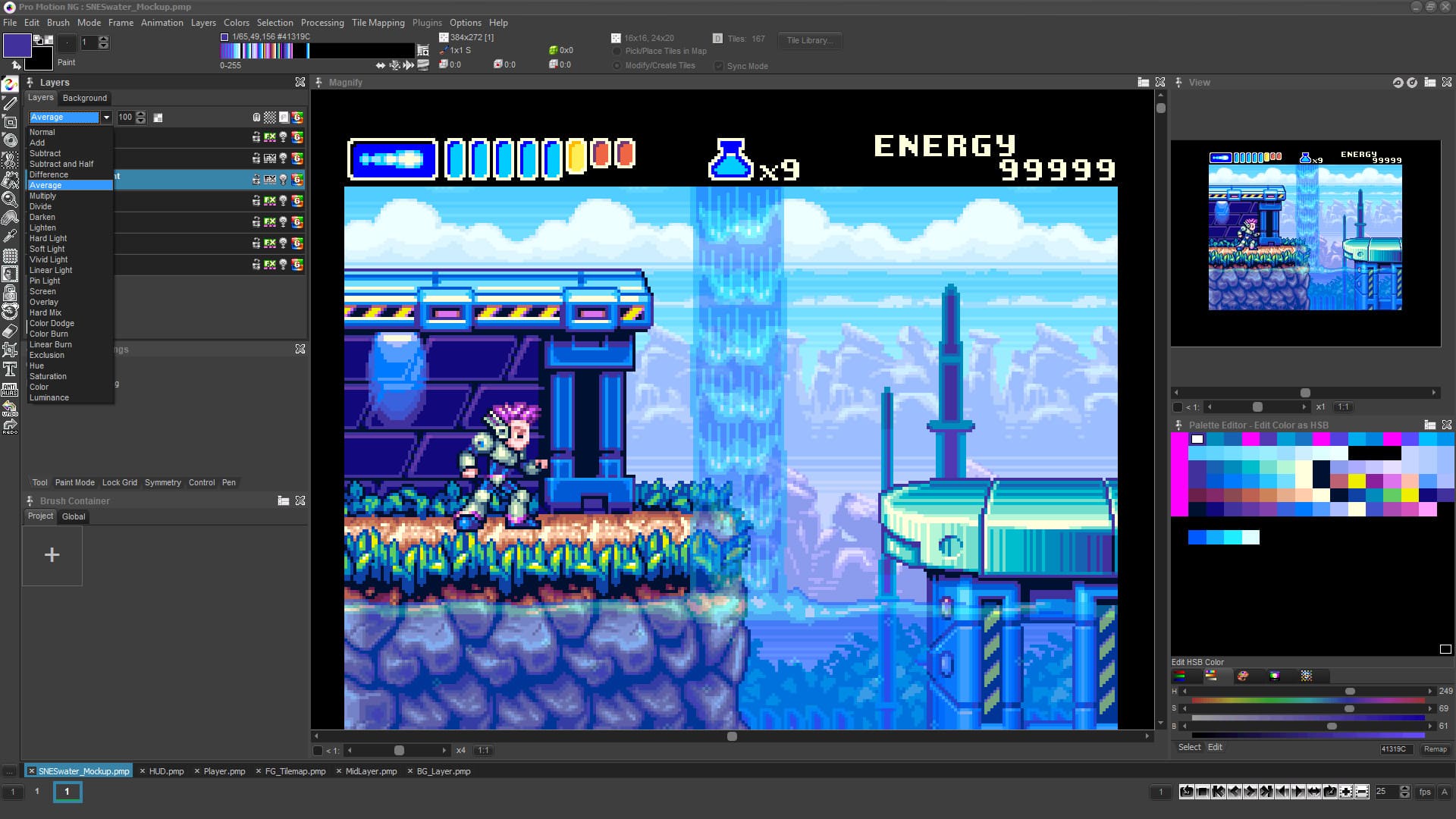
Pro Motion NG is a professional pixel art program developed by the U.S. company Cosmigo. It is a great choice for mobile game art, game development, and pixel artists. It is also well-suited for creating lightweight graphics for web games.
Pro Motion NG has very strong pixel drawing and animation tools. It is a good fit for people who are serious about pixel art and game assets. But these advanced features also mean the interface and workflow are more complex.
Pros:
- It has many features, and they are very well suited for pixel art and game asset creation.
Cons:
- It has a steep learning curve, and the interaction style feels a bit old-school.
- It has a free version, but the free version only includes limited features. You need to pay to unlock more.
- The interface and workflow are a little complex, and habits like shortcuts, moving selections, and free transform work differently from other software, so it may not feel as smooth to use.
4. Pixel Studio
Recommendation: ★★★★☆
Platforms: Windows, macOS, iPad, Android
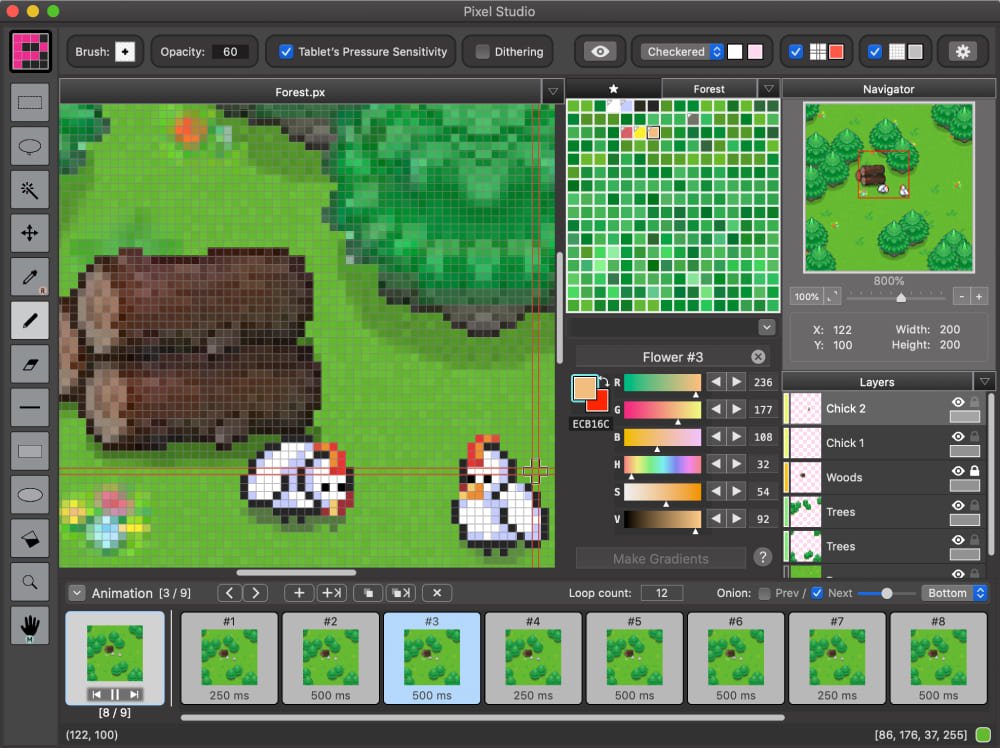
Pixel Studio started as a pixel art tool for mobile devices. Later, it expanded to desktop and kept moving toward cross-platform use, pixel animation, and cloud sync. It is now available on Google Play, the App Store, Steam, and Microsoft Store. It has always been positioned as a pixel editor for artists and game developers.
Its features also keep getting updated. This is not an old app that stopped evolving long ago. It is still being improved into a more complete pixel art creation tool.
Pros:
- It works across multiple platforms, has an active community, and feels good to draw with.
- It has a full set of features and keeps getting updates. It also keeps adding more tools for pixel art workflows.
- It is easy to learn, has a clean interface, and is very friendly for pixel art beginners.
Cons:
- The app is free, but it has ads, and many features are behind in-app purchases or paid unlocks.
- It has a lot of bugs. It crashes often, and these bugs seriously hurt efficiency.
- The mobile workflow feels good, but it does not seem to be very well optimized for desktop computers. Some parts of the workflow feel awkward and frustrating.
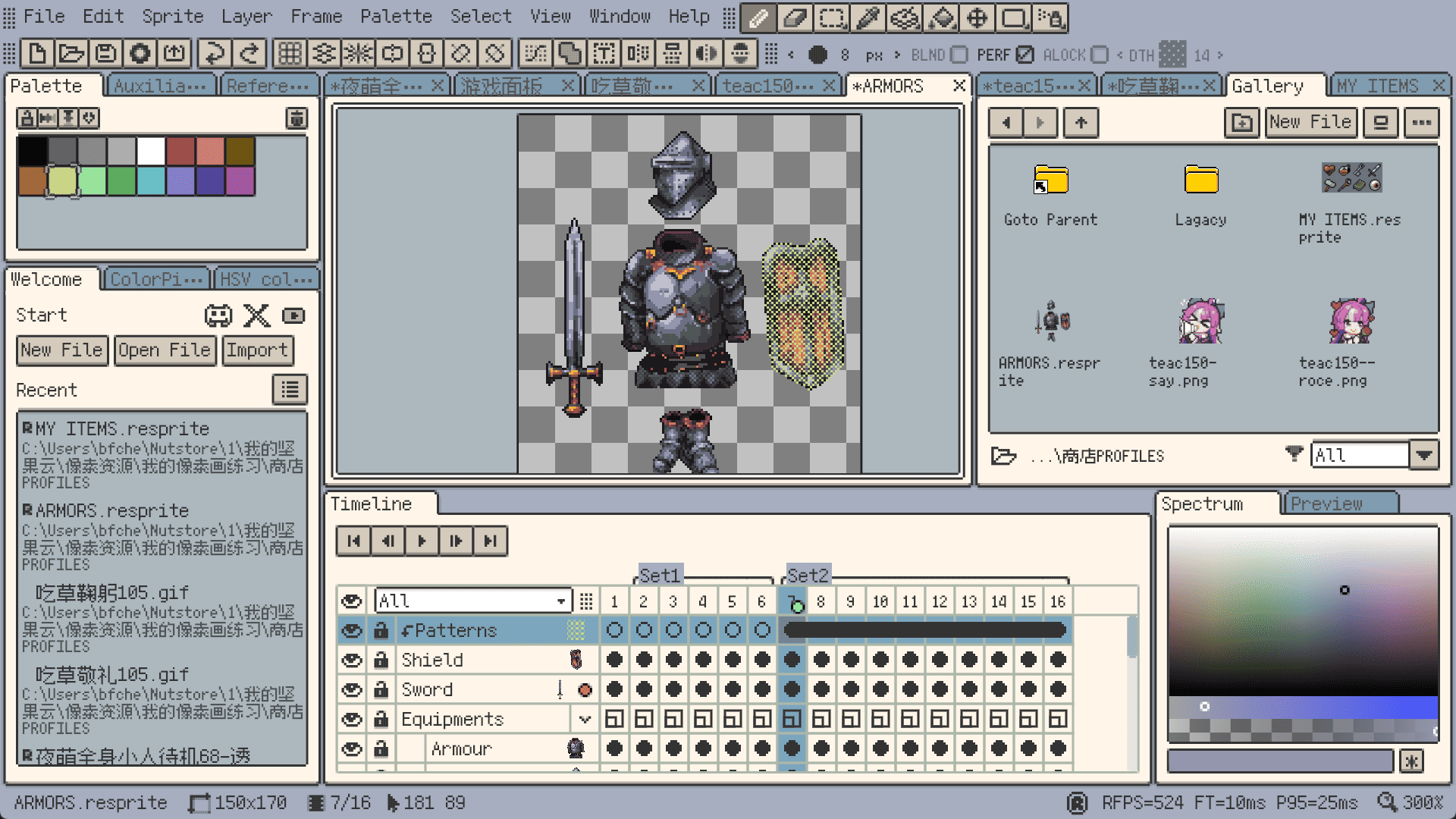
5. Resprite
Recommendation: ★★★★☆
Platforms: Windows, macOS, iPad, Android
Resprite is a pixel art app that has only been out in recent years. It has features similar to Aseprite, gets updated often, and works across platforms, including iOS, Android, Windows, and macOS.
Resprite is a very promising modern pixel art tool, but its compatibility and overall maturity are still being refined. It offers a free trial, and it also supports both subscriptions and a one-time purchase.
Pros:
- Its features are close to Aseprite, so artists who have used Aseprite can get started quickly. It also supports Aseprite files.
- It has a fairly complete set of features and covers the most common pixel art and animation workflows.
- It is heavily optimized for stylus input and mobile devices, so it is great for creating directly on a tablet or phone.
Cons:
- It still has some bugs, and compatibility with complex files is not fully stable yet. But since it is still a relatively young tool that is being improved, that is understandable.
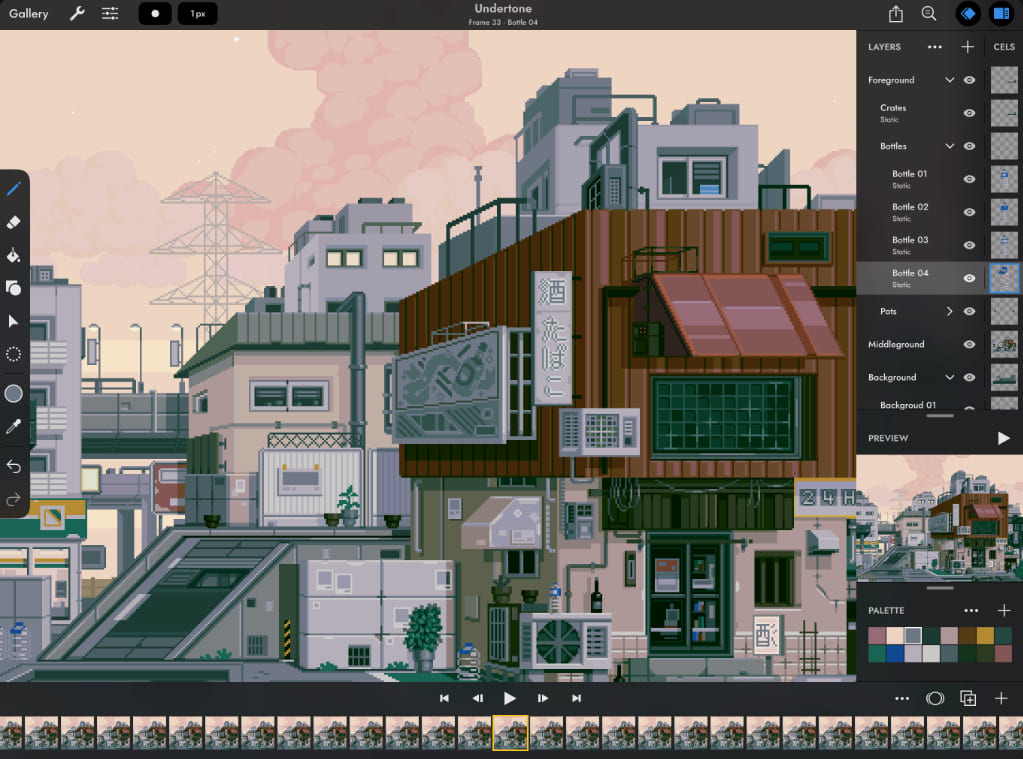
6. Pixaki
Recommendation: ★★★☆
Platforms: Windows, macOS, iPad, Android
Pixaki can be seen as a pixel art and pixel animation editor made specifically for the iPad. Its interface is similar to Procreate, and it is designed for pixel art fans and professional artists.
At first, it was the only professional pixel art program available on tablets. But over time, updates became very slow, many bugs were never fixed, and the price was also very high. As a result, not many people bought it. Later, with the rise of newer pixel art tools like Resprite, Pixaki slowly faded out of the spotlight.
Pros:
- It is easy to pick up, feels good to use with touch, and has full animation features. Its workflow is close to Procreate, so drawing on the iPad with Apple Pencil feels very natural.
- It supports importing and exporting Aseprite files, which makes it easier to work with desktop workflows.
Cons:
- Updates are very slow, and many bugs have never been fixed.
- It only works on the iPad, so the platform support is quite limited.
- The free version has a lot of limits. Full features require payment, and the price is not cheap.
Regular Drawing Software
Besides the pixel art software we recommended above, some popular digital drawing apps can also be used to make pixel art. But they are usually more awkward to use for that purpose. If you do not mind the extra hassle, you can also try the apps below.
Note: our recommendation rating here is based only on the pixel art experience, not on the software's overall performance.
1. Photoshop
Recommendation: ★★★☆
Photoshop is a long-time digital art tool and one of the most famous programs in the world. It is also one of the most expensive. It is widely used in graphic design, photo editing, web design, and many other fields. For many professional designers, photographers, and artists, it is an essential tool.
For pixel art, you can set the Pencil Tool to 1 pixel or use third-party pixel brush presets. The key is to turn off anti-aliasing so you get sharp edges.
But honestly, Photoshop is not great for pixel art. It is built mainly for image editing, so its pixel art features are limited. You can make it work, but it is not very convenient. Its animation tools are also not very strong, so using it for pixel art can feel like a lot of work. On top of that, it cannot directly open or save Aseprite files.
2. Paint Tool SAI
Recommendation: ★★★★
Paint Tool SAI is known for its smooth drawing feel and its rich set of brushes. It is very beginner-friendly. It can handle both regular digital art and pixel art, so you can use it for illustrations as well as pixel work.
One thing to note is that the first version of SAI, before 2010, did not support pixel brushes. Pixel brush support was added in the 2010 version.
Still, SAI has very few pixel art features. After all, it is not really a dedicated pixel art program, and it also does not have animation tools because it is aimed at illustration. It also cannot export some pixel-related file formats, especially .ase.
3. Clip Studio Paint
Recommendation: ★★★☆
Clip Studio Paint is one of the most popular drawing programs in Japan, and many artists in the illustration and comic fields use it. It has a very rich feature set and can also be used for animation, but the workflow is more complex than Photoshop, maybe even a bit more.
Clip Studio Paint also has a very strong community, especially for people who need assets, tutorials, and workflow references. It feels a lot like it comes with its own creative resource hub. In the community, you can easily find brushes, backgrounds, 3D models, textures, and more, which can help speed up your work.
That said, Clip Studio Paint is still limited when it comes to pixel art. The good news is that you can easily find all kinds of pixel brush assets. But for pixel art work, it still falls behind dedicated pixel art software. It also does not support .ase files.
4. Procreate
Recommendation: ★★
Procreate is one of the most commonly used drawing apps for artists who work on the iPad. It is very powerful, and the drawing experience on iPad is excellent.
But it is mainly designed for illustration. It does not have built-in pixel brushes, it cannot export Aseprite-compatible files, and its animation tools are not very useful either. If you want to make pixel art in Procreate, your drawing skills will need to be quite good.
To be honest, even if you are an experienced artist, it is still hard to get truly professional pixel art results in Procreate.
Conclusion
In this blog, we shared some software that is good for making pixel art. This includes both professional pixel art tools and some regular drawing apps. But these apps will not turn you into a pixel artist. They are here to make the creative process easier.
So the important thing is to try them yourself and see which one you like best. You may find that one app fits your workflow better than the others.
To create great pixel art, choosing the right software is only part of the job. A tool that can improve your workflow is also very important. That is why, at the end of the blog, we recommend TourBox, a creative controller that many artists and comic creators love.

You can map the tools and shortcuts you use most often in your creative software to the physical knobs and buttons on TourBox. Its built-in smart controls also open up more ways to work. Like using a game controller to play a game, TourBox makes the creative process faster and more fun.

Please visit our Digital Painting page to learn more about how TourBox can be used. If you like creating on an iPad or Android tablet, our Elite Plus model may be a great fit for you. It offers a smooth and comfortable experience on both PC and tablets.


