How to Use the Curves Tool in Digital Art?
Many beginner artists may find after finishing a piece that the image looks gray, or the light-and-dark relationships aren't clear, or the colors are wrong and need fixing, or the mood doesn't feel strong enough, and they want to boost the atmosphere. All those problems can be easily solved with just one Curves tool!
In this article, we will share some Curves tool tips that every digital artist will definitely use in their work. So let's get started.

In this article, you will learn:
What Is the Curves Tool?
The Curves tool is a color and tone adjustment tool based on mathematical function mapping. Its core idea is to change an image's tone, contrast, and brightness by adjusting the relationship between input and output values.
By default, the Curves tool appears as a diagonal straight line. Points on the line map specific brightness values. From the bottom-left point to the top-right point, the points correspond, in order, to the darkest areas, shadows, midtones, highlights, and the brightest areas.
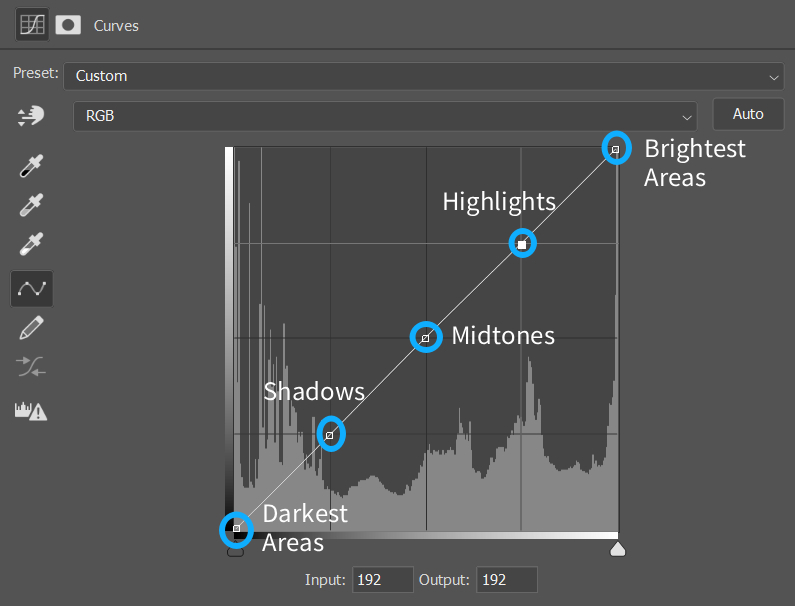
The Curves tool lets you freely add, delete, and move points. Pulling a point up raises the output value and makes that area brighter. Pulling a point down lowers the output value and makes that area darker. So when you use the Curves tool, you can decide how much to move points based on the image's light and dark areas.
Below are 4 basic ways to use the Curves tool:
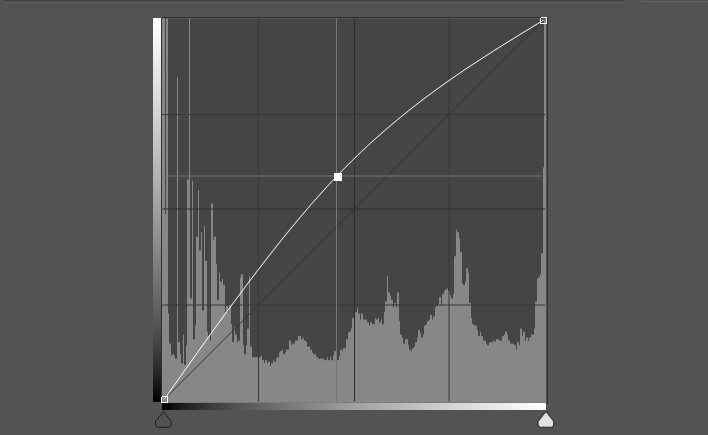
1. Pull the curve up (brighten)
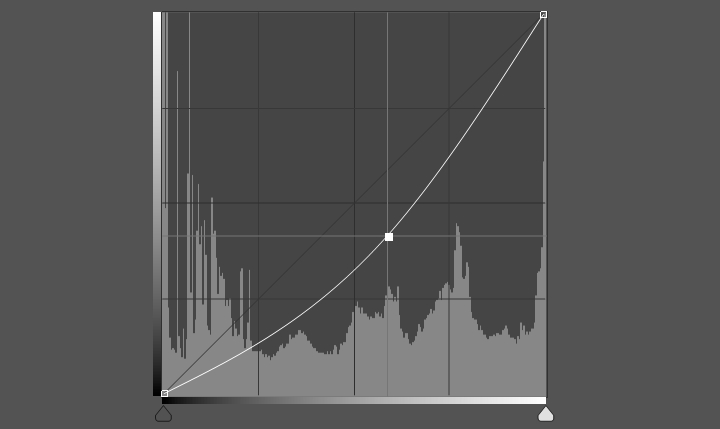
2. Push the curve down (darken)
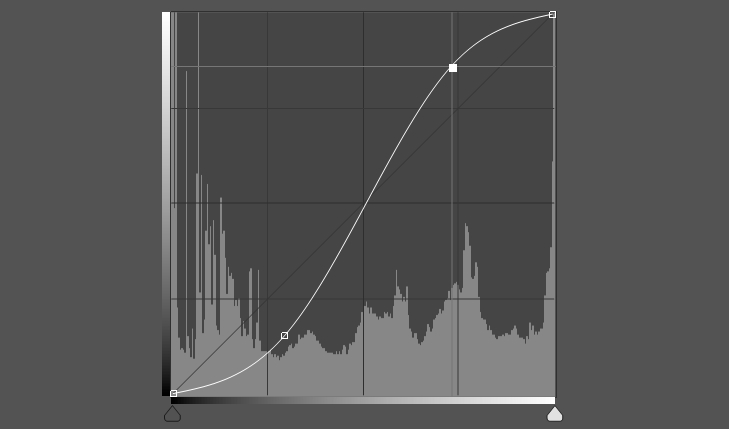
3. Increase Contrast (S-Shaped Curve)
4. Decrease Contrast (Inverted S-Shaped Curve)
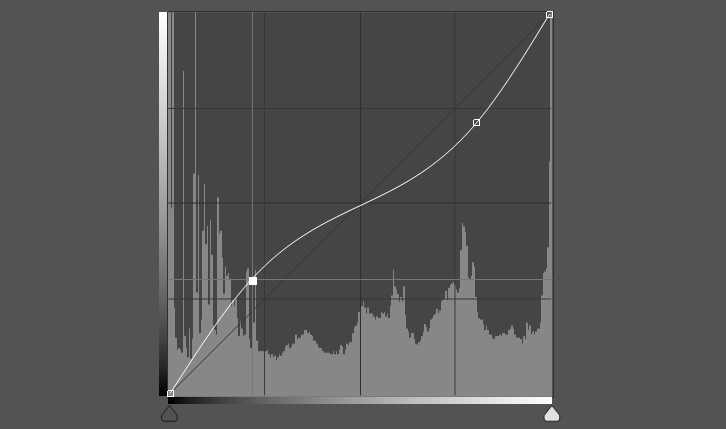
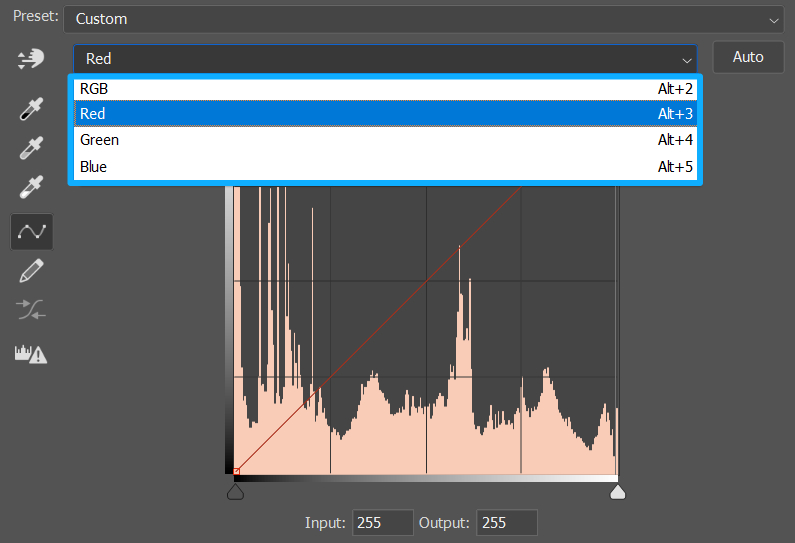
Also, the Curves tool can use the RGB composite channel to adjust overall brightness, contrast, and tonal relationships. You can also adjust the red, green, and blue curves separately to change hue by tonal zones, achieve color balance, or create creative color looks.
How to Use the Curves Tool in Digital Art?
Below, we'll share four Curves tool tips you'll definitely use in your digital art.
1. Image Looks Gray
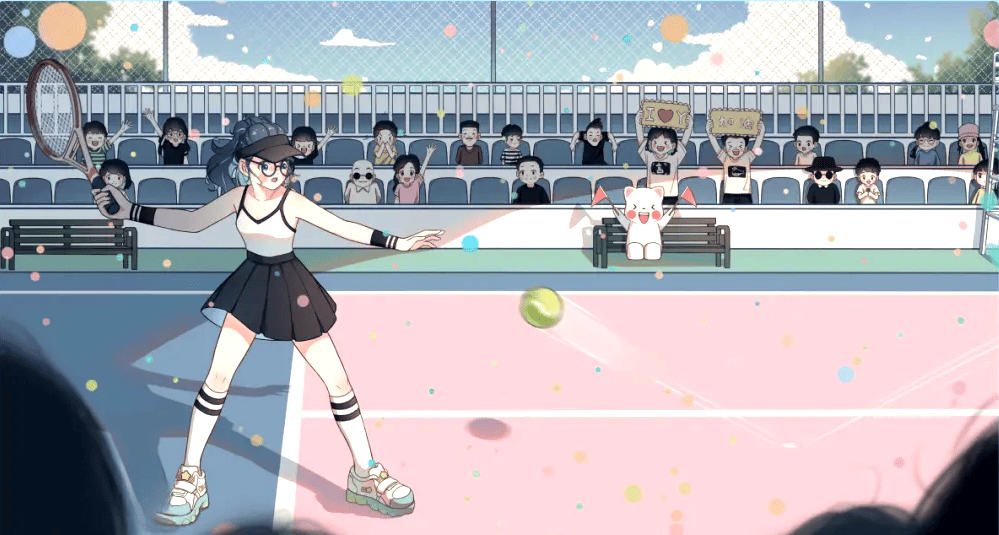
If your finished piece looks gray, pull the two anchor points for the brightest and darkest areas toward the ends of the histogram, making a reversed "Z" shape. This strengthens the black-and-white relationship.
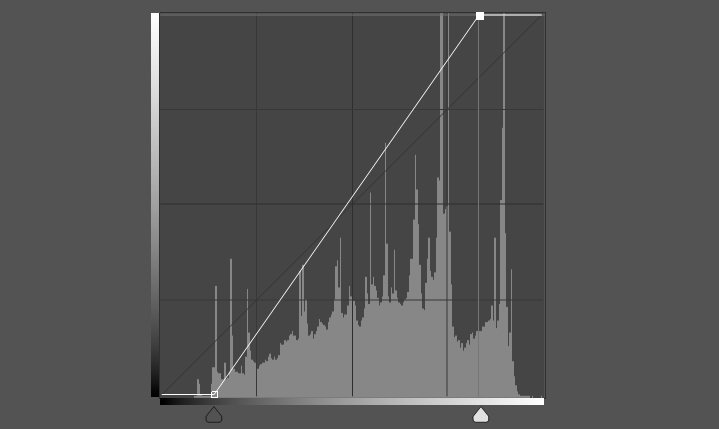
Below is the image before adjustment:
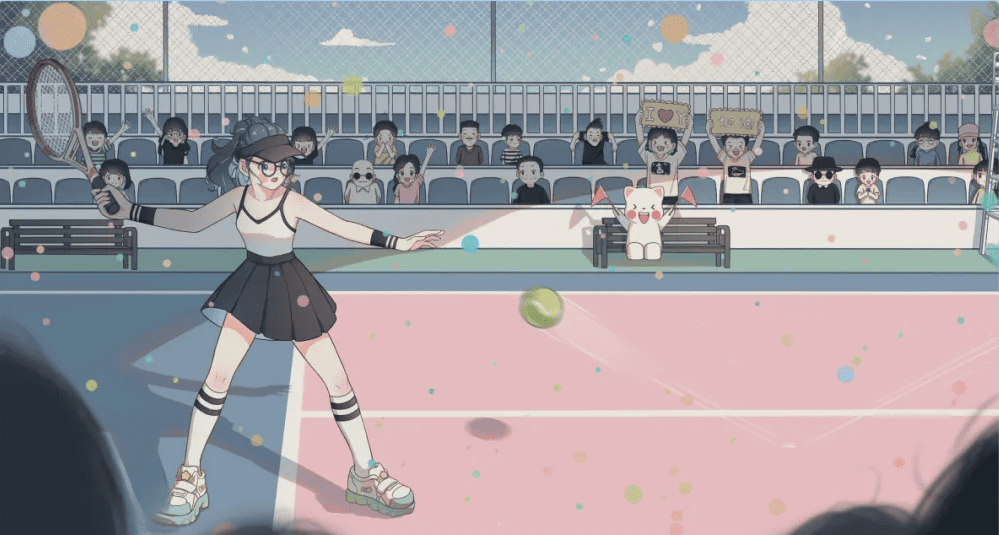
Below is the image after using Curves:
2. Light and Dark Areas Lack Separation
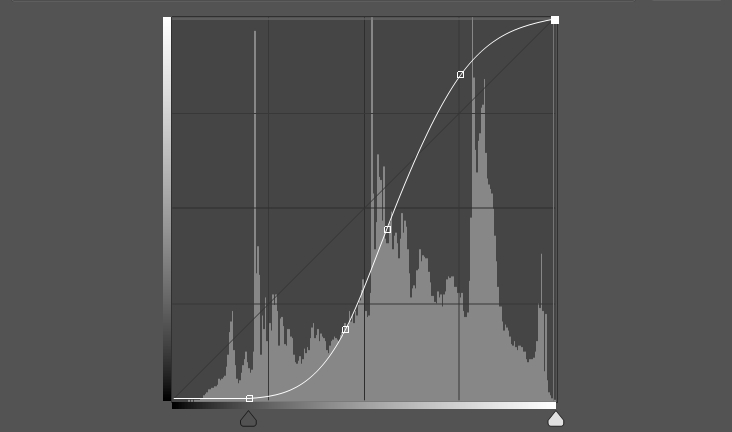
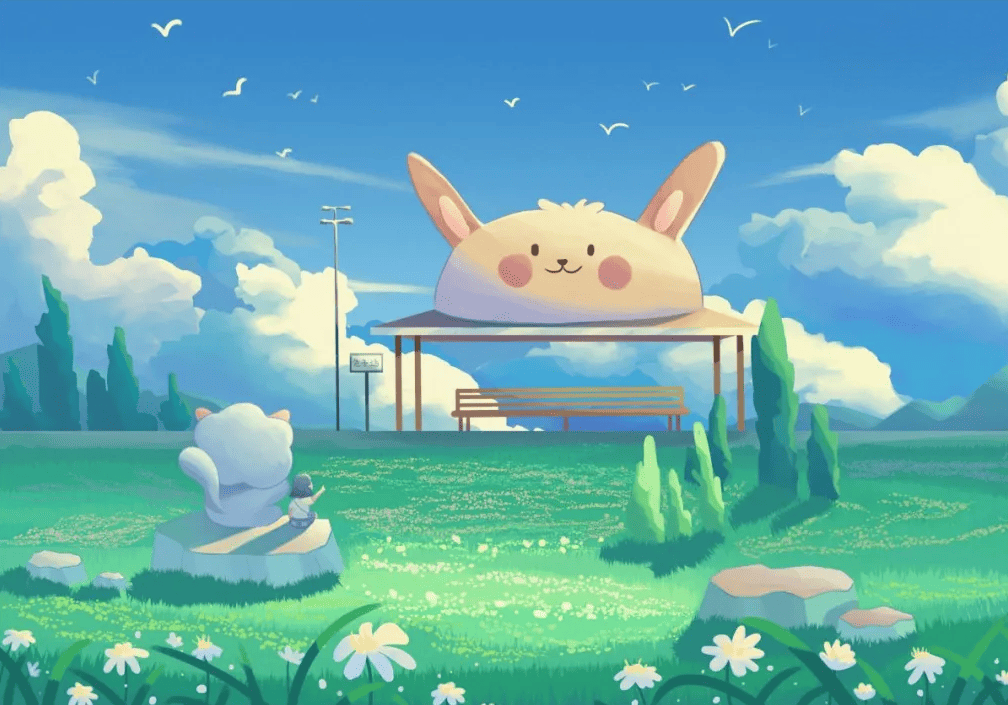
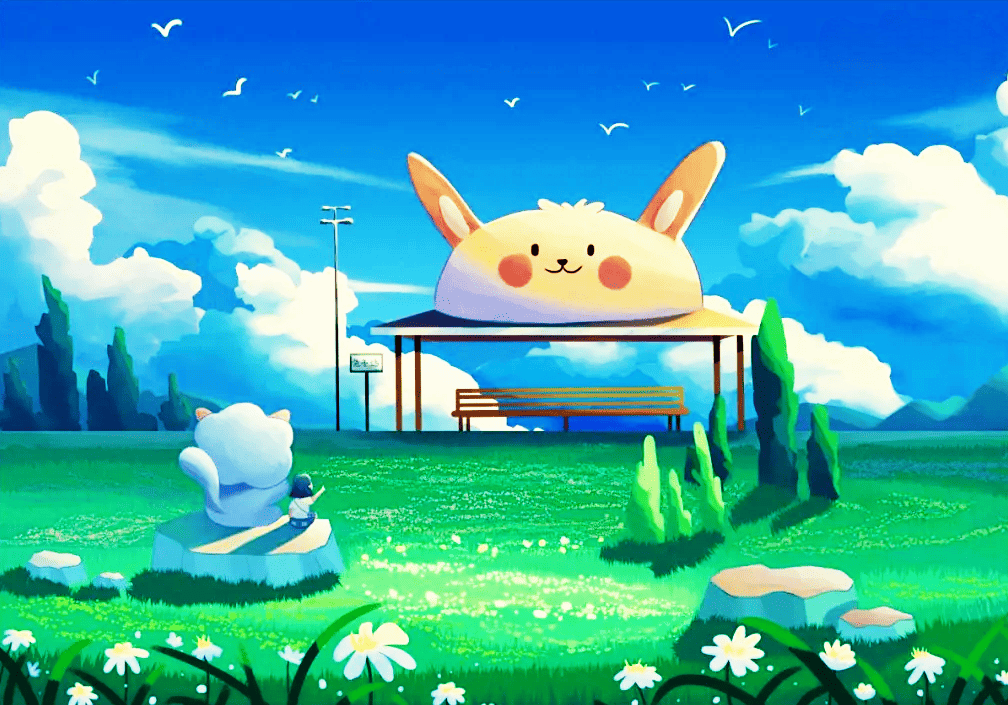
If your image has little difference or contrast between lights and darks, move the top and bottom anchor points and add transition points to adjust the highlights, shadows, and midtones.
Below is the image before adjustment:
Below is the image after using Curves:
3. Change Color Locally After Merging Layers
If you finish coloring and merge layers but then find a color you don't like, use a selection tool to select the area you want to change. Then add a few anchor points in Curves and drag them until the color looks right.
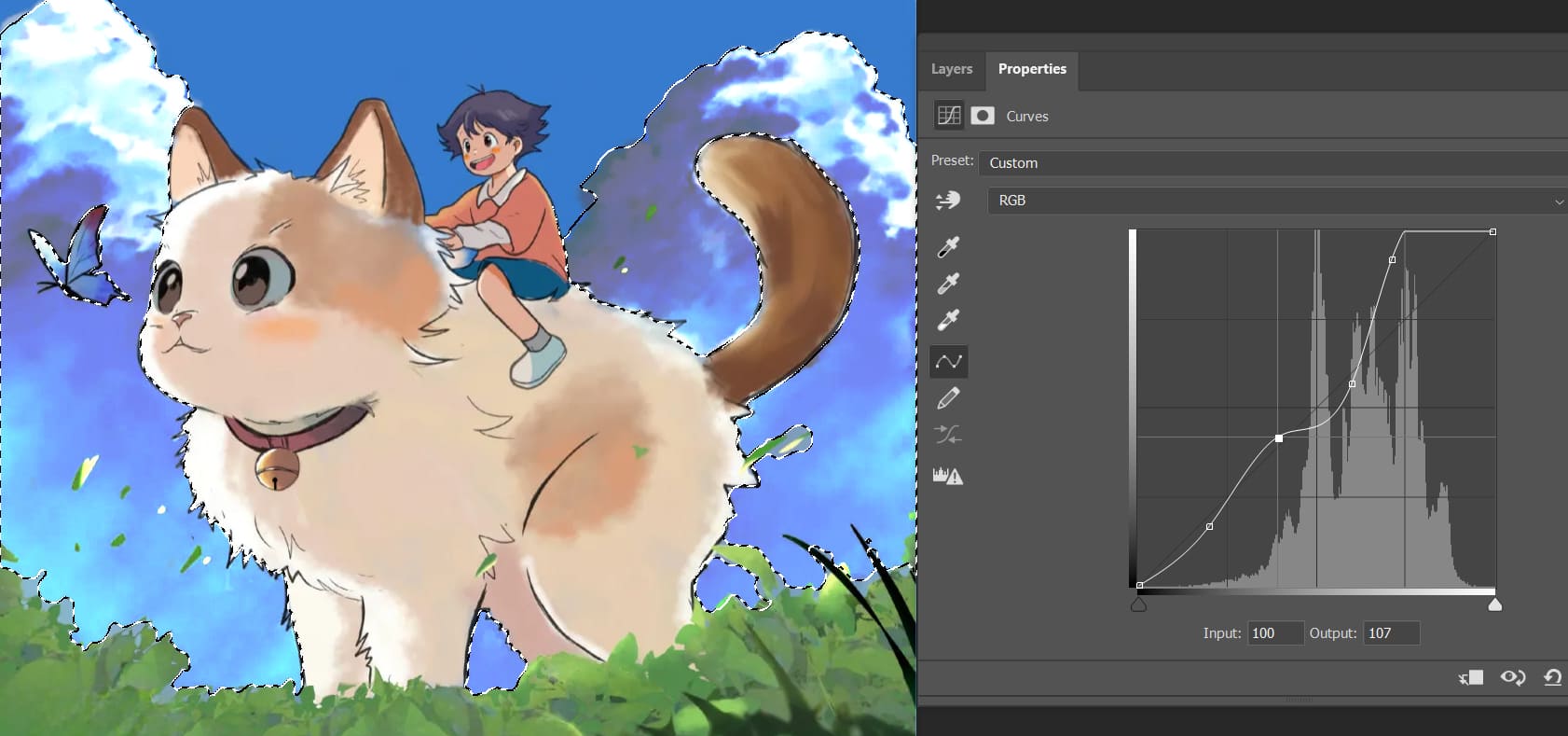
Below is the image before adjustment:

Below is the image after using Curves:

4. Image Lacks Atmosphere
If the image feels like it needs more atmosphere, use the RGB composite or the Red, Green, and Blue channels to adjust the color curves according to the colors you want.
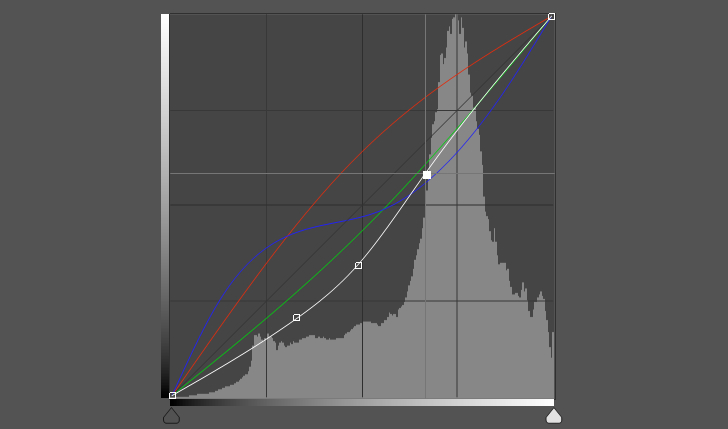
Below is the image before adjustment:

Below is the image after using Curves:

You can also use the Curves tool's Auto option to adjust the image with one click.
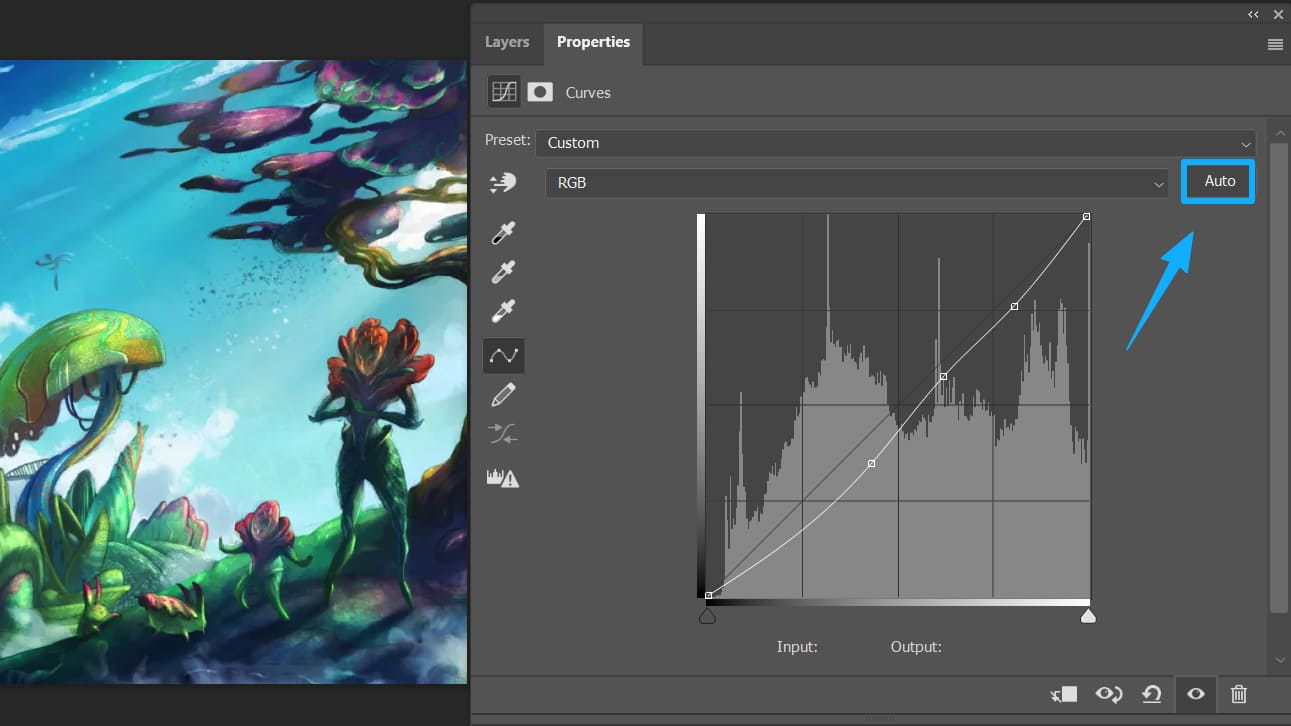
Conclusion
In this article, we shared some tips on how to use the Curves tool in digital art to adjust contrast and to achieve color balance and creative color grading.
You could say Curves is the most precise tool for color and brightness control. You can use it with adjustment layers and masks to make non-destructive, localized edits. You can also save common settings as presets, which makes it easy to keep a consistent style across different works.
One last quick ad. For every digital artist, creating involves many repetitive, tedious actions — like switching brushes, changing brush settings, zooming the canvas, and switching layers. These actions often interrupt your workflow and break your creative flow.

Now you only need a TourBox to map shortcuts and functions from your art software to its physical buttons and knobs. It also has many built-in features that give you more control and freedom. When you create, it feels like having a gamepad by your side — your workflow becomes smoother and more efficient.

If you also like creating on a tablet, consider our Elite Plus model. You'll enjoy the different creative experience it brings.


