How to Remove Green Screen in Davinci Resolve?
Today, we'll share an easy method to remove a green or blue screen in DaVinci Resolve. No plugins, no Fusion — just use the 3D qualifier and Alpha output on the Color page. Beginners can pick it up quickly. Let's get started!

In this article, you will learn:
- Step 1: Add the Clips to the Timeline
- Step 2: Enable the Alpha Output on the Color Page
- Step 3: Use the 3D Qualifier to Remove the Green Screen
- Conclusion
Step 1: Add the Clips to the Timeline
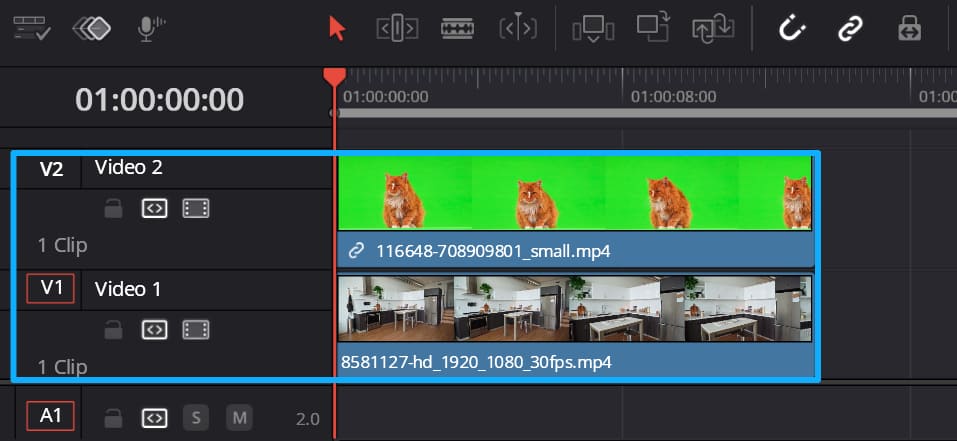
As shown, before you composite the green-screen clip with the background, add the clips to the timeline. Put the background clip on the V1 track, and place the green-screen clip above it on the V2 track.
Step 2: Enable the Alpha Output on the Color Page
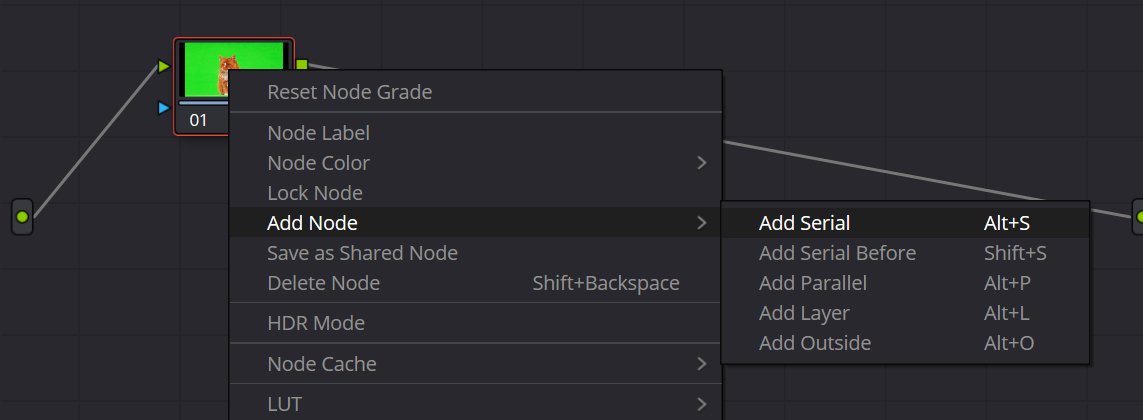
Select the green-screen clip on the timeline, then switch to the Color page in DaVinci Resolve. In the Node panel, use Node 1 to grade the image so the green and the edges are easier to see. With Node 1 selected, right-click → Add Node → Add Serial Node.
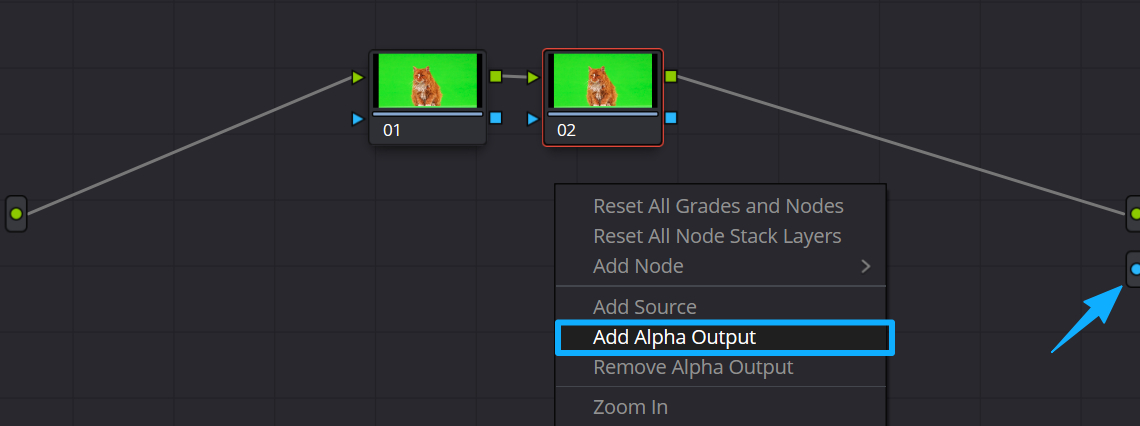
In the gray area of the Node panel, right-click and choose Add Alpha Output. A blue Alpha output port will appear at the far right of the Node Editor.
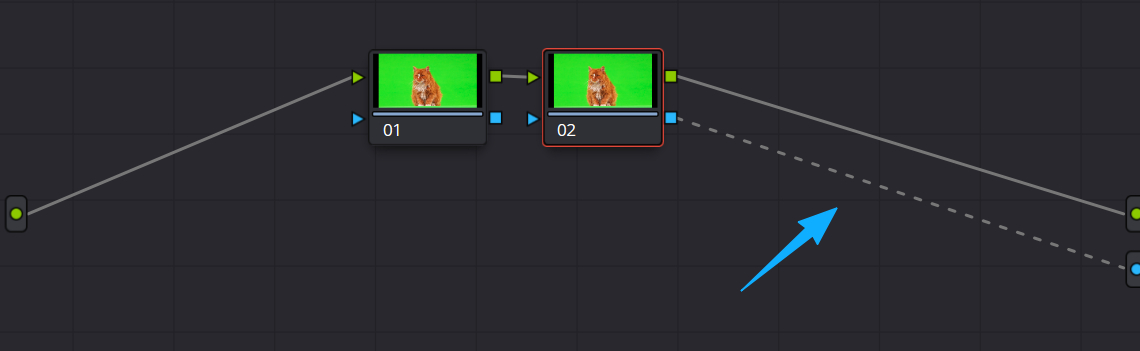
Connect the alpha output from Node 2 to that Alpha output port.
Step 3: Use the 3D Qualifier to Remove the Green Screen
In DaVinci Resolve, you'll use one main tool: the 3D qualifier. With Node 2 selected, do these steps:
- Go to the Qualifier panel.
- Choose the 3D Qualifier.
- Click the Picker.
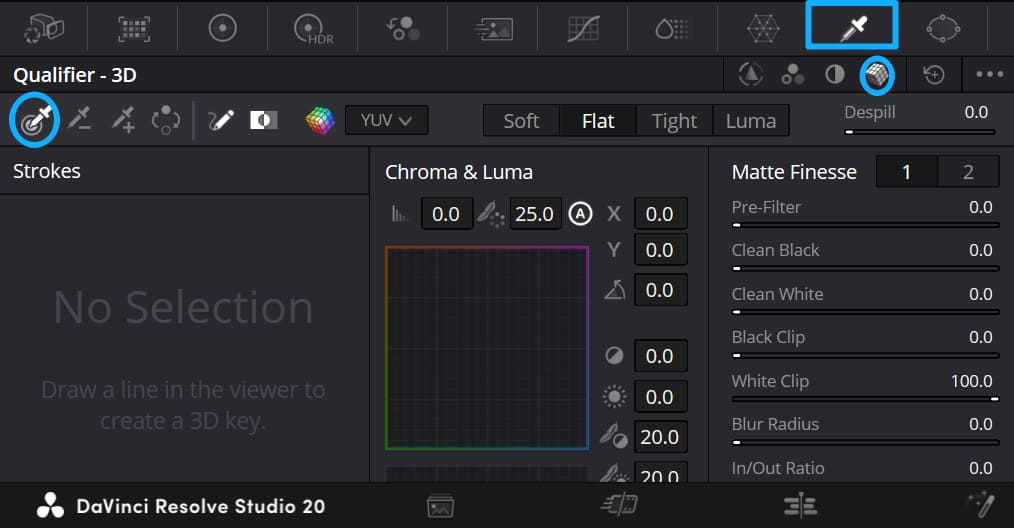
Tip: The qualifier has four types: HSL, RGB, Luminance, and 3D. The 3D qualifier has a cube icon. We'll show the 3D qualifier in this demo.
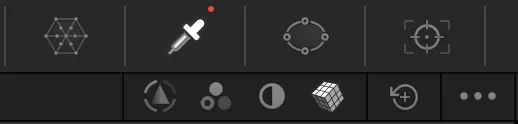
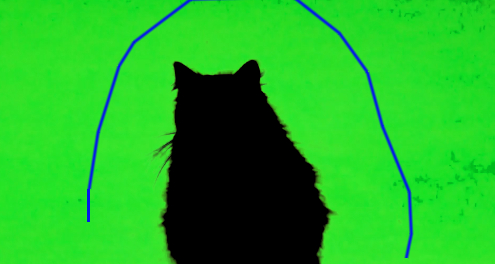
Use the picker to draw one continuous stroke over the green screen. That samples the green color.
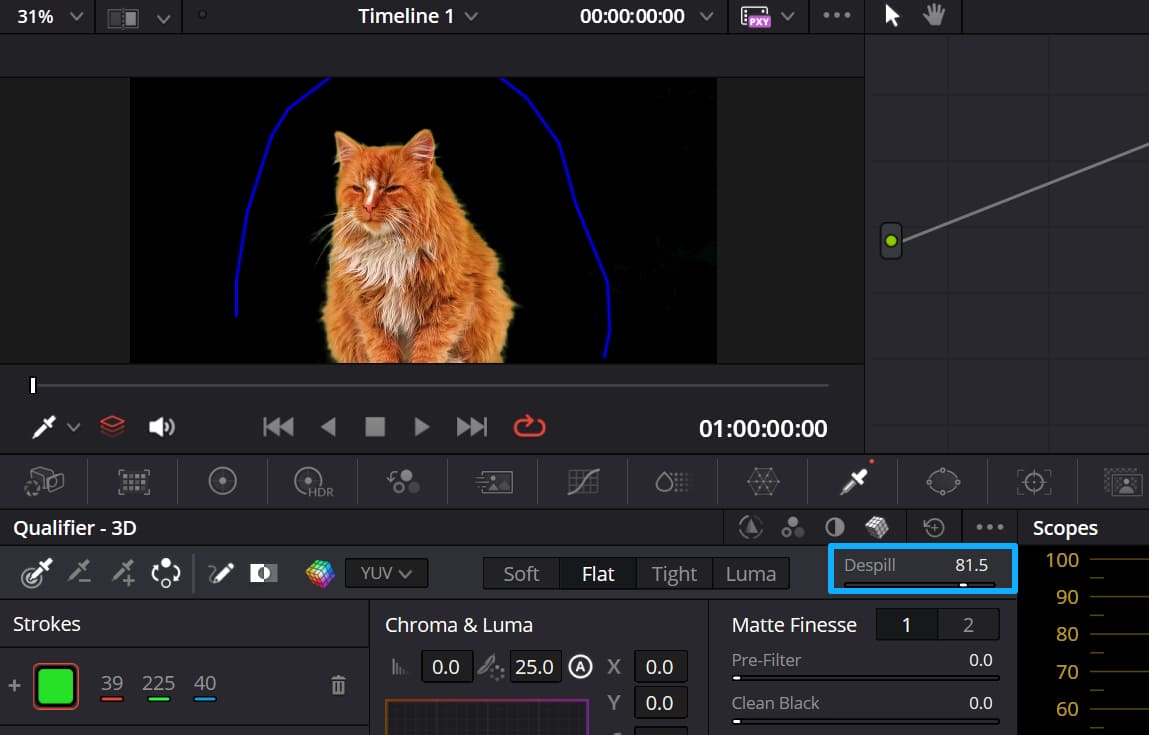
Next, click Invert. You should see the basic composite like the picture below.
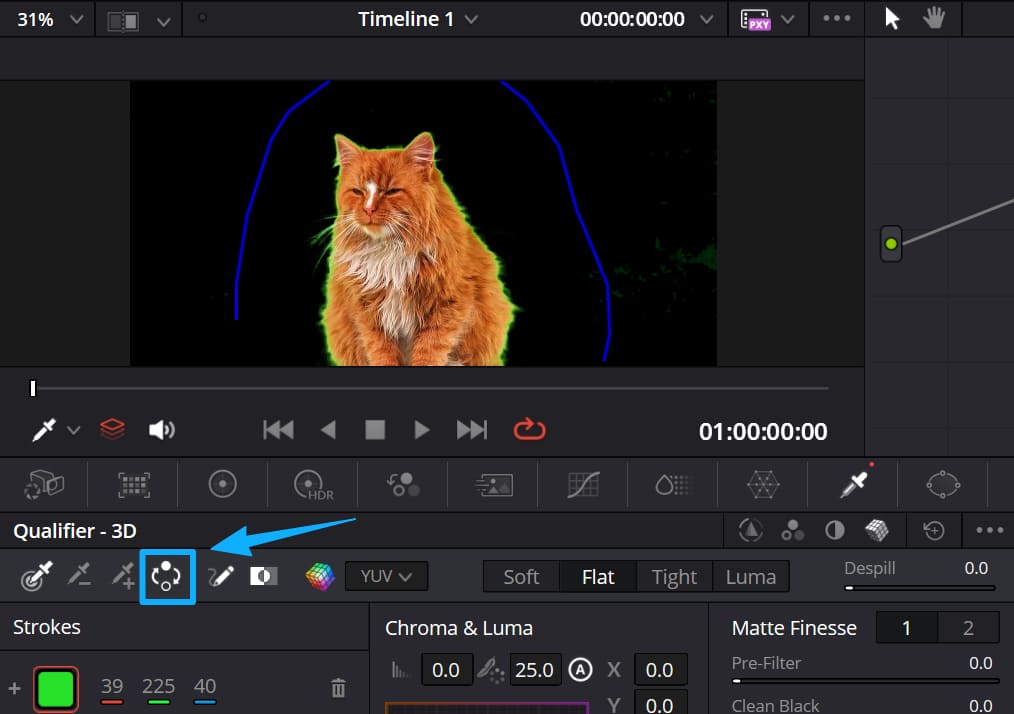
If you get green spill (or blue spill when keying blue), raise the Despill amount to reduce the fringe around the edges.
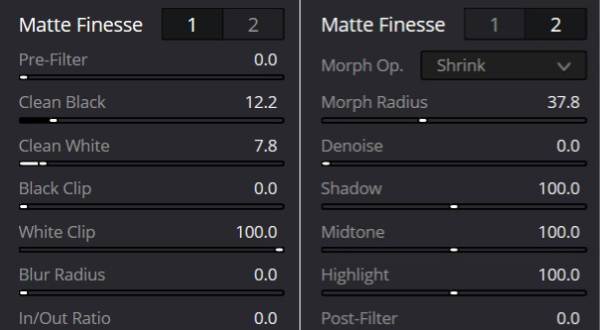
Keep adjusting the Matte Finesse controls until the matte edge looks cleaner.
Conclusion
With those three simple steps, you can easily remove a green screen in DaVinci Resolve. To make the blend look more natural, you can also grade the foreground and background clips so they match and fit your taste.
When you edit and color grade in Resolve, you'll use a lot of slider controls. Moving sliders with a mouse can be slow and not very precise.

If you have a TourBox, you can turn its physical knobs to change those tricky controls. That lets you make quick, accurate adjustments. The workflow feels like using a game controller — you can feel each small tweak under your fingertips. That kind of control is hard to get with a mouse and keyboard.

If you're interested in TourBox, click our link to learn more about how it helps in Resolve.


