The Ultimate Guide to DaVinci Resolve Keyboard Shortcuts
Still hunting through menus with your mouse? Want your video edits to be faster and smoother? Want keyboard shortcuts that match how you work? Want to open your favorite tools with a single key?
In DaVinci Resolve, you can set custom keyboard shortcuts for any function to match your workflow. You can even import your shortcut presets with one click when you switch to a new computer, so you don't have to spend time setting them up again. Now let's look at some tips for using shortcuts more efficiently in DaVinci Resolve.

In this article, you will learn:
- How to Open the Keyboard Customization Window?
- How to Switch Keyboard Shortcut Presets?
- How to View Keyboard Shortcuts?
- How to Search Keyboard Shortcuts?
- How to Set Keyboard Shortcuts?
- How to Manage Keyboard Shortcut Presets?
- Conclusion
How to Open the Keyboard Customization Window?
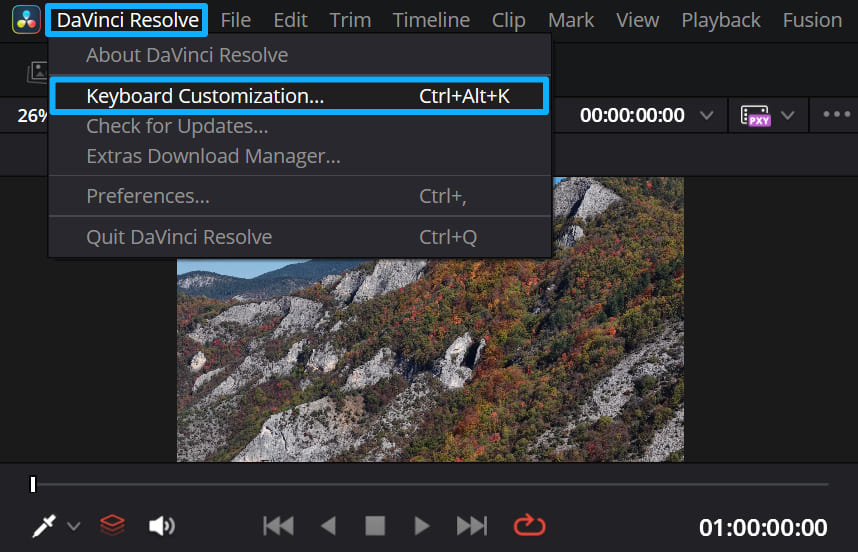
In the top menu bar, click DaVinci Resolve → Keyboard Customization to open the Keyboard Customization window.
How to Switch Keyboard Shortcut Presets?
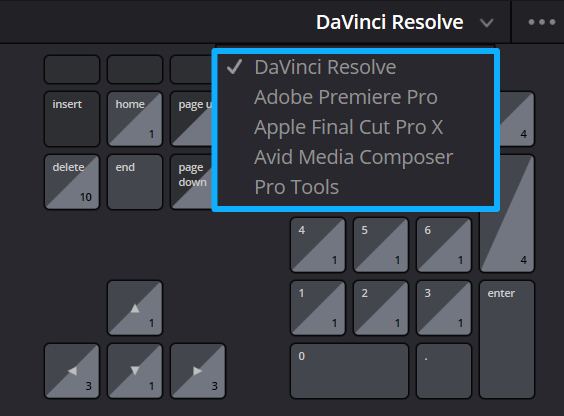
Click the ▼ menu at the top-right of the Keyboard Customization window. You can pick the default DaVinci Resolve preset, or choose presets from other NLEs you may be used to, such as:
- Adobe Premiere Pro
- Apple Final Cut Pro X
- Avid Media Composer
- Pro Tools
Shortcuts can only be remapped to commands that actually exist in DaVinci Resolve. If a specific feature in another NLE has no equivalent in DaVinci Resolve, that shortcut may not map the same way. Still, Resolve's editing features overlap a lot with other NLEs, so most common commands will have equivalents.
How to View Keyboard Shortcuts?
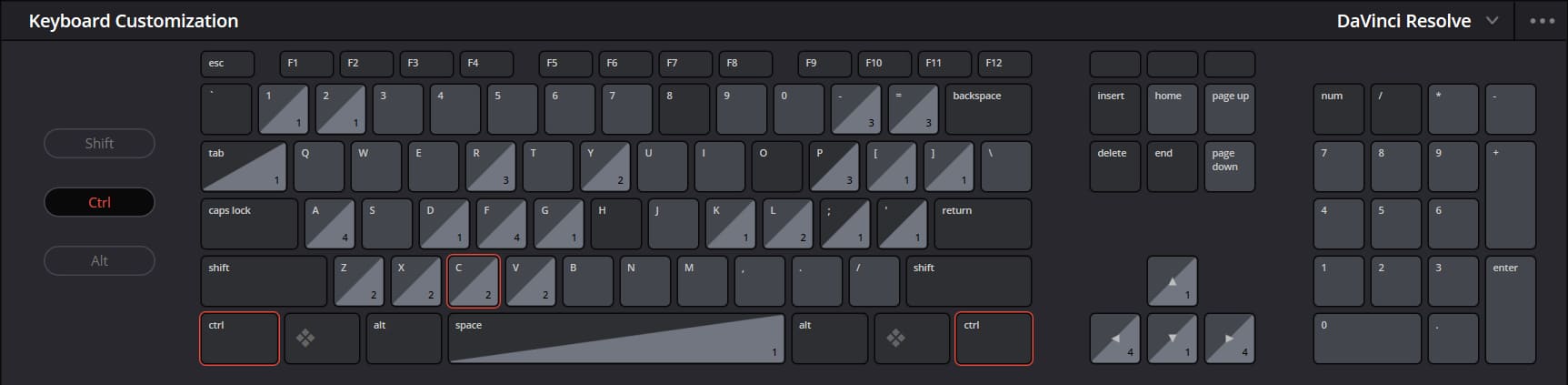
To see which command a key (or key combo) is mapped to, click keys on the on-screen keyboard in the window. For example, click Ctrl/Command, then click C.
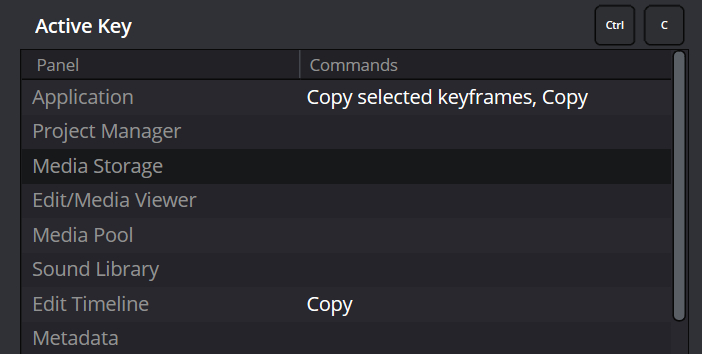
The mapped command will show in the "Active Key" area.
Since DaVinci Resolve 15.2, you can assign multiple keys or key combos to the same command. Also, the number pad on extended keyboards can be assigned separately from the number keys at the top of the main keyboard.
How to Search Keyboard Shortcuts?
Whether you want to see which shortcuts are available or you want to find a command to customize, there's a search box above the command list. Use it to find any command you need.
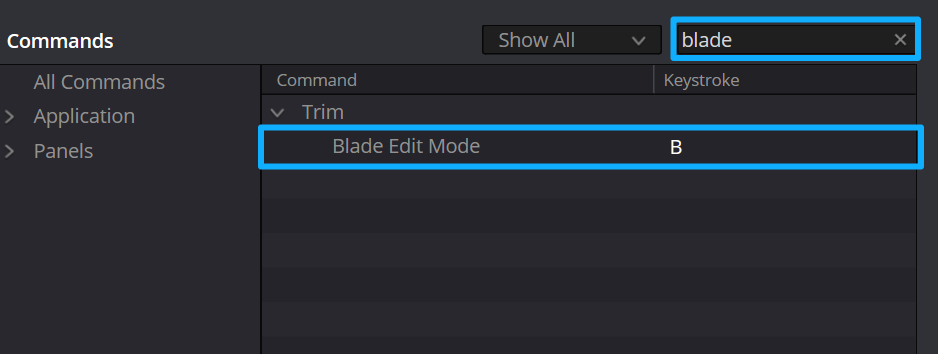
If you want to find a specific shortcut, like the Blade tool, type the tool name (e.g., “blade”) into the search box. The command list will update and show all commands that match your search.
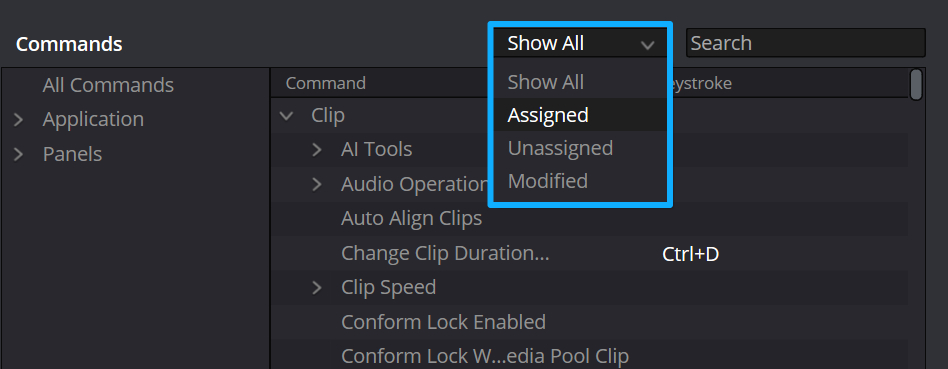
If you're not sure whether a command already has a key assigned, check the status dropdown next to the search box. It shows each command's assignment status.
How to Set Keyboard Shortcuts?
You can customize any shortcut you want. The command list at the bottom of the window shows each command's menu location. You can remap each command there. Here are two simple examples that show how to set shortcuts in DaVinci Resolve.
1. Set a Shortcut for "Create Subtitles from Audio"
- Type "Create Subtitles from Audio" in the search bar and find it under AI Tools.
- In the Keystroke box, press the letter H. Click Save, then Close.
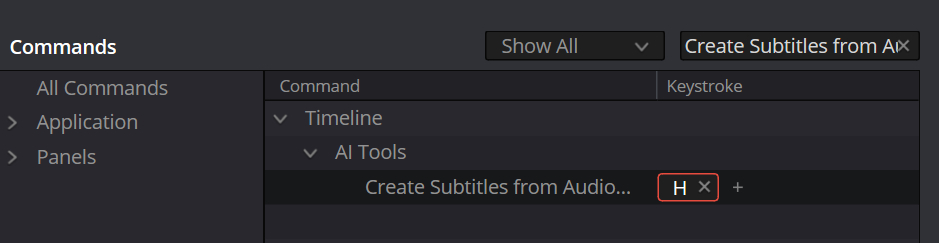
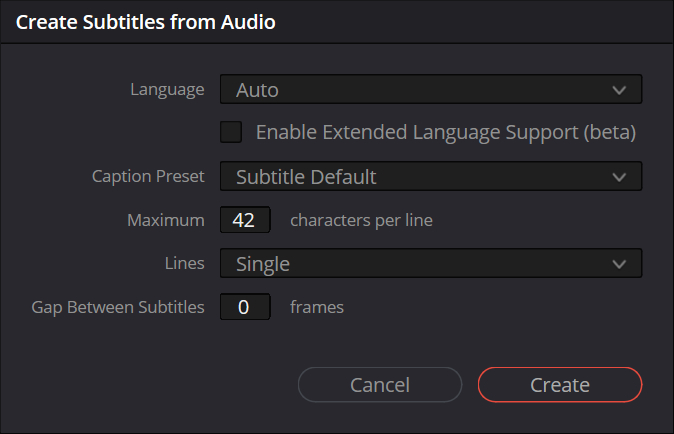
Test it: go to the Edit page, open a timeline, and press H. The "Create Subtitles from Audio" window will open. After the software analyzes the audio, subtitles are added to a subtitle track automatically.
2. Set a Shortcut for "Detect Scene Cuts"
Search for "Detect Scene Cuts" and enter a key for it. If you try to use H again, Resolve will warn you that H is already assigned to "Create Subtitles from Audio."
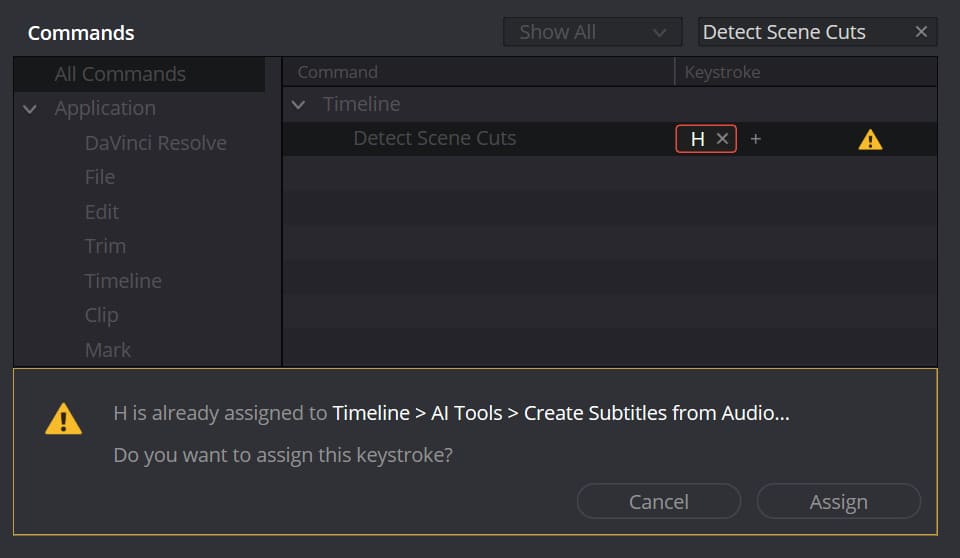
To avoid a conflict, click Cancel and choose a different key or key combo.
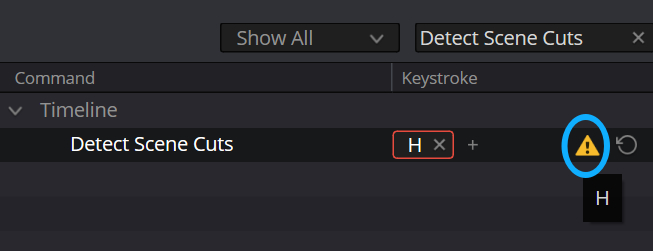
However, if you click Assign despite the warning, a warning icon will appear next to the key in the list. You can ignore it, but using the same key for multiple commands can cause issues. Click the × next to H if you want to unassign it and pick another key.
You can also tell which keys are taken by looking at the on-screen keyboard colors:
- Light gray = key is assigned.
- Dark gray = key is not assigned.
For example, "0" is dark gray, so it's not assigned. "P" is light gray, and "]" is half light gray and half white; both show assigned keys.
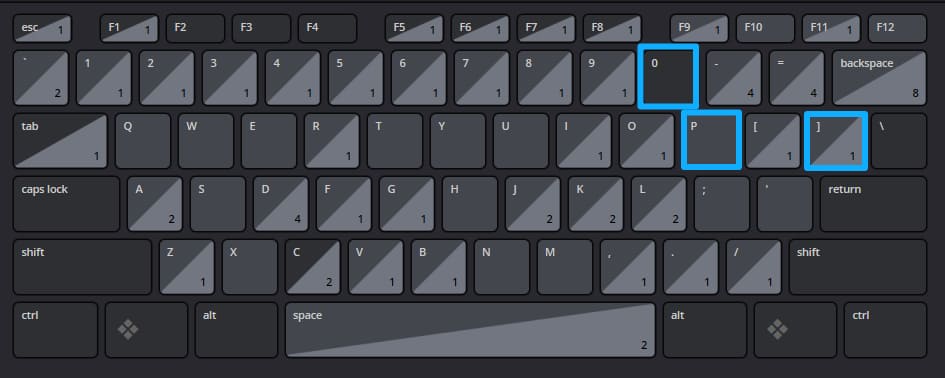
Say you choose 0. You won't get an error. Close the Keyboard Customization window and go back to the Edit page.
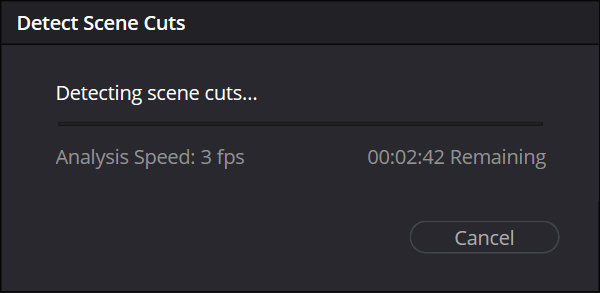
With a full clip on the timeline, press 0. Resolve will run Detect Scene Cuts and split the clip at shot changes. This makes it easy to re-edit or send clips to color grading.
How to Manage Keyboard Shortcut Presets?
In the Keyboard Customization window of DaVinci Resolve, the three-dot menu (...) lets you import, export, save, and delete presets. This helps you work faster:
- Save as New Preset: Choose a preset from the ▼ menu as your starting point. Make your changes. Then open the three-dot menu and pick Save as New Preset. Type a name for the preset and click OK. The new preset will appear in the ▼ menu.
- Export Preset: To use a preset on another computer, open the three-dot menu and choose Export Preset. Pick the preset you want to export. Choose a file name and location, then click Save.
- Import Preset: To load a preset from another computer, open the three-dot menu and choose Import Preset. Select the DaVinci Resolve preset file and click Open. Now you can use that preset on this computer without redoing all the settings.
- Delete Preset: Select the preset you want to remove and click the delete button.
Conclusion
In this tutorial, we shared several tips for using keyboard shortcuts in DaVinci Resolve, including how to view, set, and manage them. I hope this helps you make better use of Resolve's keyboard customization.
Still, with so many shortcuts, remembering them all is hard. You may forget a shortcut from time to time and waste time trying to recall the right key combo. That breaks your flow. And if a shortcut is something like Ctrl/Command + Shift + L (just an example), you might not be able to press it with one hand — you'd need both hands. That's awkward. Is that shortcut really worth it?

If you have a TourBox, you don't have to memorize dozens of shortcuts. You can map your most-used Resolve shortcuts to TourBox's physical buttons and dials. That turns slow, mental recall into fast, intuitive muscle memory.

TourBox also includes built-in features like HoverAdjust that simplify color work and make parameter tweaks more precise. If you're curious, click our link to learn more.


