How to Extract Frames from a Video in Photoshop?
In daily work, we often need still images, but sometimes all we have is a video. How can you extract a frame from a video and save it as an image?
You might think of taking a screenshot on your phone or computer to grab a frame. But screenshots can be blurry, and they're not very convenient. You may need to try many times to catch the exact frame you want.
Actually, you can use Photoshop to extract frames from a video and export them as images. In this article, let's walk through how to do that.

In this article, you will learn:
- Why You Can Extract Frames from a Video?
- How to Extract Frames from a Video in Photoshop?
- How to Export Photoshop Layers as JPEG Files?
- Conclusion
Why You Can Extract Frames from a Video?
Videos are made of individual frames. If you pull a frame out of a video, you get a still image.
Next, we'll use Photoshop's Video Frames to Layers command. This command turns every frame in a video, or just a selected range of frames, into separate layers, which can be saved as images.
We'll use the video below for the demo:
How to Extract Frames from a Video in Photoshop?
First, import the video into Photoshop — but don't do this by dragging the file in. Use the Video Frames to Layers command.
On Photoshop's main screen, go to File → Import → Video Frames to Layers. A dialog box will open.
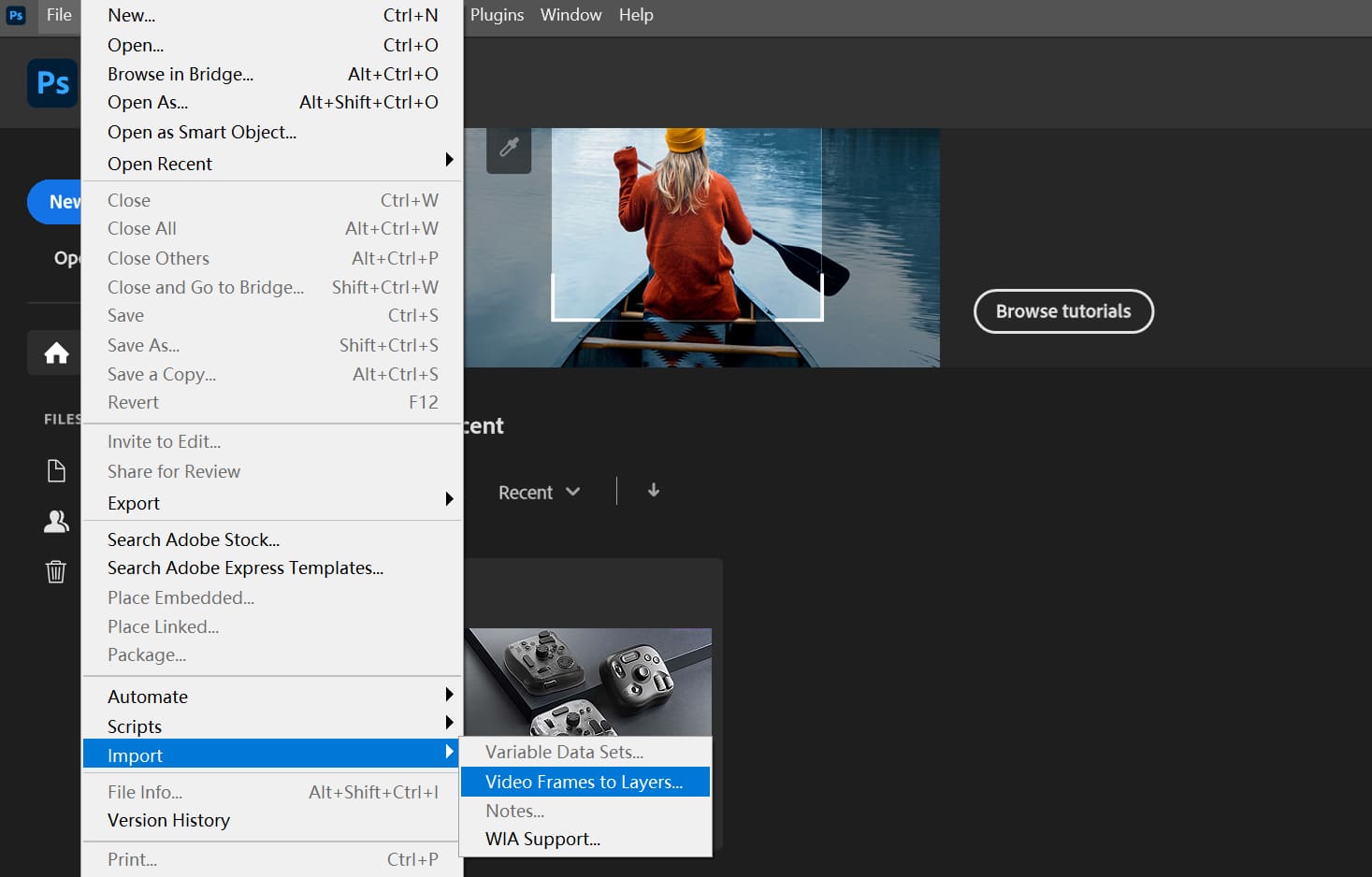
The dialog is easy to understand. First, pick the Range to Import.
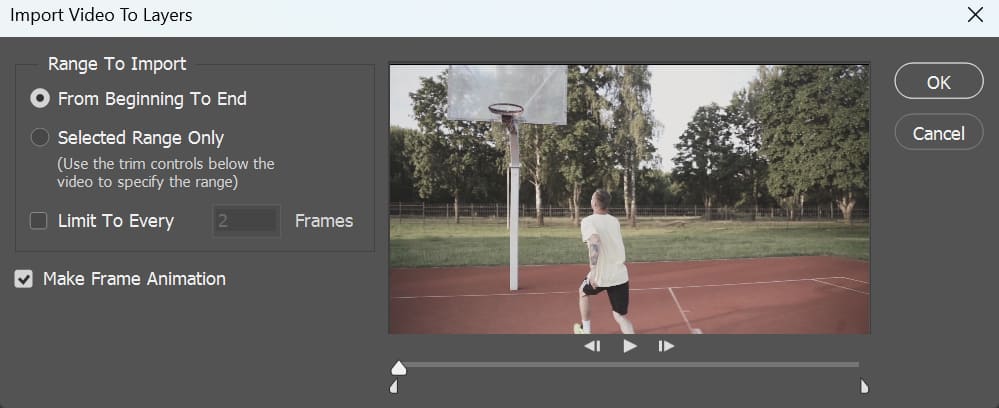
If you want the entire clip, choose the default From Beginning To End.
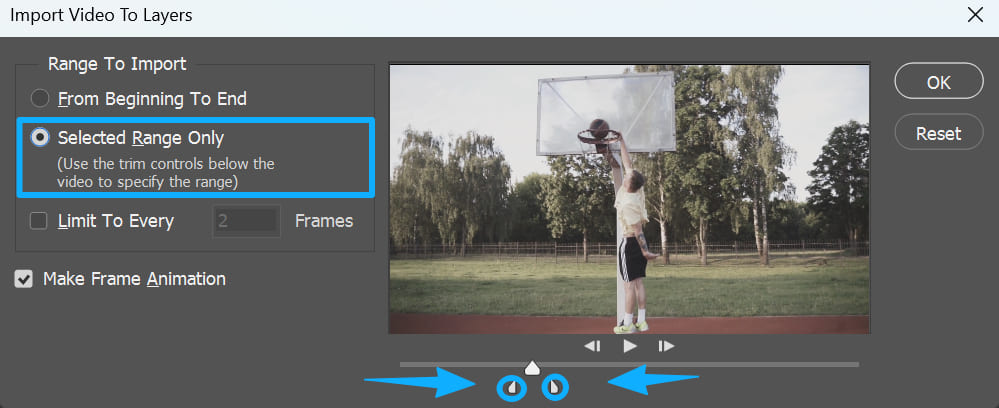
Most of the time, you only need a short section. To import just part of the video, choose Selected Range Only and use the trim controls under the preview to set the start and end points.
If you want to import every Nth frame (for example, one frame every 10 frames), choose Limit To Every X Frames and enter the number. This option can be used together with the range settings.
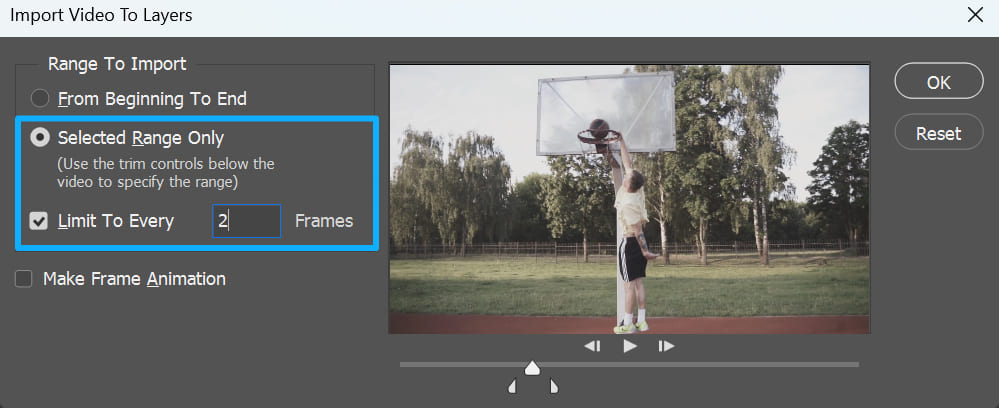
If you don't want a frame animation, uncheck Make Frame Animation.
Click OK, and Photoshop will turn the video into many layers — each layer is a separate image.
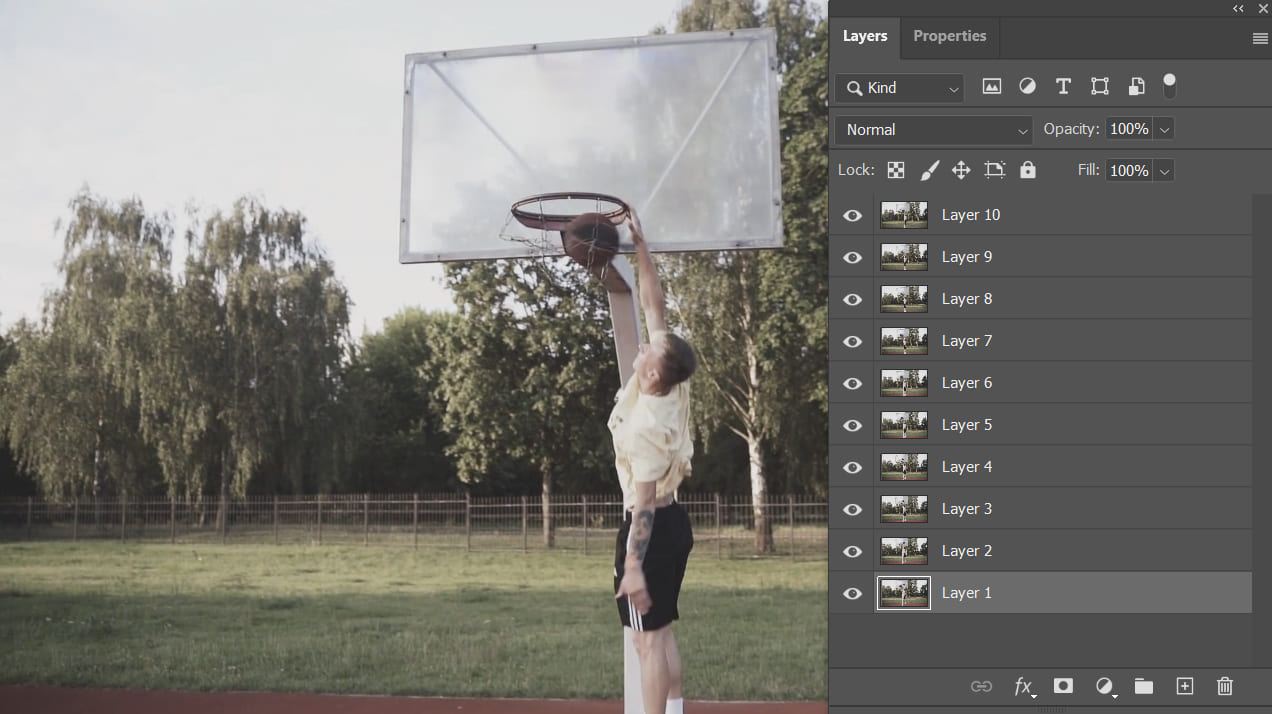
How to Export Photoshop Layers as JPEG Files?
In the last section, we showed how to extract frames from a video in Photoshop and export the frames as layers.
In our example, we exported 10 layers. You can pick and export the layers you want one by one. But if you want to export all layers at once, do this:
From the top menu, choose File → Export → Layers to Files.
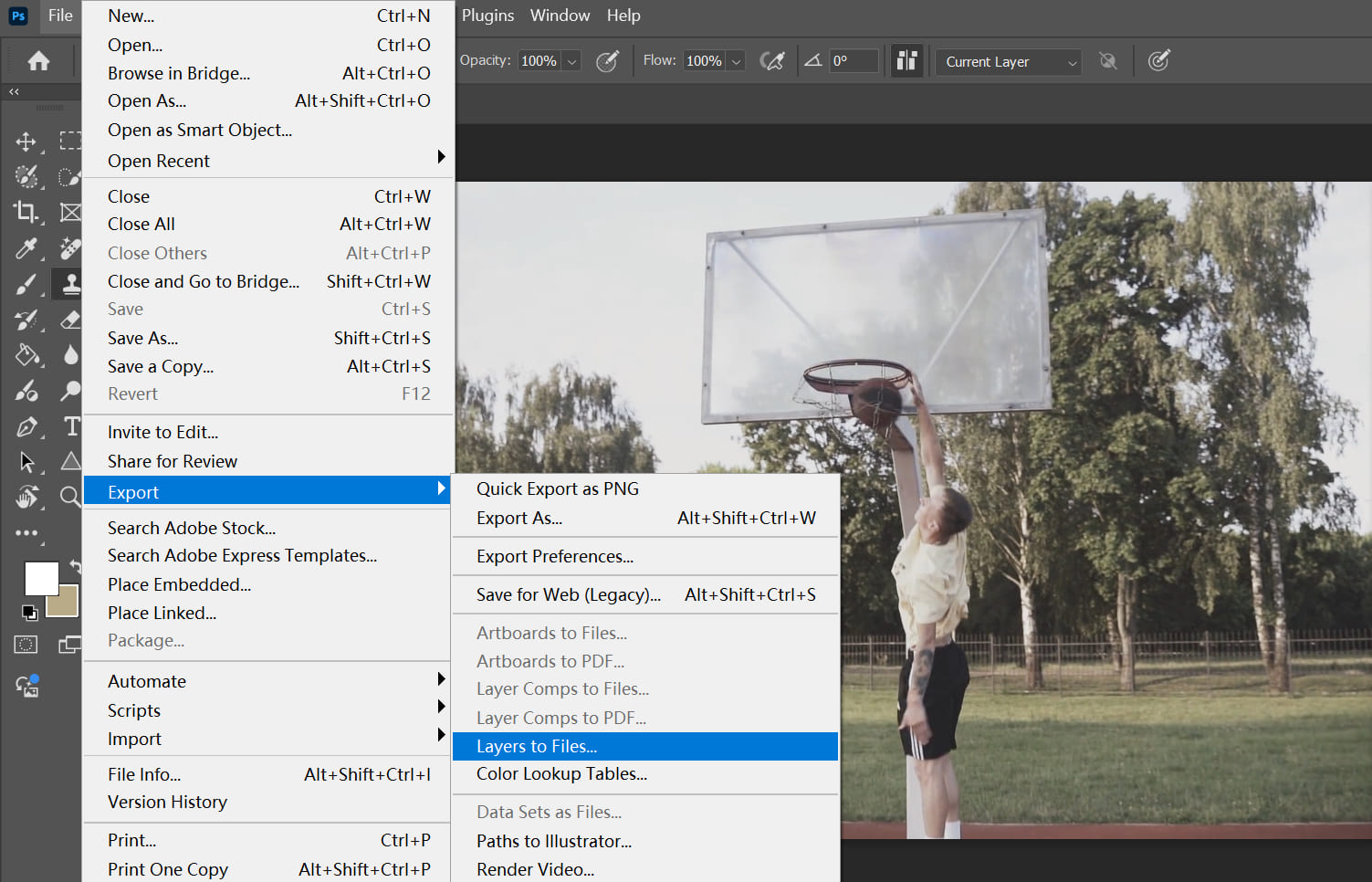
A dialog box will appear where you can set options to match your needs.
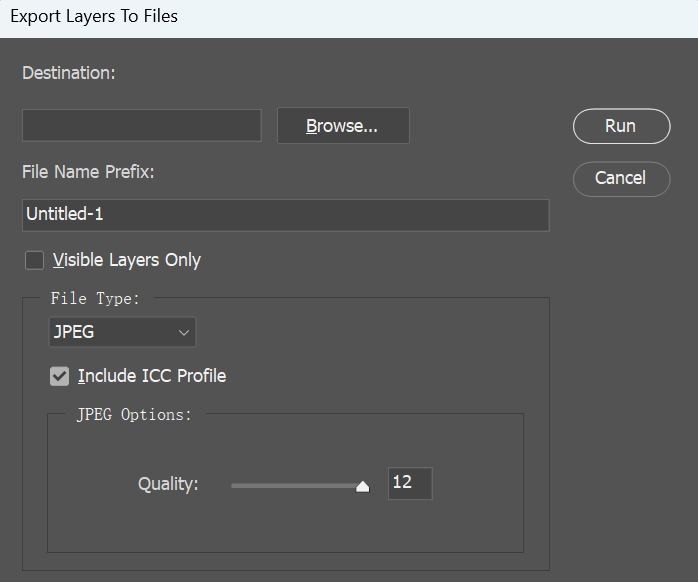
Click the Run button. The exported images will be saved to the folder you selected.
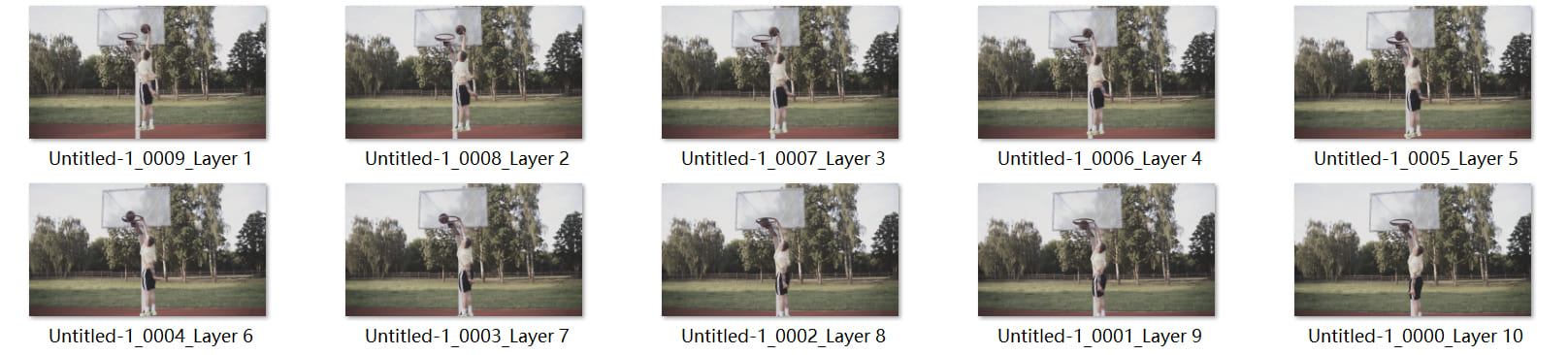
Conclusion
In this article, we showed how to use Photoshop to extract frames from a video. Once you learn this simple method, you won't need to rely on a blurry screenshot anymore.
If you use creative software like Photoshop a lot, you pick up a lot of keyboard shortcuts to speed things up. The problem is, memorizing them isn't easy — and not every action has a shortcut.

That's where a TourBox controller makes life easier. You can map your favorite shortcuts to TourBox's physical buttons and dials. For actions that don't have shortcuts, TourBox also offers many built-in features that expand what you can do.

Like using a game controller, TourBox can boost your speed and make editing more fun. Click our link to learn more.


