How to Fill Color in Photoshop?
Most of Photoshop's color tools tweak tones based on an existing color, so they have limits. Here we'll look at a tool that adds a tone directly: Fill Color (Fill). Fill Color simply adds a color, letting you turn any color into the tone you want. No long intro — let's use two quick examples to learn how to fill color in Photoshop.

In this article, you will learn:
- Example 1: Change a Subject's Clothing Color
- Example 2: Change the Color of a Snowy Mountain
- Conclusion
Example 1: Change a Subject's Clothing Color
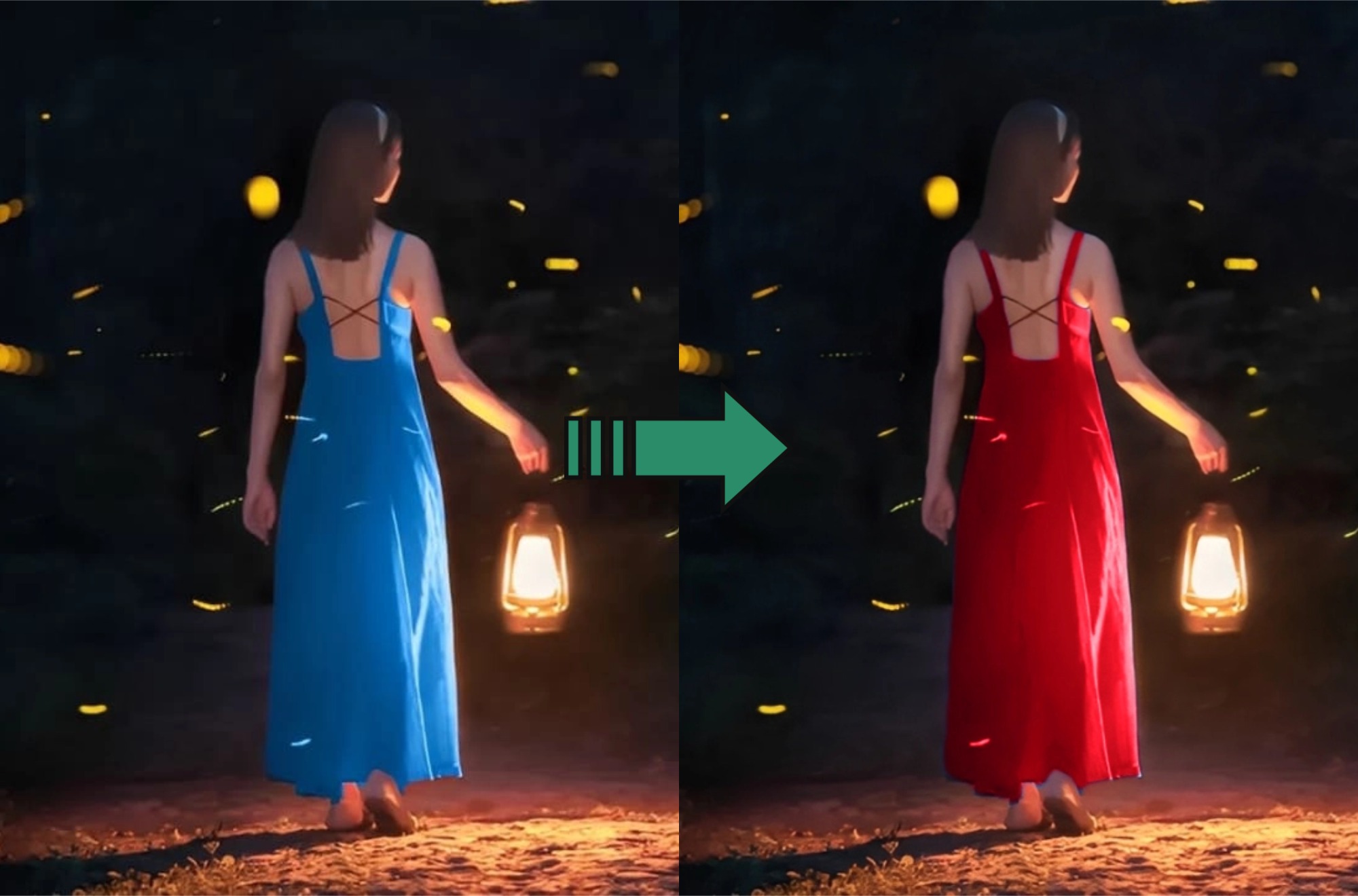
In the first example, we'll turn the blue dress in the photo below into red. The tool we'll use is Photoshop Fill.

First, use the Quick Selection tool to select the dress. We don't recommend Color Range here because the dress highlights are very close to the skin tone, so Color Range can't be precise enough.
Next, go to the menu bar, choose Edit, then select Fill.
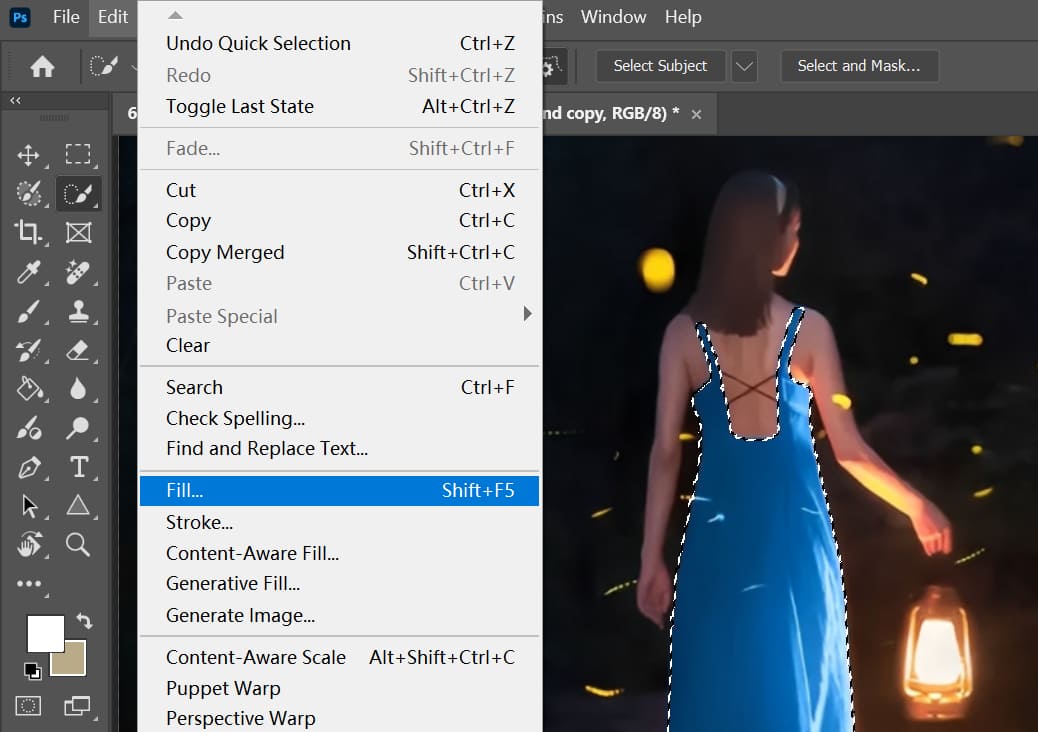
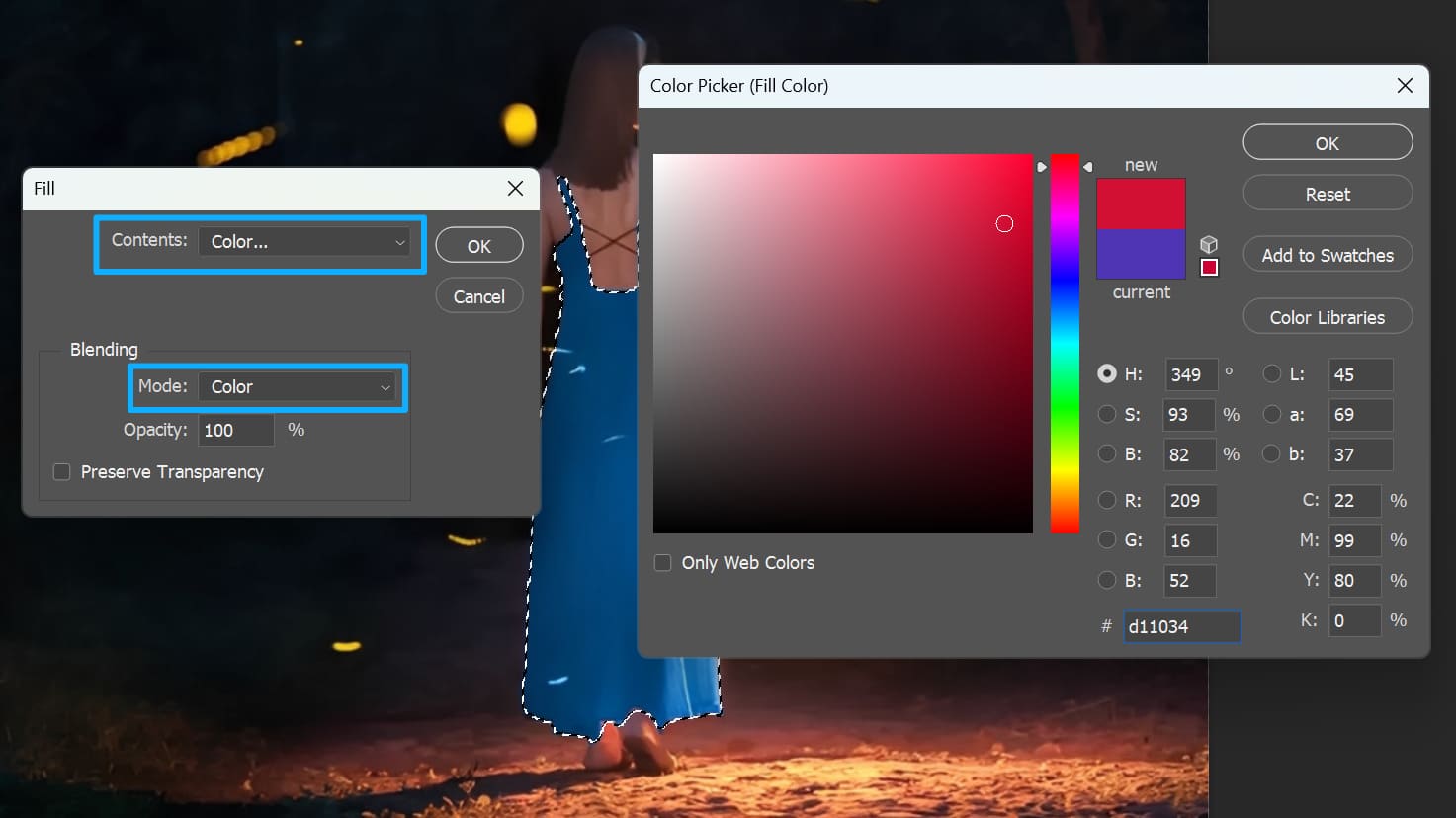
- Set Contents to Color. Pick the color you want to fill with.
- Set Mode to Color. This fills the tone naturally while keeping the image's details and brightness.
After filling, the result looks like the image below. That may not be your final look, so you can fine-tune from here.

You can add adjustment layers that affect only the selection. For example, use Curves to tweak the selection's lightness, and use Hue/Saturation to lower the blue saturation. Further adjustments depend on your specific photo.
Below is the before-and-after comparison. This kind of hue replacement is hard for other color tools. The Hue control in Hue/Saturation can't always get the exact color you want, so Fill is a quick and direct method.
Example 2: Change the Color of a Snowy Mountain
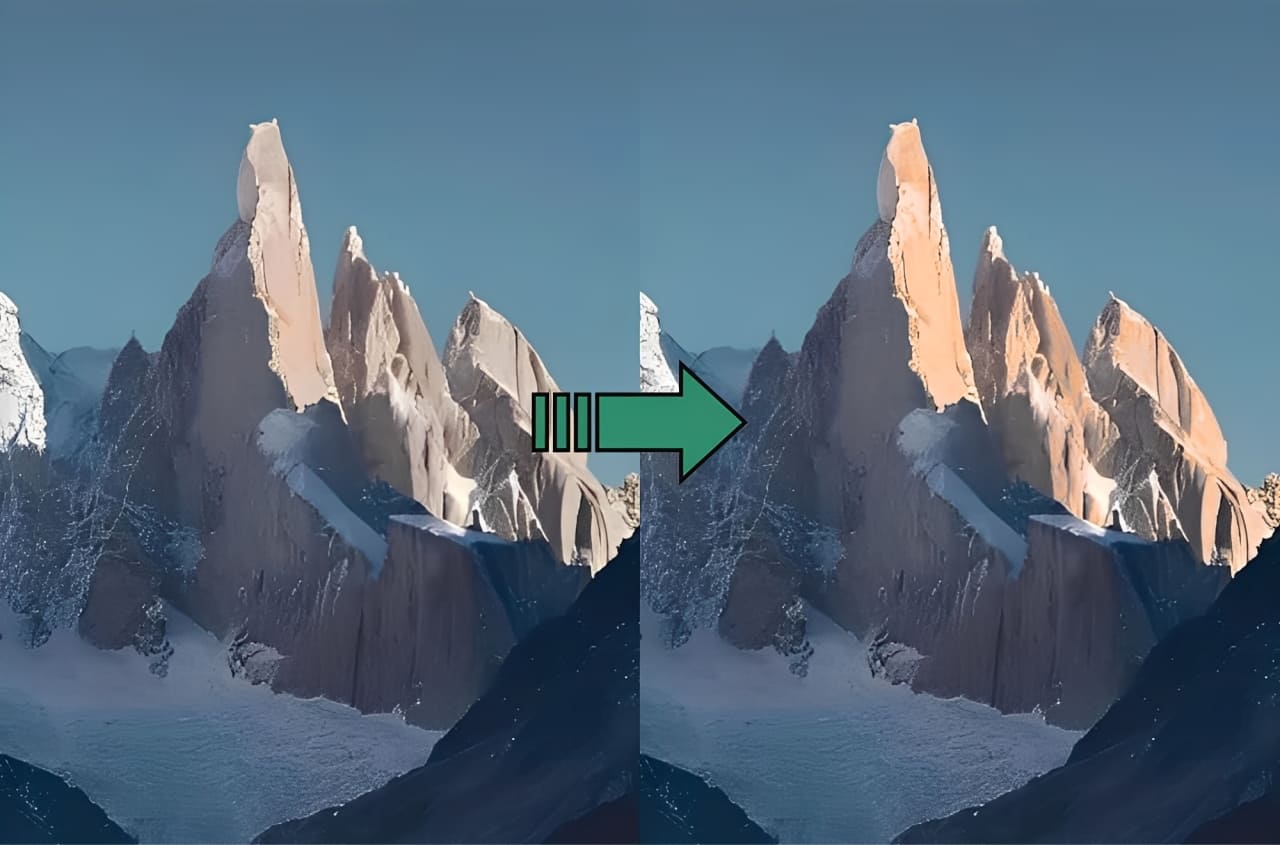
In the second example, we'll use Photoshop's Fill to change the mountain in this stylized photo. Our goal is to turn the flat-looking snow into a sunlit, golden peak.
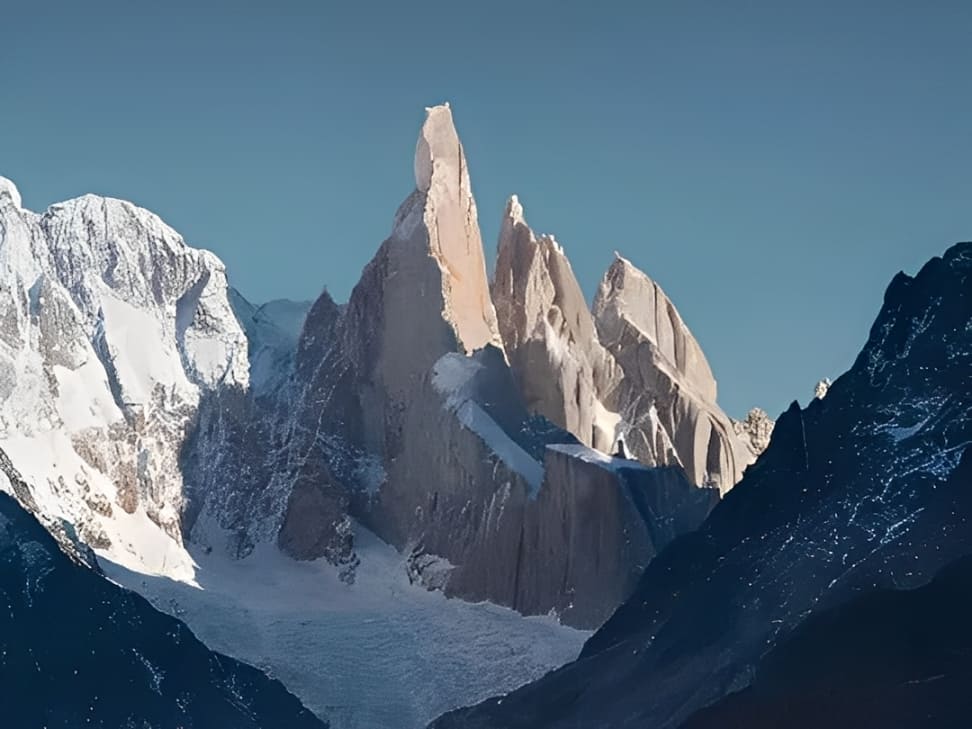
This time, use Color Range to select the gray of the rocks. There are shadow areas on the rocks, and you shouldn't fill those — that would look wrong. Because of the shadows, Quick Selection is not a good choice. It's hard to avoid the shadow areas with that tool.
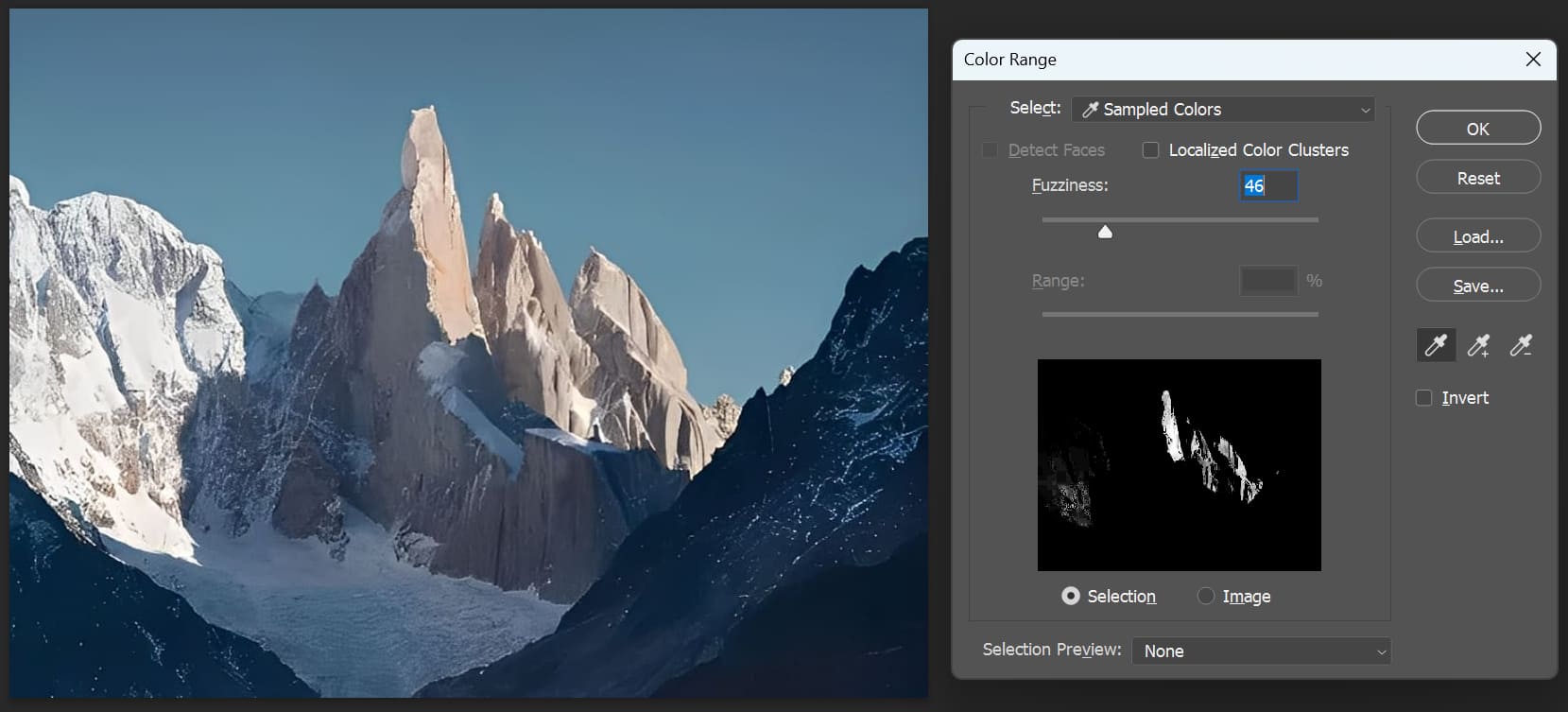
Next, repeat the steps from the first example: go to Edit > Fill.
- Set Contents to Color. Sample a yellow you like.
- Set Mode to Color. So the tone blends naturally while keeping the image's details and brightness.
After filling, you can fine-tune. Since the yellow now only affects the mountain, you don't need to duplicate the selection. Just use color adjustment tools like Selective Color and Hue/Saturation to refine the look.
Below is the before-and-after comparison.
Conclusion
In this short tutorial, we showed two examples of how to fill color in Photoshop. Besides the Fill Color cases above, you can use the same steps to change hair color or lip color. In landscape photos, you can also change the sky, plants, or water.

Finally, if you often use Photoshop for editing and color work, we'd like to recommend a handy controller called TourBox. You can map your common shortcuts and commands to TourBox's physical knobs and buttons. It's like using a game controller — more direct and more efficient for work and creating.

TourBox isn't just a shortcut mapper. It has many built-in features that expand what you can do. For example, you can run macros to perform lots of repeated actions. Its high level of customization can fit your needs across different software. If you're interested, feel free to click our link to learn more.


