How to Remove Flicker in DaVinci Resolve?
Flicker is a video-maker's worst nightmare. Indoor lights that flicker, time-lapses that go bright and dark, ripples in slow motion, and banding in screen recordings all make post-production a real headache.
Don't panic. DaVinci Resolve has a free Deflicker tool. No plugins. No complicated steps. Today we'll cover every kind of flicker, the fix for each one, and the exact settings you need. Just follow the steps, and you'll be done.

In this article, you will learn:
- How to Add the Deflicker Effect in DaVinci Resolve?
- How to Remove Flicker in DaVinci Resolve?
- How to Handle Severe Flicker?
- Best Practice: Prevent Flicker When Shooting
- Conclusion
How to Add the Deflicker Effect in DaVinci Resolve?
DaVinci Resolve's built-in Resolve FX Deflicker removes flicker very well. It works in the free version — you don't need the Studio license. You can add it on the Edit page or the Color page.
Method 1: Quick Deflicker in Edit (Best for Beginners)
Select the flickering clip on the timeline. Open the Effects Library on the left → Resolve FX → Resolve FX Revival. Find "Deflicker" and drag it onto the clip.
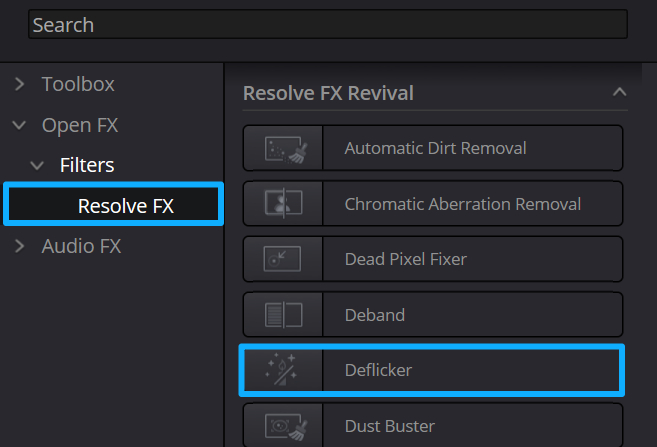
Open the Inspector on the right and adjust the effect parameters.
Method 2: Precise Deflicker in Color (Best for Pro Quality)
Go to the Color page and select the flickering clip. Right-click the node tree and add a new serial node at the front.
In the Effects Library on the right, search for "Deflicker." Drag Deflicker onto the new node.
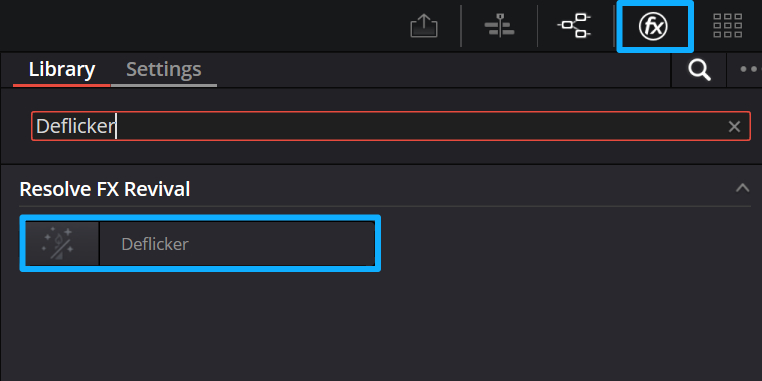
Fine-tune the settings and preview until the flicker is gone.
How to Remove Flicker in DaVinci Resolve?
In the last section, we showed how to add the Deflicker effect. Now we'll cover the actual steps to remove flicker.
Step 1: Identify the Type of Flicker
Treating the right problem gives the fastest result. First, figure out which kind of flicker you have:
- Timelapse flicker: the image gets brighter and darker with no steady pattern.
- Fluorescent / lamp flicker: indoor lights like fluorescent or some LEDs cause a regular bright/dark pulse (this is the most common).
- Slow-motion / high-frame-rate flicker: you see horizontal ripples or bands.
- Screen recording flicker: recording a monitor or TV shows rolling black bars.
Step 2: Use the Right Deflicker Settings
You don't need to guess. Resolve's Deflicker settings work for about 90% of cases. Pick the preset that matches your flicker type, then fine-tune the sliders if needed.
1. Timelapse Flicker
Why it happens: when you shoot one frame at a time, the camera can expose or white-balance slightly differently from frame to frame. Put the frames together, and brightness and color jump around.
Suggested settings:
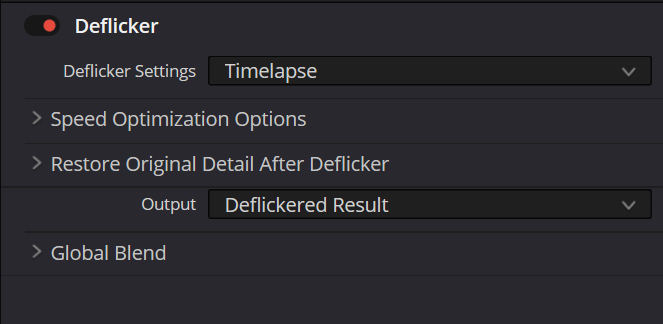
- Deflicker Settings: Timelapse
- Speed Optimization Options: leave as default
- Detail to Restore: 0.350
- Output: Deflickered Result
- Blend: 1.000
These are mostly the default values. Only small tweaks are usually needed.
2. Fluorescent / Lamp Flicker
Why it happens: the light "breathes" with the mains frequency — it brightens and darkens in a steady rhythm. If the camera samples that rhythm, you get periodic flicker or stripes.
Suggested settings:
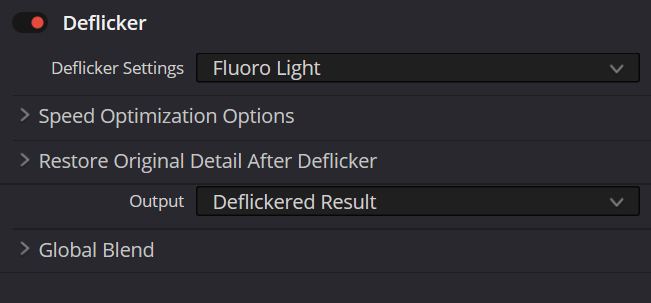
- Deflicker Settings: Fluorescent
- Speed Optimization Options: check Reduced-Detail Motion
- Detail to Restore: 0.350
- Output: Deflickered Result
- Blend: 1.000
Again, not much adjustment is usually required.
3. Slow-Motion / High-Frame-Rate and Screen-Recording Flicker
Why it happens: for slow motion, the camera's capture rate and the light's flicker rate don't match, so you get horizontal bands. For screen recordings, the display refresh and the camera/recorder sampling don't line up, so you see rolling bars.
Deflicker can sometimes help in post, but the most reliable fix is to match frequencies when you shoot. If you use Deflicker, try these settings (defaults work well):
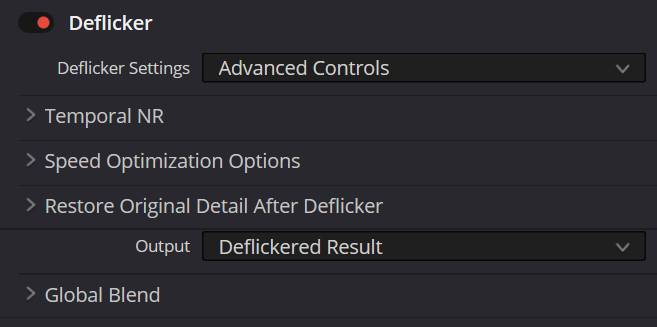
- Deflicker Settings: Advanced Controls
- Temporal NR → Frames Either Side: 3
- Mo. Est. Type: Better
- Motion Range: Small
- Luma Threshold: 100
- Chroma Threshold: 100
- Motion Threshold: 100
- Speed Optimization Options: check Reduced-Detail Motion
- Detail to Restore: 0.350
- Output: Deflickered Result
- Blend: 1.000
How to Handle Severe Flicker?
If the normal Deflicker effect can't fix it, try these advanced tricks:
- Do a second pass: run Deflicker again on the clip. A second pass can double the improvement.
- Local deflicker: draw a window or mask around the flickering area and apply Deflicker only there. This fixes the problem without changing the whole image.
- Frame-blend softening: duplicate the clip, shift the copy by 1 frame, and set its opacity to about 50%. This softens sudden brightness jumps.
- Use a stronger plugin: for very bad cases, try a third-party option like Flicker Free. It can remove heavier flicker and keep the image quality more stable.
Best Practice: Prevent Flicker When Shooting
Fixing flicker in DaVinci Resolve is easy, but preventing it while you shoot is even better. Try these simple tips:
- Indoor (50 Hz) lights: use shutter speeds that are whole multiples of the mains cycle, for example 1/50, 1/100, or 1/200.
- Timelapse: lock ISO, aperture, and shutter. Turn off auto exposure.
- Shooting screens: use progressive scan and match your camera's frame rate or shutter to the screen's refresh rate.
- High-frame-rate / slow motion: use natural light when possible and avoid cheap LED lights that flicker.
Conclusion
Removing flicker in DaVinci Resolve is very simple. You don't need plugins or the paid Studio upgrade. The free Deflicker effect fixes most flicker problems. You often don't have to change any settings — just identify the flicker type and apply the matching preset. Even beginners can get good results fast.

Finally, we'd like to recommend a creative controller that works great with Resolve: TourBox. Map your most-used tools and functions to its physical buttons and knobs. It feels a bit like using a game controller. With one hand you can scrub the timeline, trim clips, tweak effects, and adjust color settings.

You'll like this faster, more intuitive way of editing and grading. For creators who do a lot of editing and color work, the controller can really boost efficiency and make the process more enjoyable. If you're interested, click the link to learn more.


