How to Rotate Canvas in Photoshop?
Some beginners, when they first try digital painting, feel like they have to twist their wrist into weird angles just to draw a straight line. The good news is that most painting programs include easy ways to rotate the canvas. That means you don't have to turn your head or flip your arm to find a comfortable angle.
In this article, we'll use Photoshop as an example and show a few simple ways to rotate the canvas in Photoshop.

In this article, you will learn:
- Method 1: Rotate View Tool
- Method 2: Image Rotation Command
- Method 3: Flip Canvas Horizontally / Vertically
- Method 4: Free Transform Tool
- Method 5: Enter an Exact Angle in the Rotate View Tool
- Conclusion
Method 1: Rotate View Tool
This is the most common way. Press the R key, and your cursor turns into a small rotate icon. Then click and drag on the canvas to spin it, just like turning a sheet of paper.
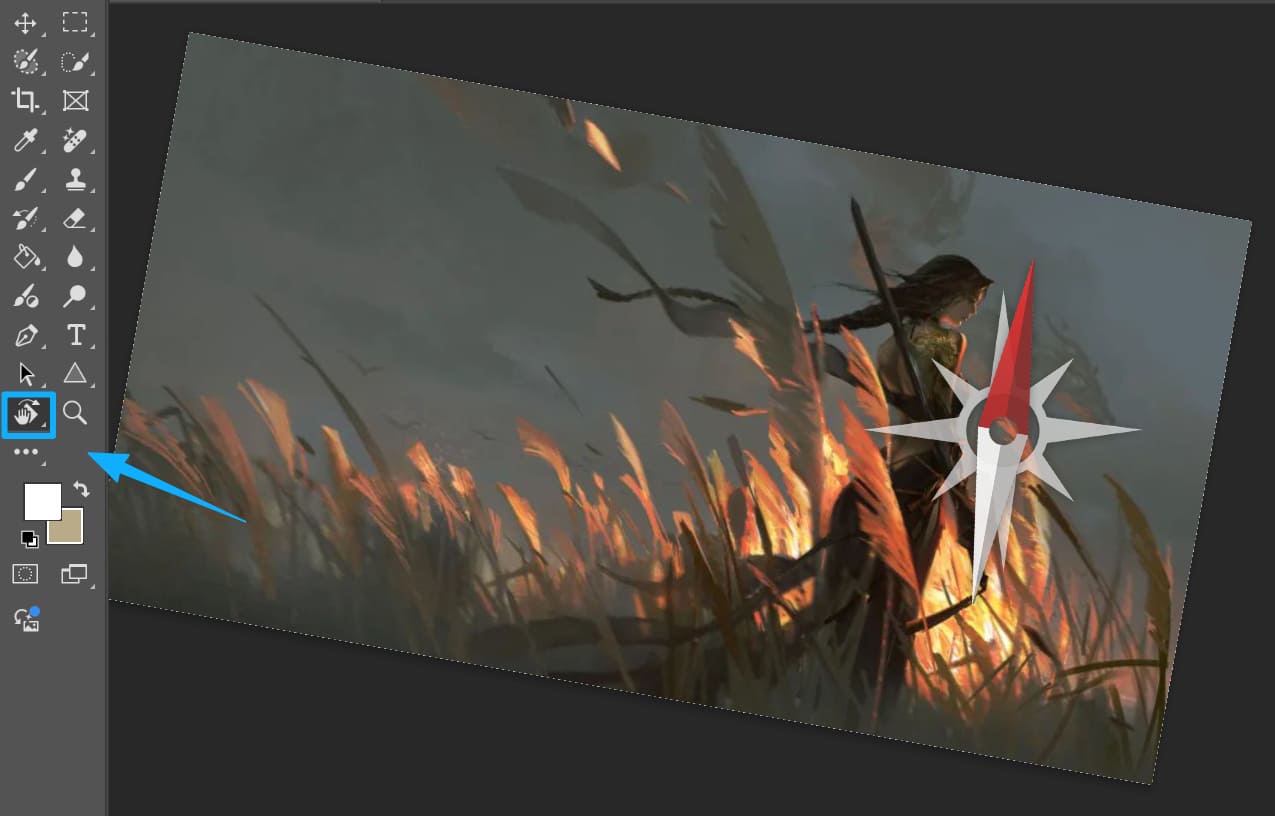
The nice thing is it's flexible — you can stop at any angle.
Tip: After you activate the tool, there's a "Reset View" button in the options bar at the top. Click it to snap back to 0°. That saves you from continuing to draw on a tilted canvas by mistake.

Method 2: Image Rotation Command
Go to the menu: Image → Image Rotation. You can pick 90°, 180°, or "Arbitrary" to enter any angle.
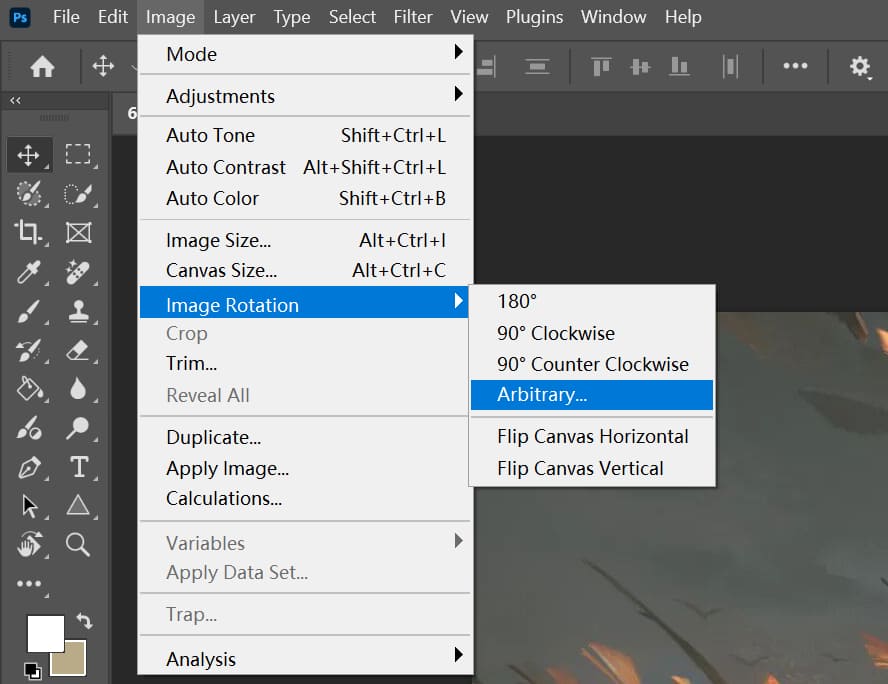
This is useful in certain situations. For example, when you're doing layout or fixing a photo that's upside down, this quickly corrects the orientation.
Be careful: this actually rotates the image pixels, not just the view. If you save, the file keeps the new angle — so use it only when you really want to change the image itself.
Method 3: Flip Canvas Horizontal / Vertical
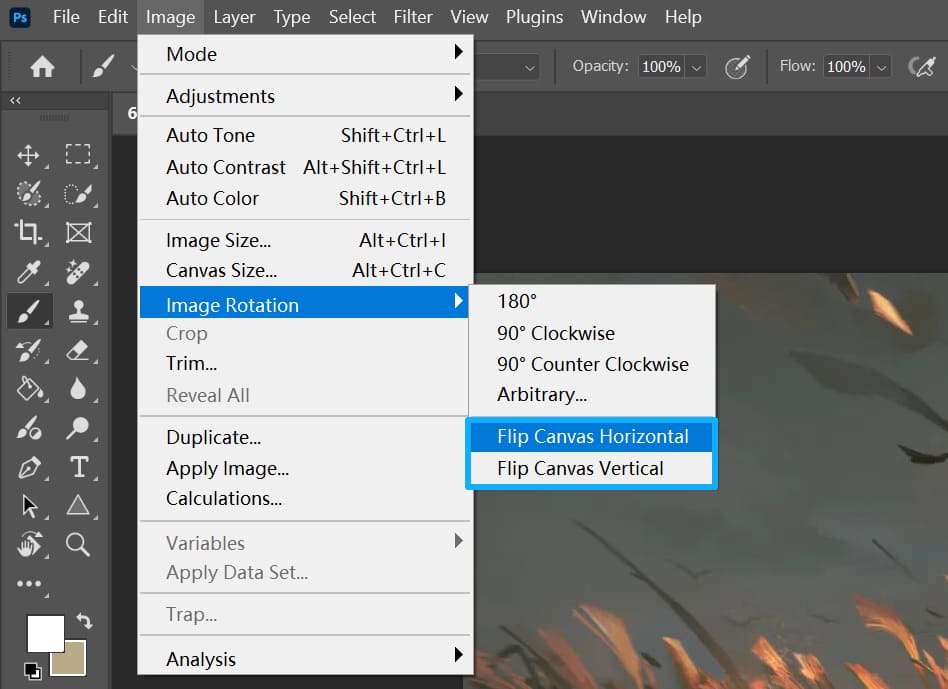
In the menu, go to Image → Image Rotation. Besides rotating, you'll also find commands to flip the canvas horizontally or vertically.
These flip commands won't let you rotate to any angle, but you can assign keyboard shortcuts to them. That makes it quick to flip the canvas left-right or top-bottom.
Method 4: Free Transform Tool
Select the layer you want to rotate and press Ctrl+T (Cmd+T on Mac) to open Free Transform. Move your cursor just outside a corner and drag to rotate.
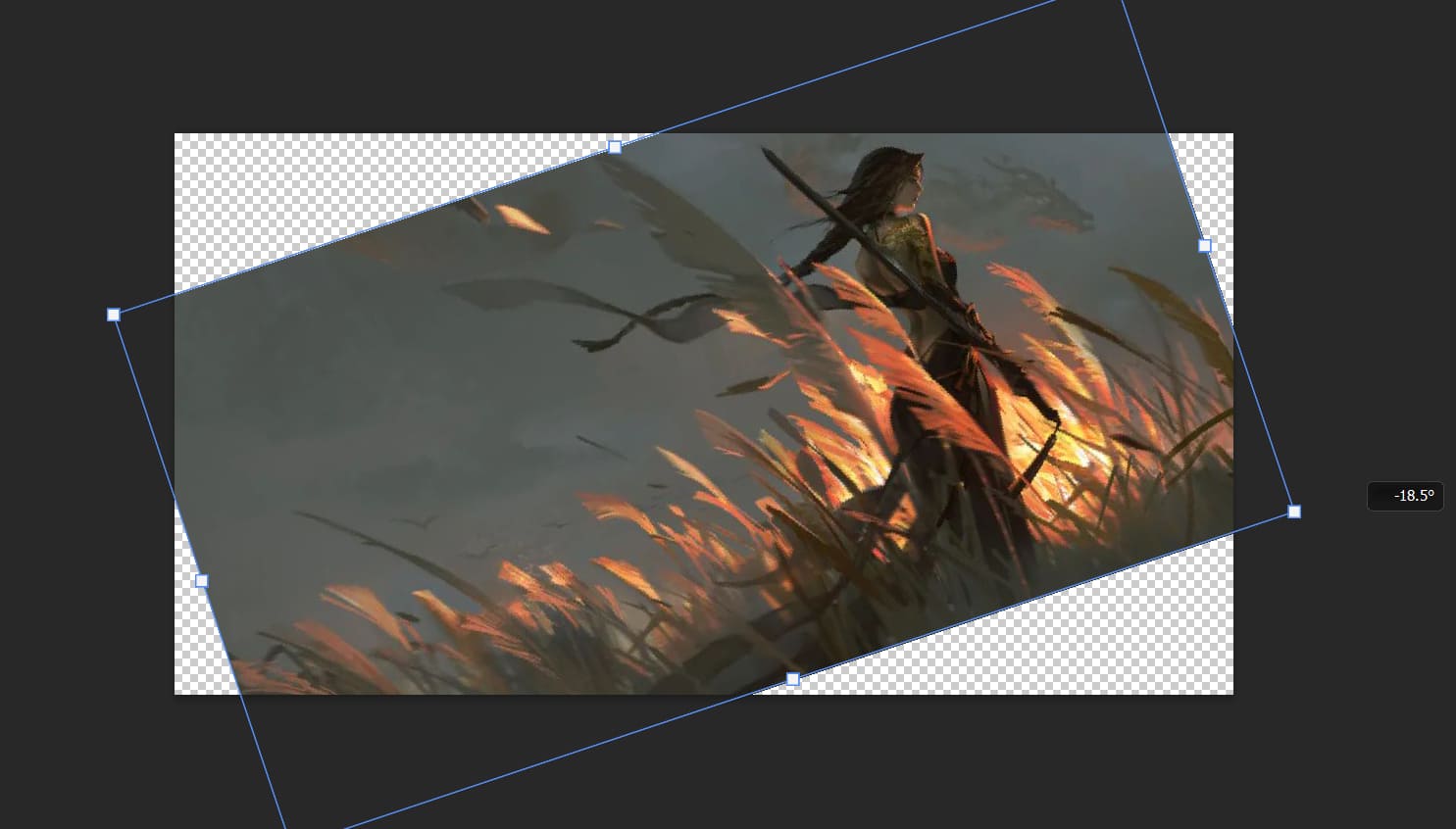
This method can do more than rotate — you can also scale and skew. But it only affects the selected layer, not the whole canvas. It rotates the content, not the canvas.
In real projects, like logo design, tilting small elements with Free Transform can add a sense of motion or energy.
Method 5: Enter an Exact Angle in the Rotate View Tool
When the Rotate View tool is active, there's an angle box in the options bar up top. Type a number, like 45°, and the canvas will rotate to that exact angle.
This is great if you want precision — perfect for perfectionists who don't trust rotating by feel.
Tip: Negative numbers rotate counterclockwise. Positive numbers rotate clockwise.

Method 6: Other Quick Canvas Tricks
1. You can press R, rotate the canvas, then release to go back to your previous tool (for example, the Brush). This quick, temporary switch is handy when you just want to check a different angle without interrupting your workflow.
2. Many touchpads and pen displays also support two-finger rotation. It feels much closer to turning a real piece of paper.
3. Using TourBox.
TourBox is a popular controller that many artists and creators love. You can map your favorite shortcuts and commands to TourBox's physical buttons and knobs. It works like a gamepad for art software, making your workflow simpler and faster.

Canvas rotation is included in TourBox's built-in functions. In the TourBox settings, you can drag the canvas rotation commands onto a knob and get started right away. It's an easy way to connect the controller to your workflow.

If you're curious about TourBox, visit our Digital Painting page to learn more.
Conclusion
In this article, we shared several ways to rotate the canvas in Photoshop (including a few commands for rotating layers). Rotating the canvas and rotating layers are not the same, so pay attention to the difference when you work.
To wrap up:
- When drawing, the Rotate View tool is the most convenient.
- When editing photos, the Image Rotation command is more suitable.
- When working on a specific part, Free Transform handles it.
- For exact angles, typing the angle value is the most reliable.


