5 Must-Have Photoshop Plugins for Digital Artists
In today's blog, we've rounded up 5 Photoshop plugins that have been tested and proven useful for painting. They cover common needs like color matching, brushes, lighting and shadows, and special effects, so they can save you a lot of time when creating digital art.
For anyone who paints in Photoshop often, these plugins are all very practical. Once you install them, they can make your workflow feel a lot smoother. So without further ado, let's get started.

In this article, you will learn:
- Plugin 1: BBTools Shadow
- Plugin 2: Oniric Glow Generator
- Plugin 3: ADImpastoshop
- Plugin 4: AD Plastiline Lab
- Plugin 5: Coolorus
- Conclusion
Plugin 1: BBTools Shadow
- Compatible with: Photoshop CC 2017 or later
- Download here: Shadow (Extension for Photoshop)
This plugin lets you create realistic shadows with one click. Even if the scene has multiple elements, it can still generate shadows for each part accurately. It also lets you adjust the shadow angle, length, blur, opacity, color, and light source position.
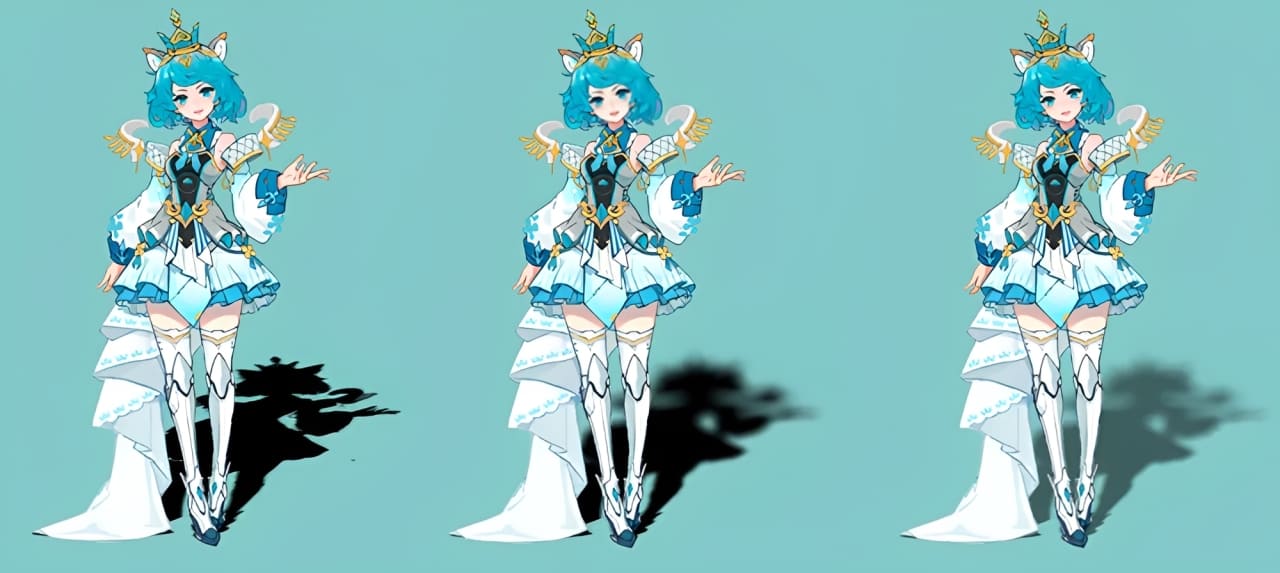
It is very easy to use. Just select the layer you want to add a shadow to, then click Create Shadow in the plugin panel. The shadow will be generated right away. After that, you can adjust the settings as needed to get the look you want.
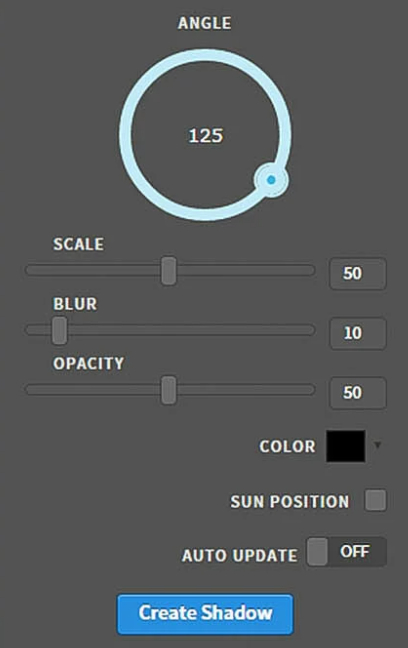
If you want the shadow to match the light source, you can first use the Pen Tool to click and set the light source position. Then check Sun Position in the plugin panel, and the layer elements will generate shadows based on that light source.
Plugin 2: Oniric Glow Generator
- Compatible with: Photoshop CC 2018 or later
- Download here: Oniric Glow
This plugin lets you create a realistic glow effect with one click. Open the image you want to brighten. If you want the whole image to glow, just click Generate.
You can change the preset to Diffuse or Streaks, then adjust the intensity, radius, threshold, exposure, and other settings until you get the look you want.
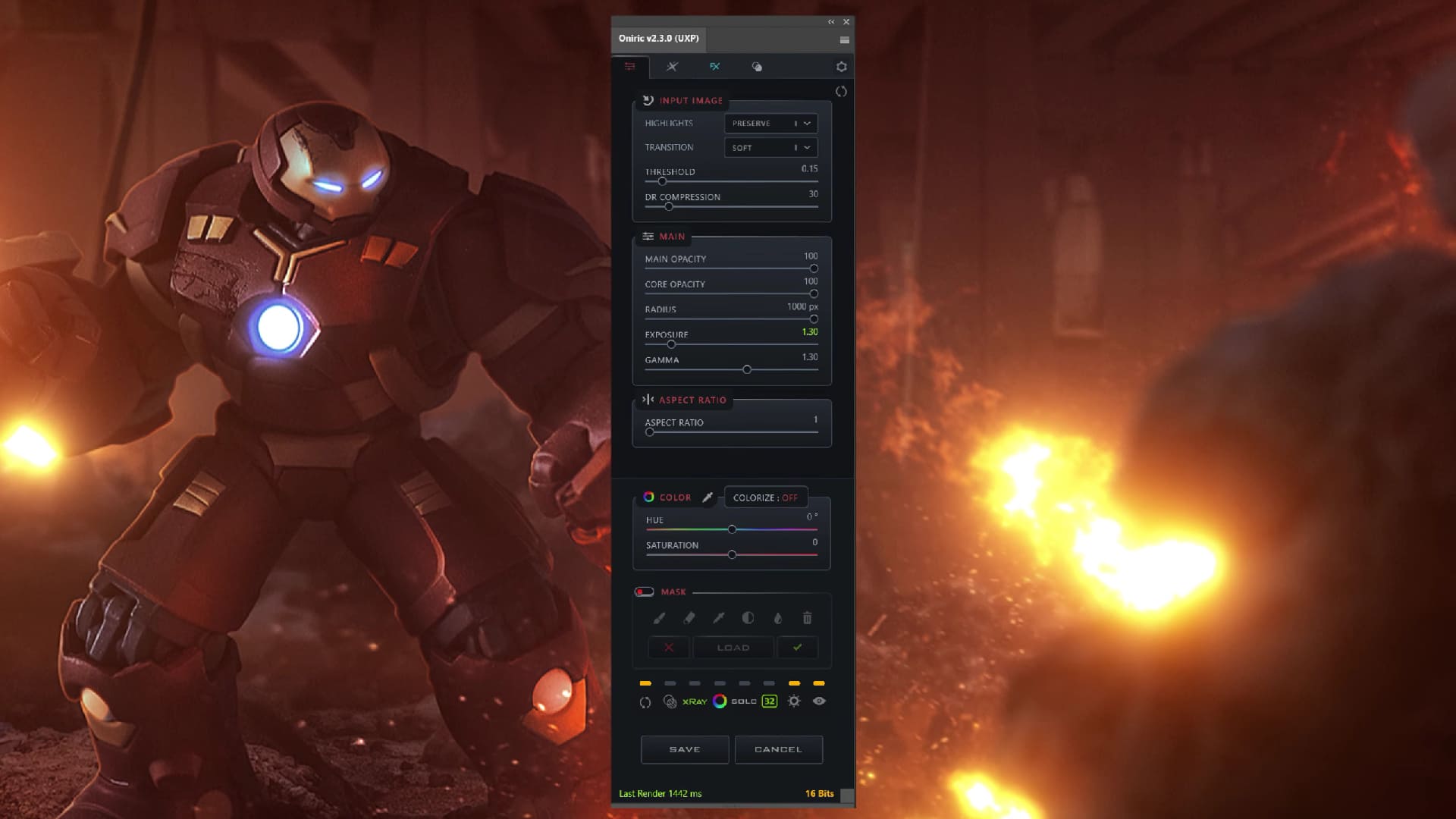
If you only want part of the image to glow, open Mask in the plugin panel. Use the Brush Tool to paint over the area you want to glow, then click Apply. After that, adjust the settings as needed to get the effect you want.
You can also change the glow color, saturation, and brightness, so the effect is very flexible. The image below shows a before-and-after comparison of using this plugin to add a local glow to a car light.

Plugin 3: AD Impastoshop
- Compatible with: Photoshop CC 2014 or later
- Download here: AD Impastoshop
This plugin can recreate the look and feel of hand-painted oil art. It helps digital artists make their work feel more artistic and painterly.
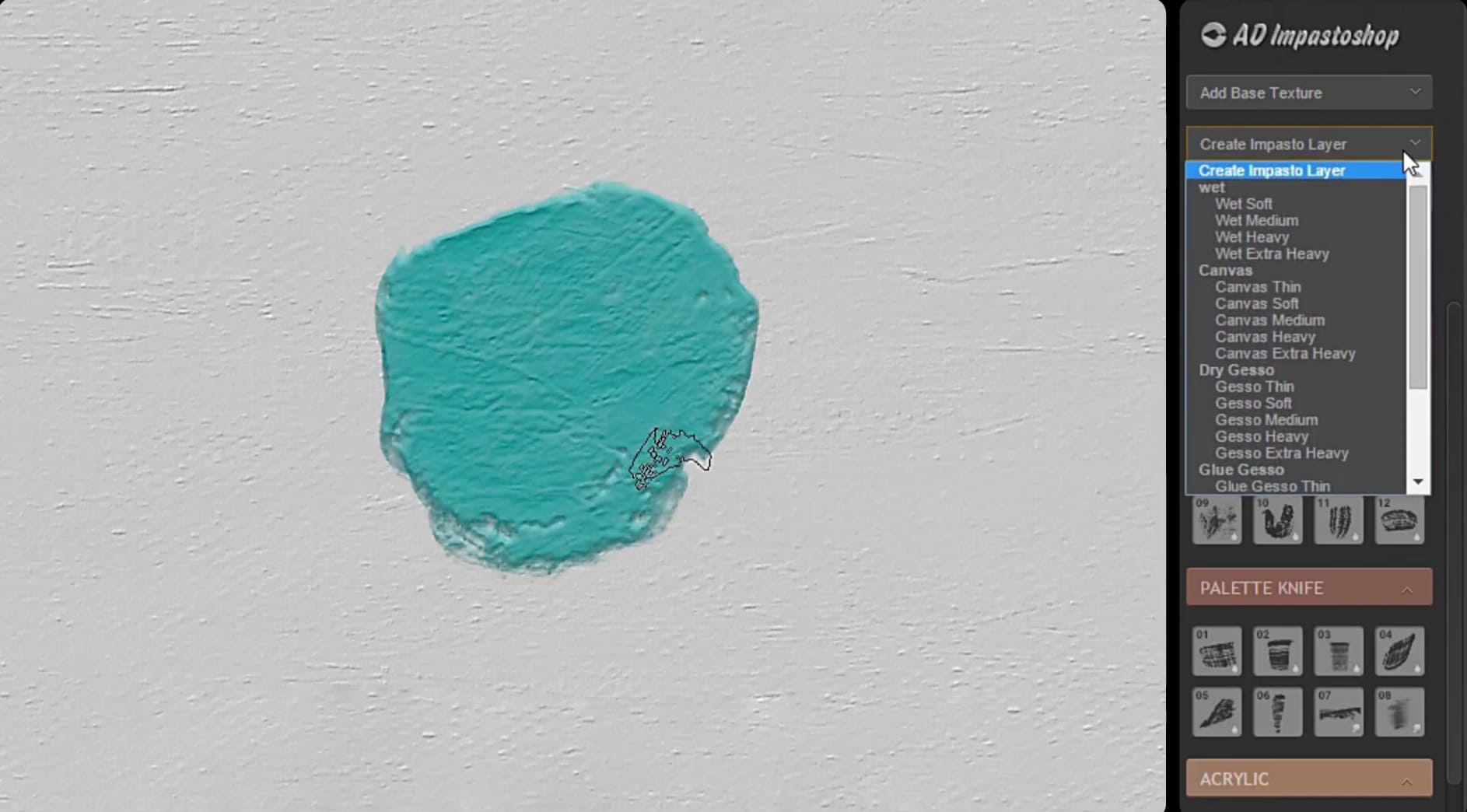
It comes with a range of textured brushes, layer styles, and background textures. You can find styles like plaster, canvas, wet paint, carving, and oil paint. Just pick a style and choose the right brush, and you can quickly create beautiful illustrations with a hand-painted oil effect. You can also mix colors for a richer result.

Plugin 4: AD Plastiline Lab
- Compatible with: Photoshop CC 2014 or later
- Download here: AD Plastiline Lab
This is a fun Photoshop plugin that makes it easy to create clay-style illustrations. It comes with tools that mimic Plastiline shapes and textures, along with several scratch, push, and smooth tools. It also includes seamless backgrounds and color samples. All of this helps recreate the look of plastiline as closely as possible, and the texture and scene effects feel very realistic.
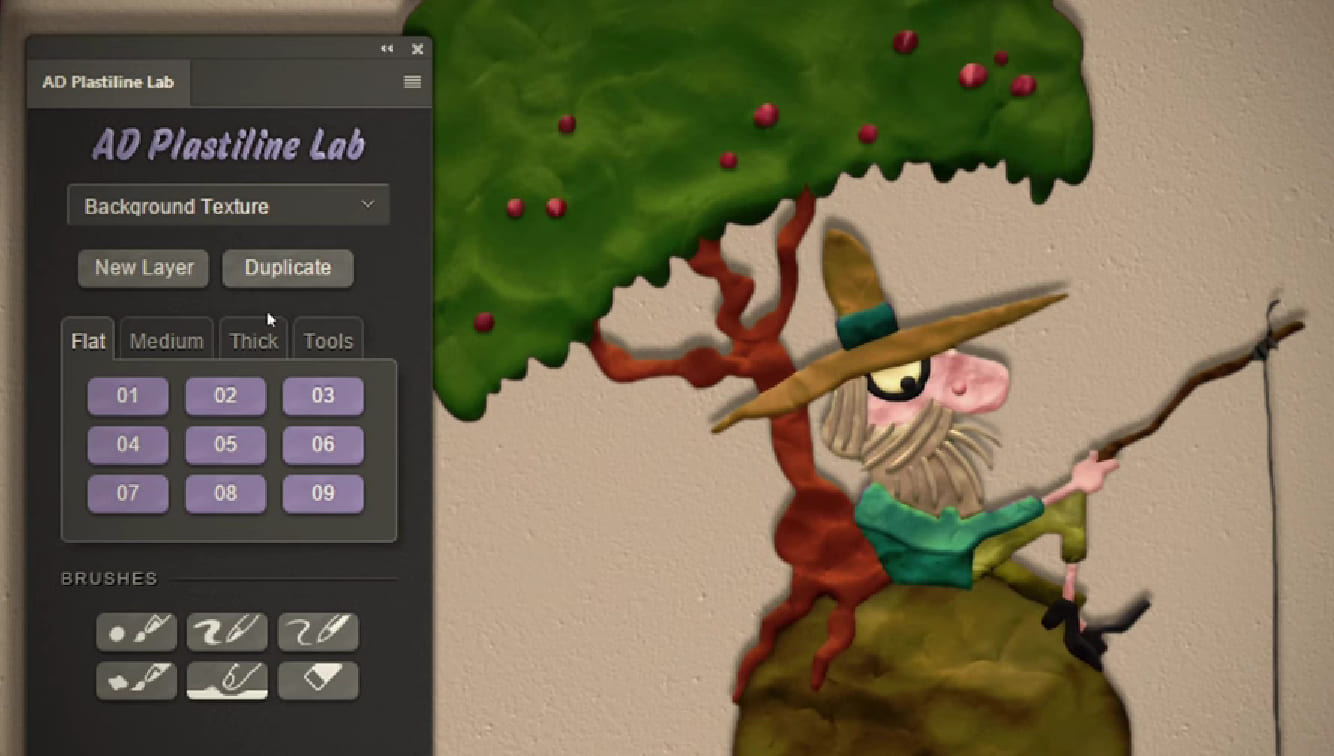
Plastiline illustrations have been very popular in recent years. If you want to try making work in this style, this Photoshop plugin is definitely worth a look.

Plugin 5: Coolorus
- Compatible with: Photoshop CC 2014 or later
- Download here: Coolorus
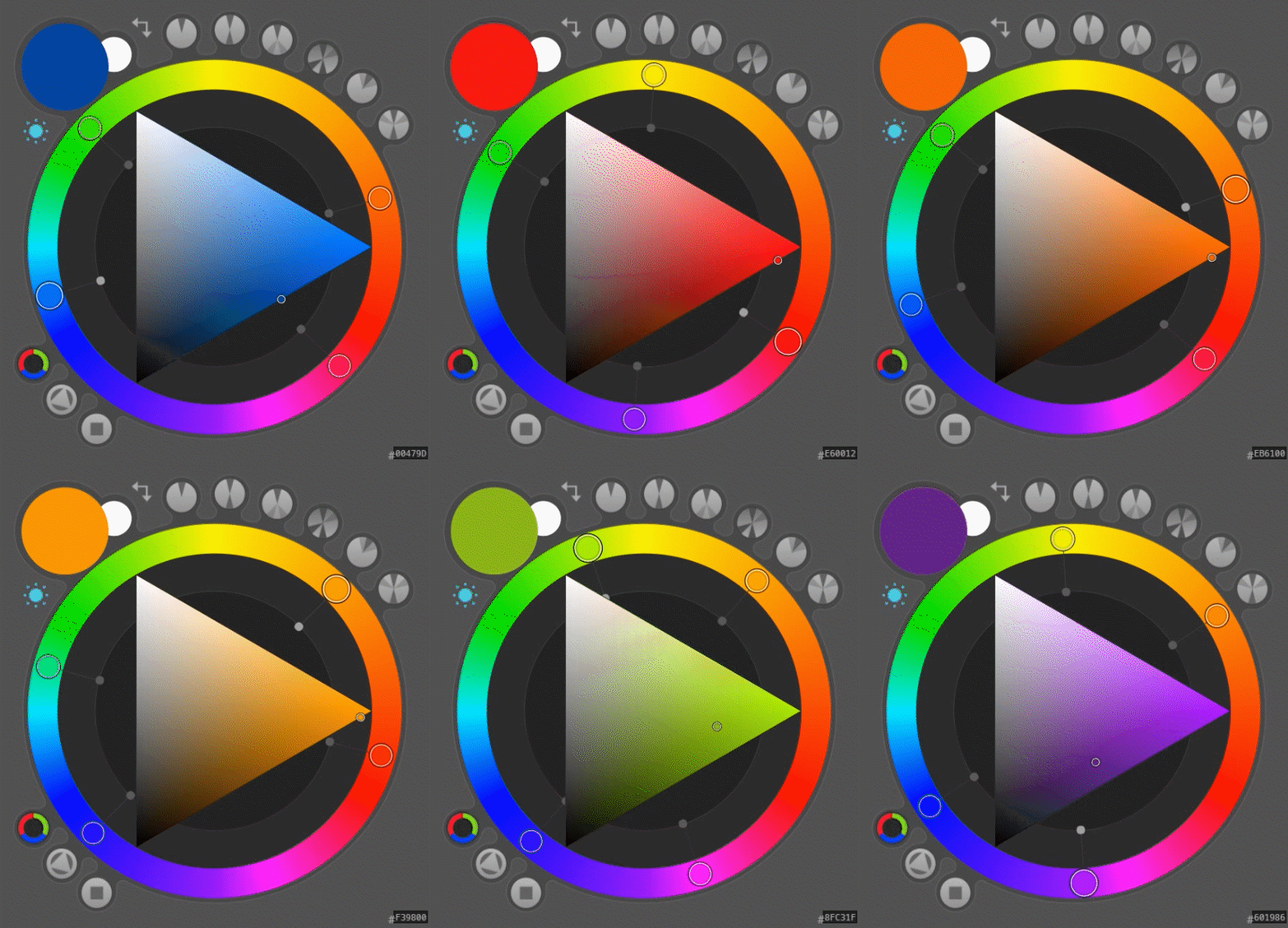
This Photoshop plugin helps digital artists solve color matching with ease. It lets you work with color wheels right inside Photoshop, so you can create color schemes that fit your own style. It also supports switching between a triadic color wheel and a tetradic color wheel, along with six gamut lock modes.
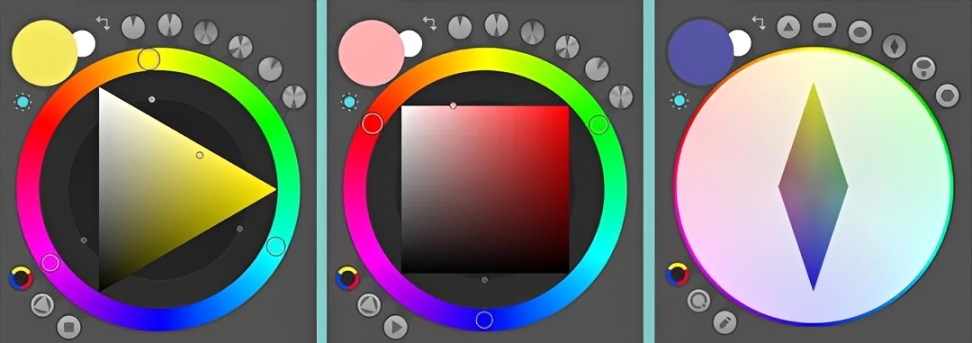
The plugin includes many color-matching options, such as monochrome, complementary, triadic, tetradic, analogous, and similar color schemes. The best part is that all of these options can update automatically as your foreground color changes, making the whole process simple and fast.
Conclusion
That wraps up the 5 Photoshop plugins we shared for digital artists. All 5 are paid, but if you want better artwork and a smoother workflow, it may be worth investing in the ones that fit your needs.
Besides useful Photoshop plugins, TourBox, a creative controller loved by many digital artists, can also greatly improve your workflow and creative experience.

Tasks like changing brush size and settings, rotating the canvas, and switching layers can all be assigned to TourBox's physical buttons and dials. That means faster and more precise control, so you can stay focused on creating. And if you like drawing on a tablet, the Elite Plus model can also meet your needs.

If you are interested in TourBox, please visit our Digital Painting page to learn more.


