Search Google or Type a URL: Which Is Better?
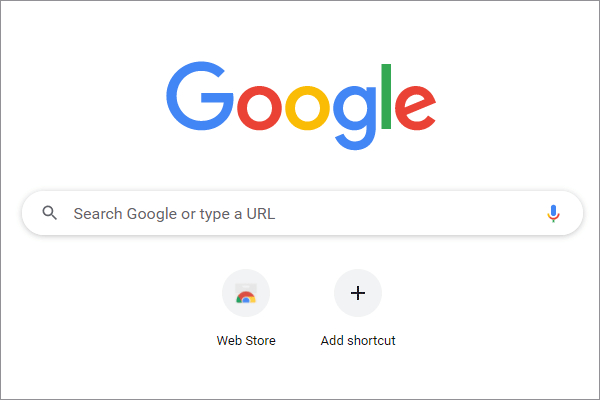
If you use Google Chrome, you may have noticed the phrase "Search Google or Type a URL" displayed in the address bar.
But what does it actually mean? Is it a setting, an error message, or something you need to change?
The answer is simple: it is Chrome's way of telling you that the address bar can do two things — search Google or open a website directly.
You can either type keywords to find information online or enter a website address (URL) to visit a specific page. This feature makes browsing faster by combining search and navigation into one place.
What Is Search Google or Type a URL?
Search Google or Type a URL is a feature in the Google browser that allows you to search or enter a website address directly in the search box or the same address bar. This makes it easier for you to find the information you need or access the websites you want.
When you open a new tab, you'll see the phrase "Search Google or Type a URL" in the search box and the address bar, prompting you with two options:
- You can enter keywords you want to search directly in the search/address bar and hit Enter. This will take you to the Google search results page, where the search engine will list matching websites.
- Alternatively, you can enter the complete web address (URL) of the website you want to visit in the search/address bar and hit Enter. This will directly open the webpage without relying on a search engine.
These two techniques are the main ways to navigate through the enormous volume of data accessible on the internet. All major web browsers, including Google Chrome, Mozilla Firefox, Microsoft Edge, and Safari, offer this convenient functionality.
For example, if you want to learn about advanced search, you can enter "advanced search" in the address bar and hit Enter. You will see the Google search results, including a link to Google's advanced search page. Clicking on that link will take you to the advanced search page, where you can perform more precise searches.
Alternatively, you can directly enter "https://www.google.com/advanced_search" in the address bar and hit Enter to go directly to the advanced search page.
The benefit of Search Google or Type a URL is that it allows you to quickly access the information you need without switching between different places. You can choose to search Google or enter a URL based on your needs; both options are convenient.
Of course, if you know the exact website address you want to visit, typing the URL directly will be faster. If you are unsure which website contains the information you're looking for or want to see more related information, then searching on Google would be more suitable.
What Is the Omnibox?
The Omnibox is a term used to describe the combined address and search bars in modern web browsers. It allows you to enter website addresses or search terms, making it a convenient and versatile navigation and search tool.
The name "Omnibox" is a combination of "omni" (meaning all) and "box." With the Omnibox, you can access your bookmarks, browsing history, extensions, settings, and more.
You can also perform various functions within the Omnibox, such as mathematical calculations, unit conversions, currency exchange, and more. For example, if you enter "1+1=" in the Omnibox, it will directly provide the answer for you.
Search Google or Type a URL: Which Is the Better Choice?
When using a web browser like Chrome to search or access websites, you typically have two methods: entering the complete website address (URL) in the Omnibox (the combined address bar and search bar) or entering keywords or phrases in the Omnibox to search.
So, which method is better? It depends on your purpose and preference, but you can compare their pros and cons based on the following aspects.
1. Speed
If you know the exact website address you want to visit, typing the URL directly will be faster because it can take you directly to the target page without going through a search engine as an intermediary.
However, if you are unsure or don't remember the complete address of the website you want to visit, or if you want to find broader or more specific information, using Google search would be better. It can provide more choices and suggestions, helping you find the most relevant website or page and discover unexpected information.
2. Accuracy
If you enter the correct URL, typing it directly will be more accurate because it ensures you are accessing the website or page you want without spelling errors, redirects, or phishing sites.
However, if you enter clear keywords, using Google search will also be accurate. It can provide the most relevant and high-quality search results based on your input and preferences, helping you quickly find the information you need.
3. Flexibility
If the information you are looking for has multiple aspects or perspectives, using Google search offers more flexibility. You can browse and compare different websites or pages, rather than being confined to a specific website or page.
Ultimately, the choice between typing a URL or using Google search depends on your specific needs and circumstances. You can consider the speed, accuracy, and flexibility factors to determine the most suitable approach for your browsing and information retrieval.
Frequently Asked Questions
1. How to Search in Google?
To search for specific words or phrases in Google, just type what you want to search for in the search/address bar. Based on your query, the search results will display relevant matches.
If you want to search for a complete phrase, you can put it in quotation marks. For example, if you want to find the best flower shop nearby, just type "best flower shop near me" in the search/address bar and press Enter.
If you want to limit your search to a specific website, type the website address, in the format "site:www.example.com", followed by your search query. This way you can search within that specific website.
For instance, if you want to find news on nytimes.com that mentions the word "sports", type "site:www.nytimes.com sports" in the search/address bar and press Enter.
2. How to Assess the Credibility and Quality of Search Results?
You can evaluate the credibility and quality of search results based on several aspects, such as:
- Source: Check the source of the search results. Are they from authoritative, professional, and reputable websites or institutions? Do they have logical and factual support? Look for contact information and copyright statements.
- Purpose: Examine the purpose behind the search results. Are they aimed at providing objective, neutral, and comprehensive information? Or do they seem to have intentions of promotion, propaganda, manipulation, or deception? Consider whether there are any influences from advertisements or sponsorships.
- Timeliness: Consider the timeliness of the search results. Are they the most up-to-date information available? Is there any record of updates or revisions? Assess whether the information is relevant to the current situation and environment.
- Comparison: Compare the search results with information from other sources. Do they align with other sources? Are there different viewpoints and perspectives? Are there any controversial or contradictory evidence?
3. How to Protect Your Privacy and Security?
You can take the following measures to protect your privacy and security, avoiding misuse and risks related to search engines:
- Use reliable and legitimate search engines like Google, and avoid using obscure or suspicious search engines to prevent malicious software or virus attacks.
- Use secure and private search modes, avoiding public or shared devices or networks to prevent the leakage or theft of personal information or data.
- Maintain a reasonable and moderate search frequency, avoiding excessively frequent or extreme search terms to prevent search engines from considering your behavior as spam or malicious, which could affect search quality or result in penalties.
- Approach search results with caution and judgment, avoiding trusting or clicking on unreliable or false search results to prevent falling victim to scams or getting into trouble.
4. Is Google Chrome the only browser with this feature?
No. Many modern browsers use a similar combined search and address bar, including Microsoft Edge, Firefox, and Safari.
5. Why does Chrome show "Search Google or Type a URL"?
Chrome displays this message when the address bar is empty. It reminds users that they can either search the web or enter a website address.
6. Is "Search Google or Type a URL" a Virus?
No. "Search Google or Type a URL" is not a virus, malware, or warning message. It is simply the default placeholder text displayed in Google Chrome's address bar when no text has been entered.
Once you start typing, the message disappears automatically. If you see unusual pop-ups, unexpected redirects, or unfamiliar browser extensions, those may be signs of a browser issue. However, the phrase itself is completely normal.
7. Can You Remove "Search Google or Type a URL"?
No, you cannot remove this text because it is part of Chrome's default interface. However, you can customize other browser settings, such as:
- Changing your default search engine
- Managing extensions
- Adjusting privacy settings
- Changing your homepage
Conclusion
For most people, searching Google or typing URLs is just one small part of their daily computer workflow. Creators who spend hours editing photos, videos, or illustrations often look for ways to reduce repetitive actions and work more efficiently.

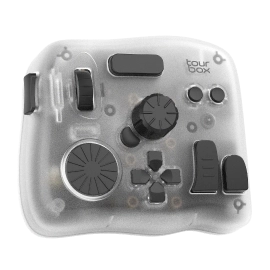
A customizable creative controller like TourBox helps creators speed up workflows by placing frequently used tools and shortcuts at their fingertips, allowing them to spend less time searching through menus and more time focusing on their creative work.
Whether you are editing photos in Lightroom, cutting videos in Premiere Pro, or creating digital art, improving your workflow can make the creative process smoother and more enjoyable.