[TourBox Tutorial] How to Switch Presets Within One Application?
If you've set up multiple presets for the same creative software (for instance, you've created two different presets for Photoshop), figuring out how to freely switch between these presets can be a challenge.
The TourBox Console's Built-in Functions offer a "Switch Preset" feature that perfectly addresses the issue of freely switching between different presets within the same creative software.
How to Switch Presets Within One Application?
Before switching presets within the same application, please ensure the following two key points:
- The "Auto Switch" feature is enabled.
- Link the presets you wish to switch with the same application. If there's a preset of this application that you do not need to switch to, you can unlink it first.
Select all the presets you wish to switch. Then, in the "Preset Setting" panel on the right side of each preset, choose the same key and click on it to enter the Action Custom Panel.
On the Action Custom Panel, select the "Basic" tab. Click on the "General" dropdown menu under "Built-in Functions" on the right, and select the "Switch Preset" built-in function.
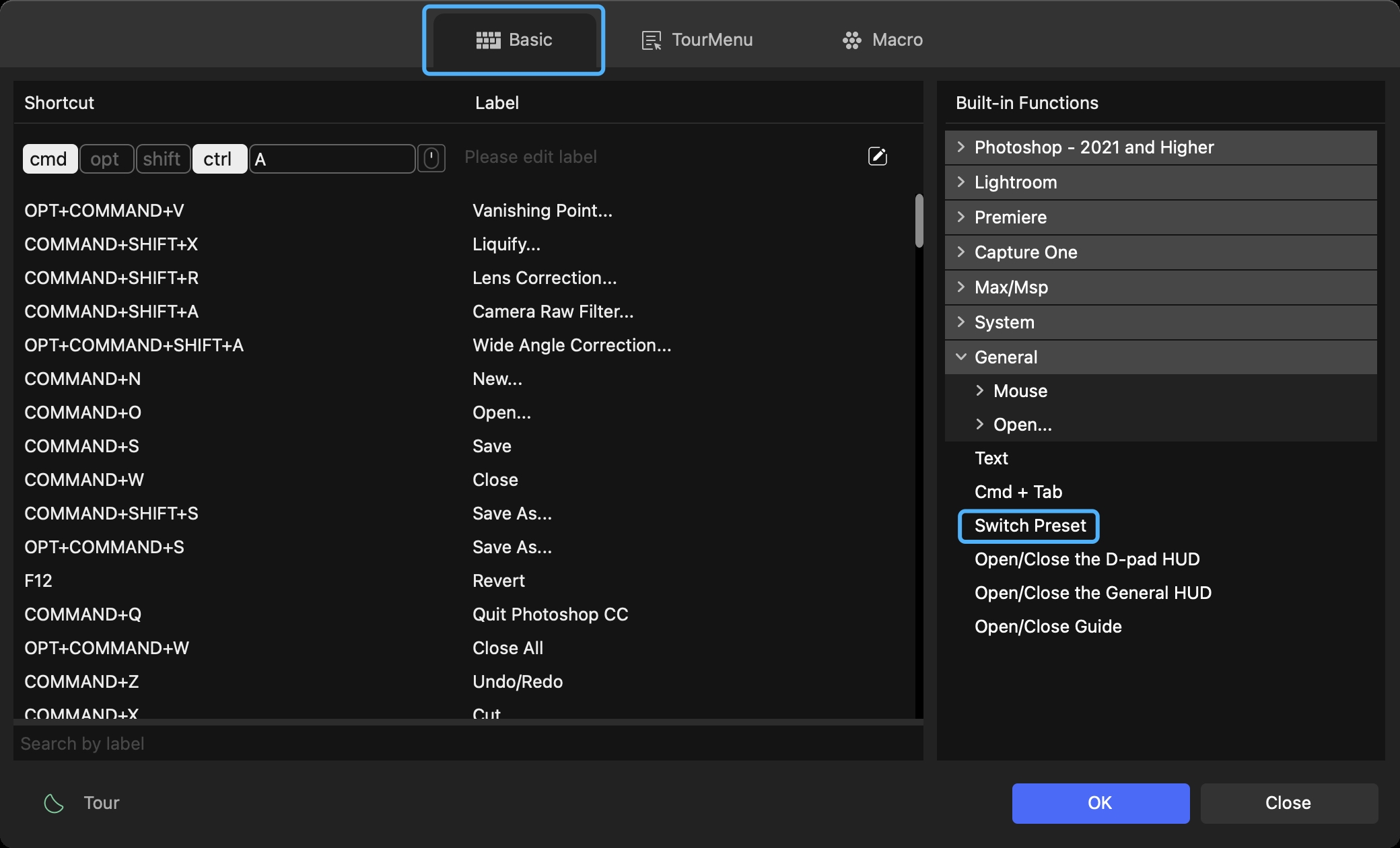
Note: Please ensure to set the "Switch Preset" built-in function to the same key across all presets you wish to switch between.
When you're using the application, pressing the key you've set for "Switch Preset" will allow you to cycle through the selected presets.
Have a Question?
To explore more about using TourBox and learn additional tips and tricks, check out our TourBox tutorials series.
If the tutorials above do not answer the questions you have, please contact support@tourboxtech.com.


