TourBox Dynamic Panel: True Full-Screen Color Grading for LrC
For a long time, Lightroom Classic's sidebars and panels have eaten up valuable screen space. You can't freely move them — you can only turn them on or off. That limited view makes it hard to judge color and get the best edits. Many photographers and creators see this as a long-standing issue with LrC.
So how do you move from that cramped, "editing-in-the-margins" workflow to full-screen color grading? The new Dynamic Panel in TourBox Console 5.10.0 offers the best answer.
It makes photo post-processing more precise, faster, and way more fun. Let's first watch the video below to see the Dynamic Panel in action.
Update: TourBox Console 5.11.0 now adds support for Lightroom (not Lightroom Classic). It also includes new default Lightroom presets.
What Is the Dynamic Panel? What Problem Does It Solve?
In a typical Lightroom Classic workspace, photographers and creators keep shifting focus between the image and the panels. The panels lock your view.
The left and right sidebars and the bottom panel eat up your limited screen space. You either deal with the obstruction or keep opening and closing panels.
If you try to judge skin tone, tonal depth, or highlight texture in the full image, you often run into problems like not being able to see the picture clearly or not being able to make steady mouse adjustments.
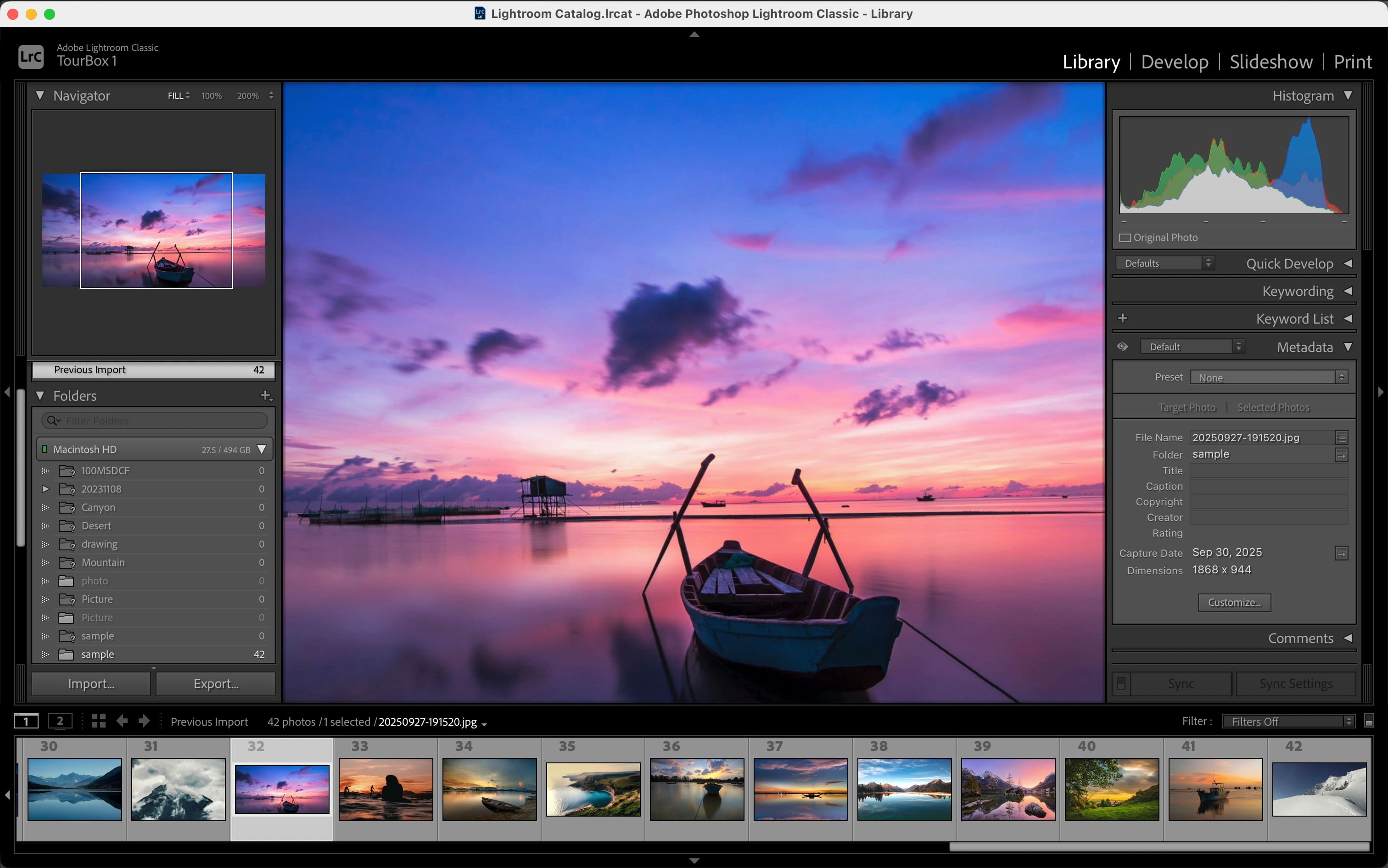
Cluttered native LrC interface
TourBox's new Dynamic Panel takes a different approach. Instead of forcing you to fight Lightroom Classic's fixed layout, it frees controls from the static panels. That lets you make adjustments anywhere on the screen — or on a second monitor — while keeping an uninterrupted, full-frame view of your image.
How to Use TourBox Dynamic Panel?
First, download the latest TourBox Console from our website (version 5.10.0 or later). That gives you access to the feature.
Open TourBox Console and create a Lightroom Classic preset.
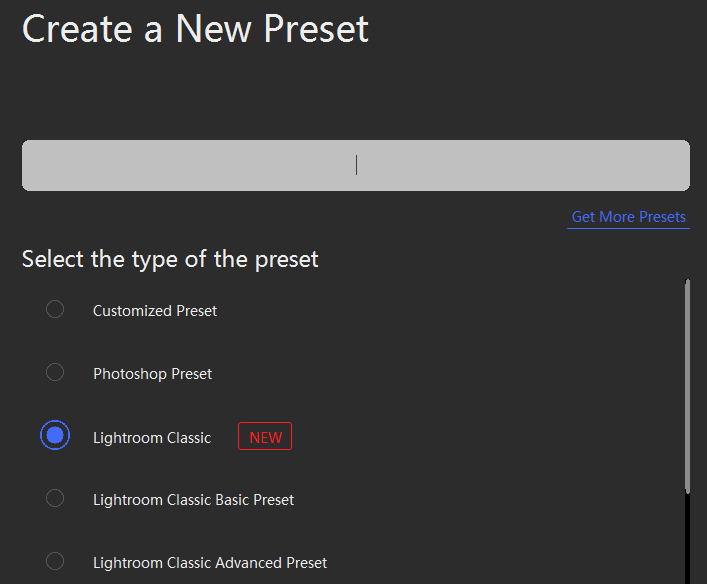
That preset includes three sub-presets: Library, Develop, and Other. Each one matches a different Lightroom Classic workspace and will switch automatically when you change modules in LrC.
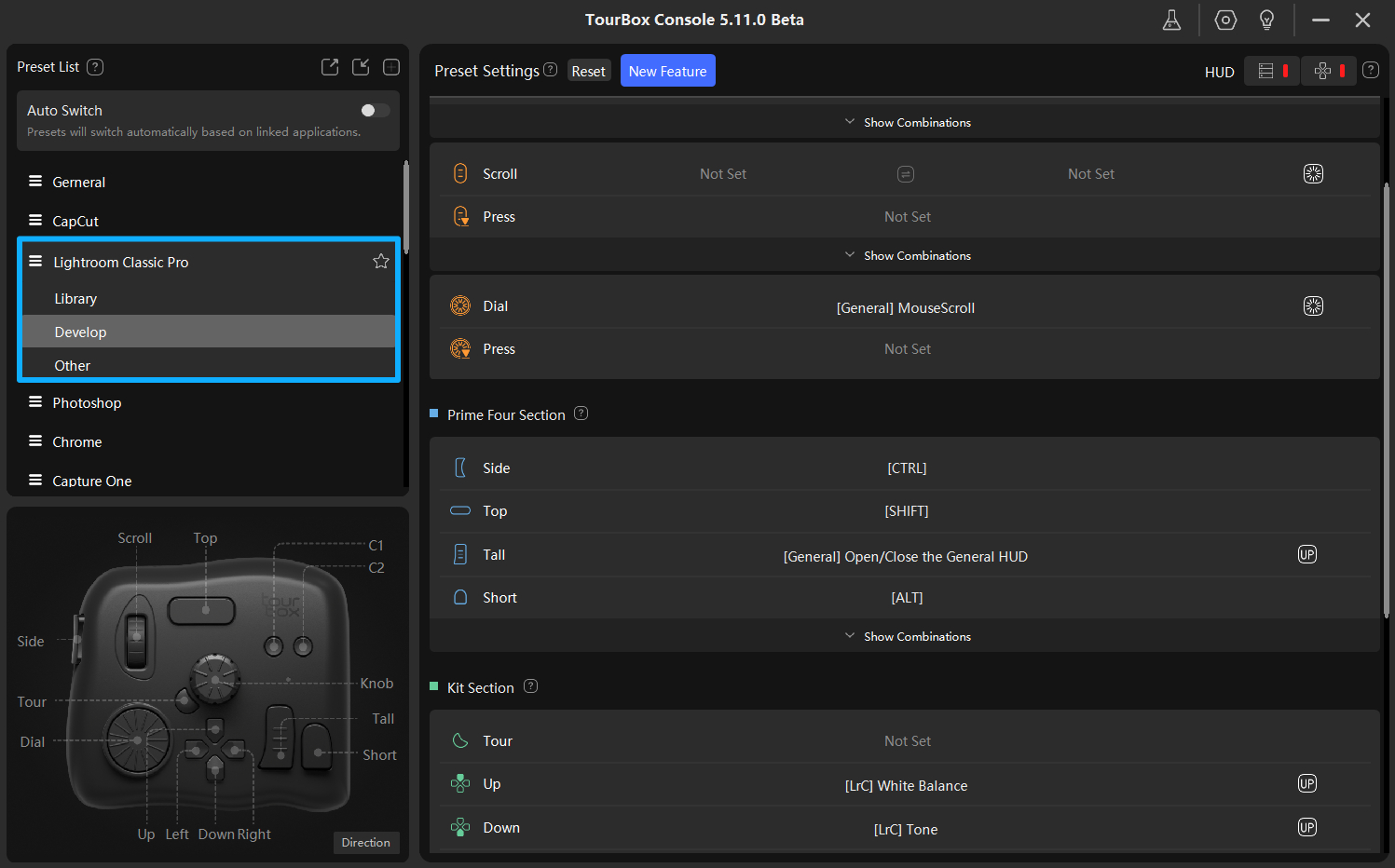
If you don't like the default preset we provide, you can easily customize it. Just click the TourBox buttons and set each control the way you want.
Don't worry — there's no learning curve. Our built-in Lightroom Classic presets cover common edits, and you can start using them with a simple drag-and-drop. You'll be up and grading in no time.
In an upcoming update, the Dynamic Panel will support more major photo-editing software like Camera Raw and Capture One. This will bring a whole new color-grading experience. Stay tuned!
8 Core Highlights of the Dynamic Panel: Why It's Worth a Try?
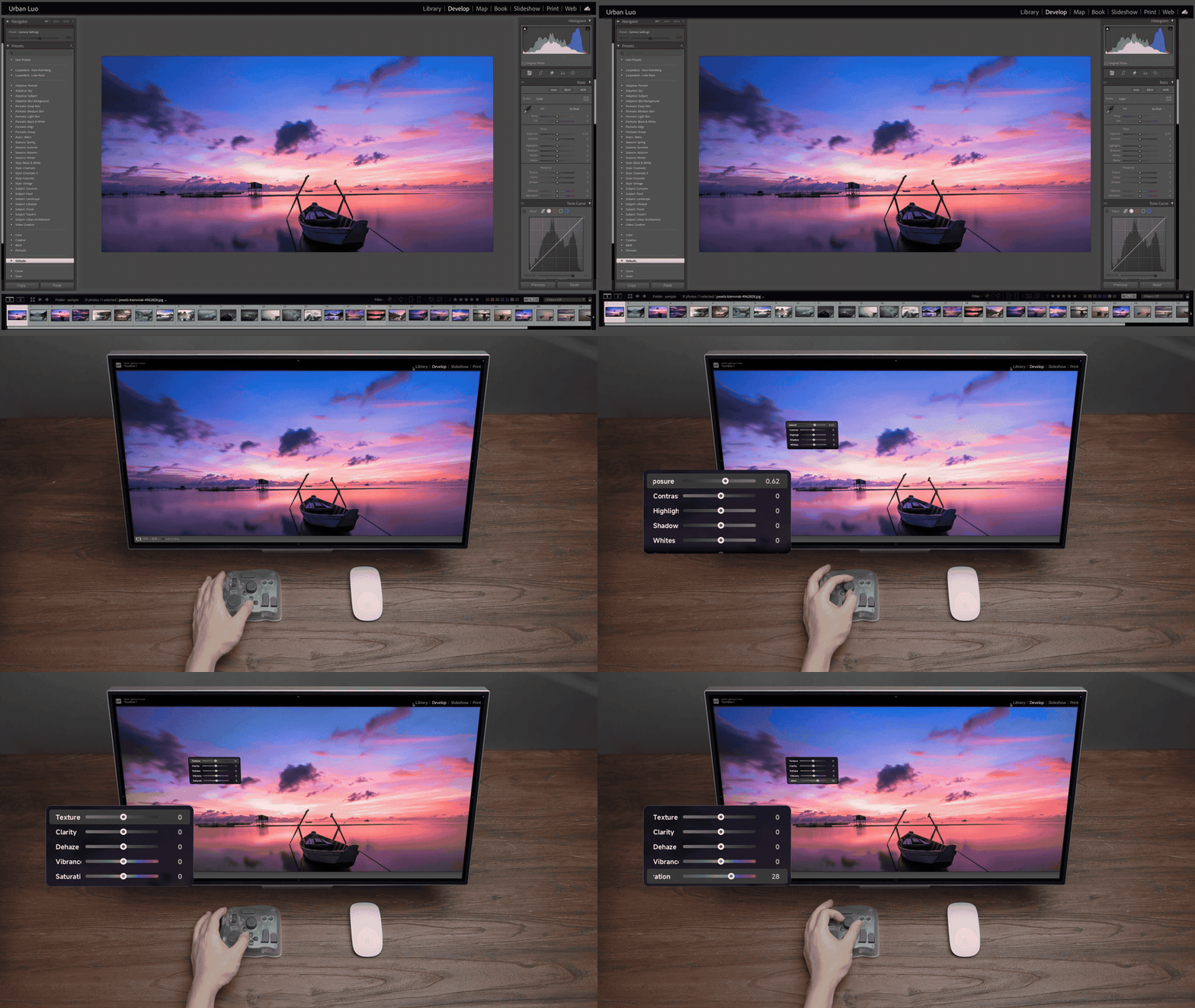
1. Full View, No Clutter: True Full-Screen Grading
The Dynamic Panel detaches LrC's controls from the native panels and shows them as a pop-up floating panel.
You can hide the native sidebars and call up the Dynamic Panel only when you need it. That gives you an almost full-screen view for editing and color work.
2. Place It Anywhere or Use a Second Monitor
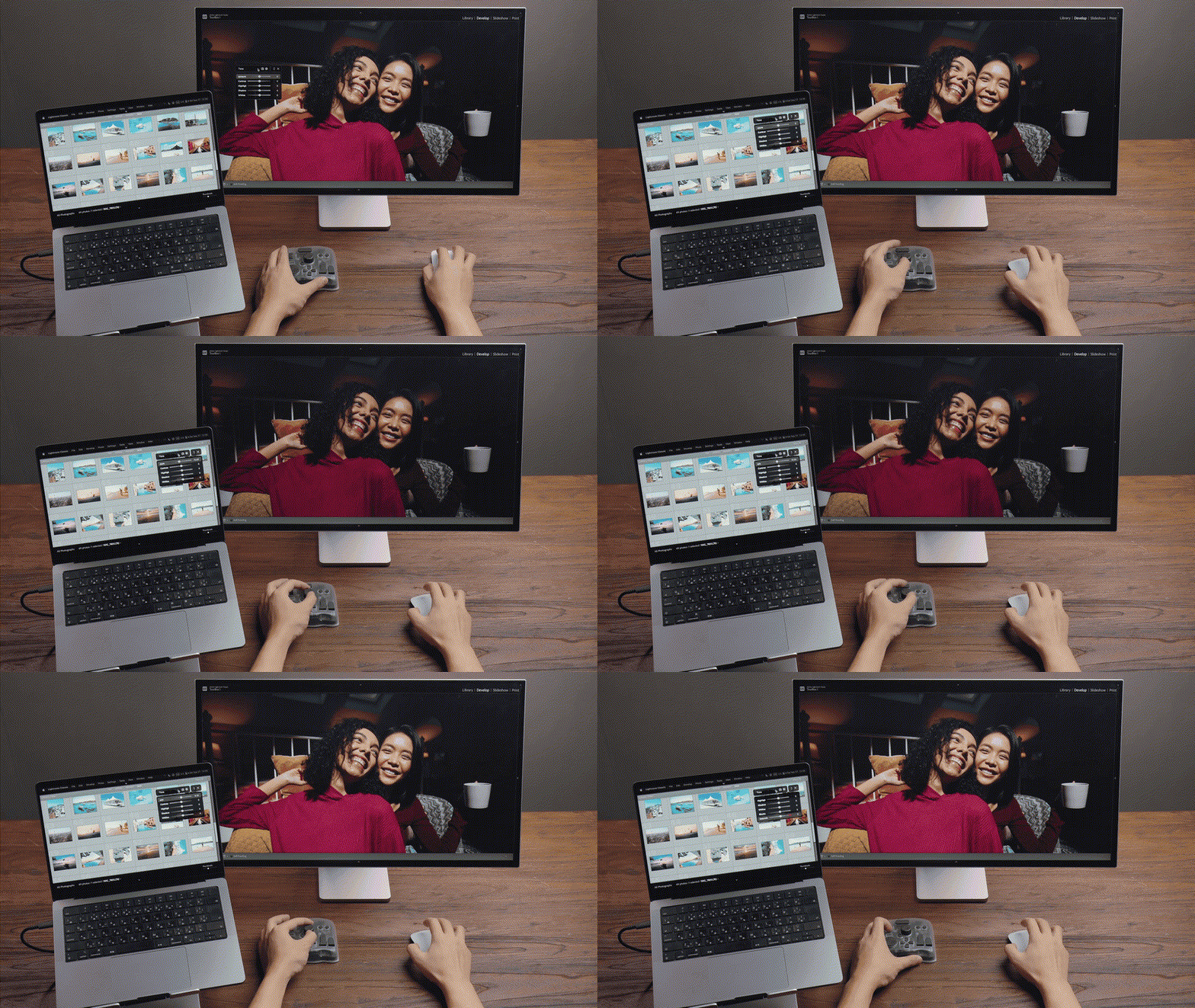
The Dynamic Panel can float anywhere you like. Drag it to a second screen so your main display shows only the photo.
The controls stay on the secondary screen or tucked in a corner, so they don't compete for your attention. It frees you from LrC's fixed panel layout.
3. Zero Learning Curve
The Dynamic Panel comes with a full set of LrC controls, so you don't have to build anything from scratch. Our team grouped the controls sensibly to match LrC's layout.
New TourBox users can start right away — no steep learning curve.
4. Build Your Own Dynamic Panel
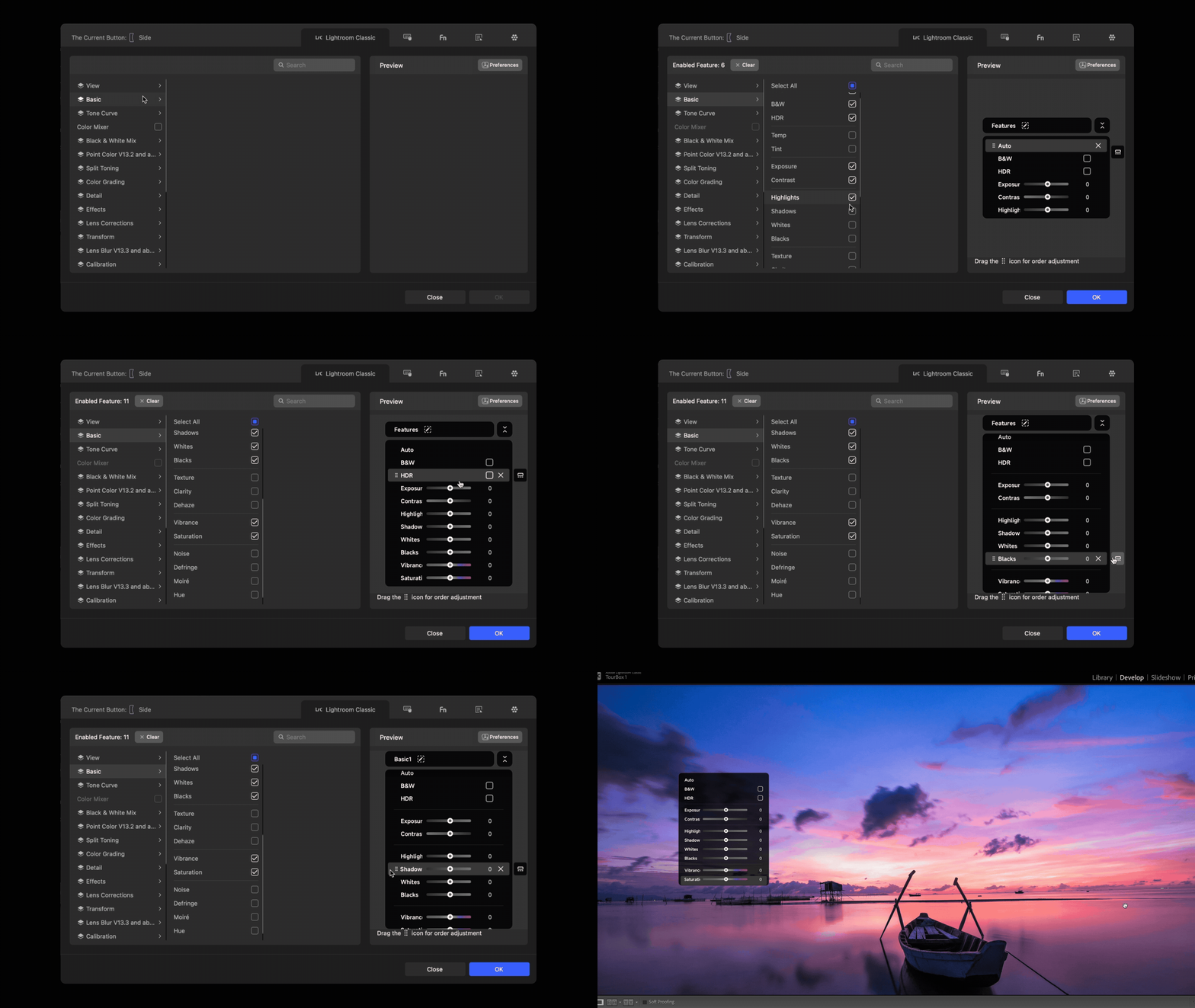
Experienced shooters often have personal editing habits. Different photo styles need different controls.
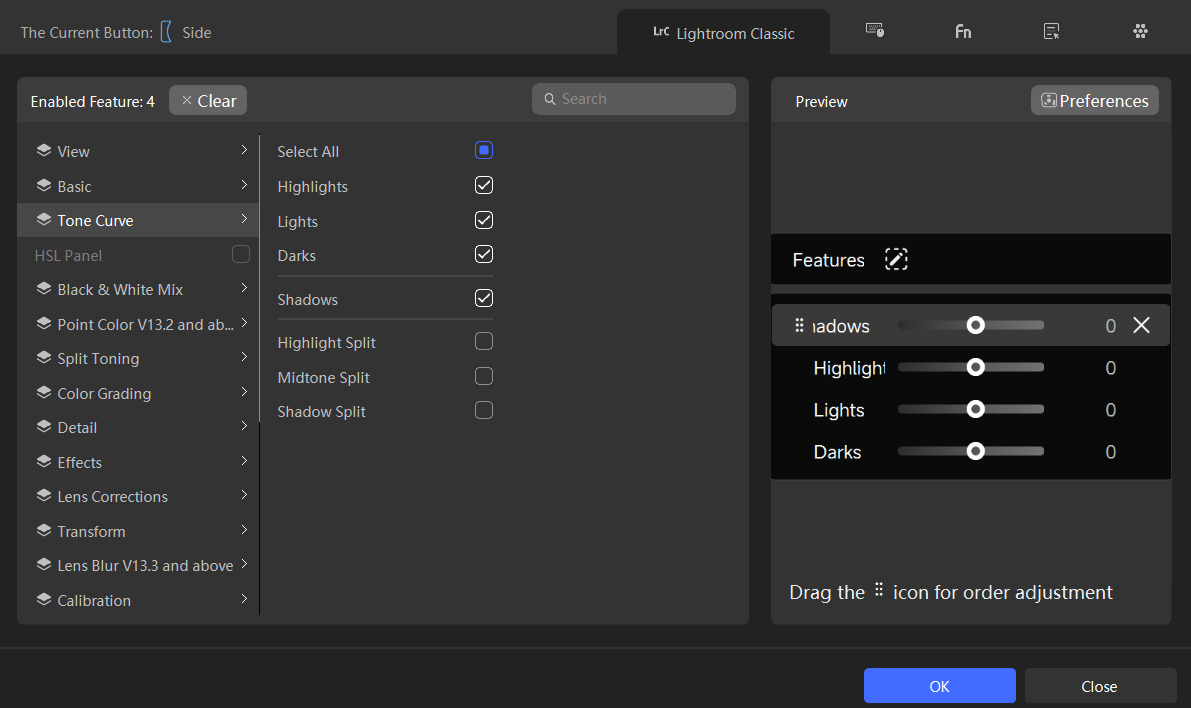
You can add, remove, reorder, and group controls in the Dynamic Panel. Create a panel from scratch that fits your workflow.
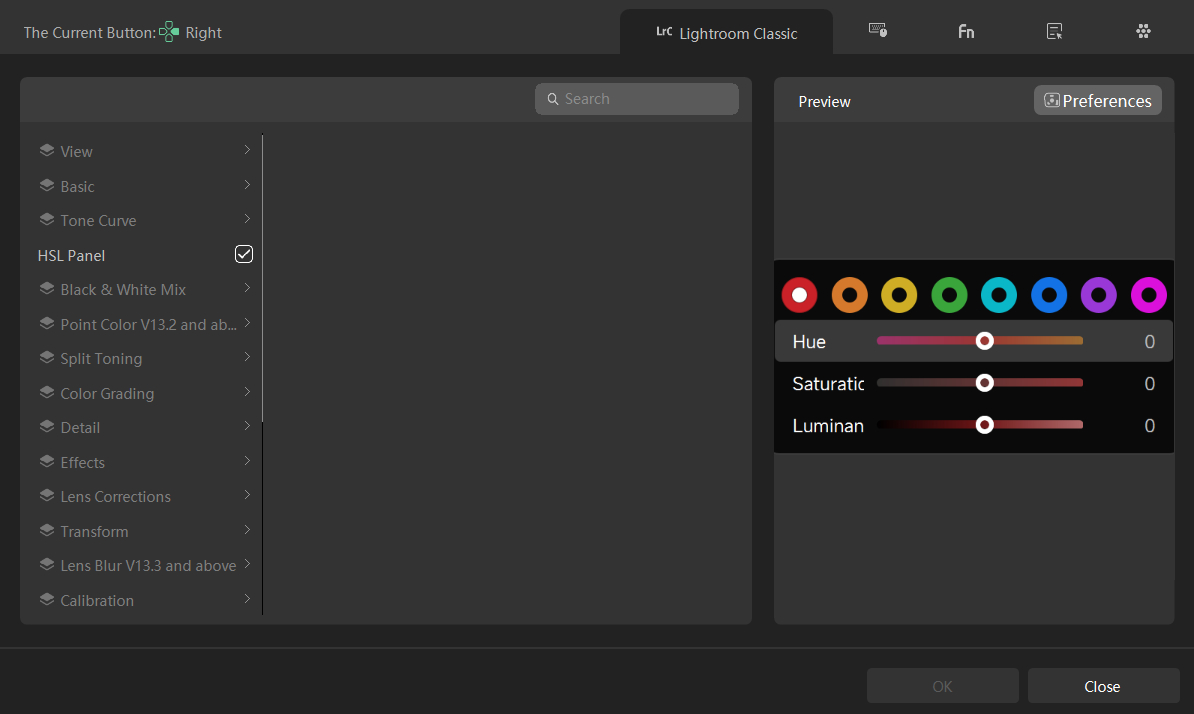
5. Easier HSL Control
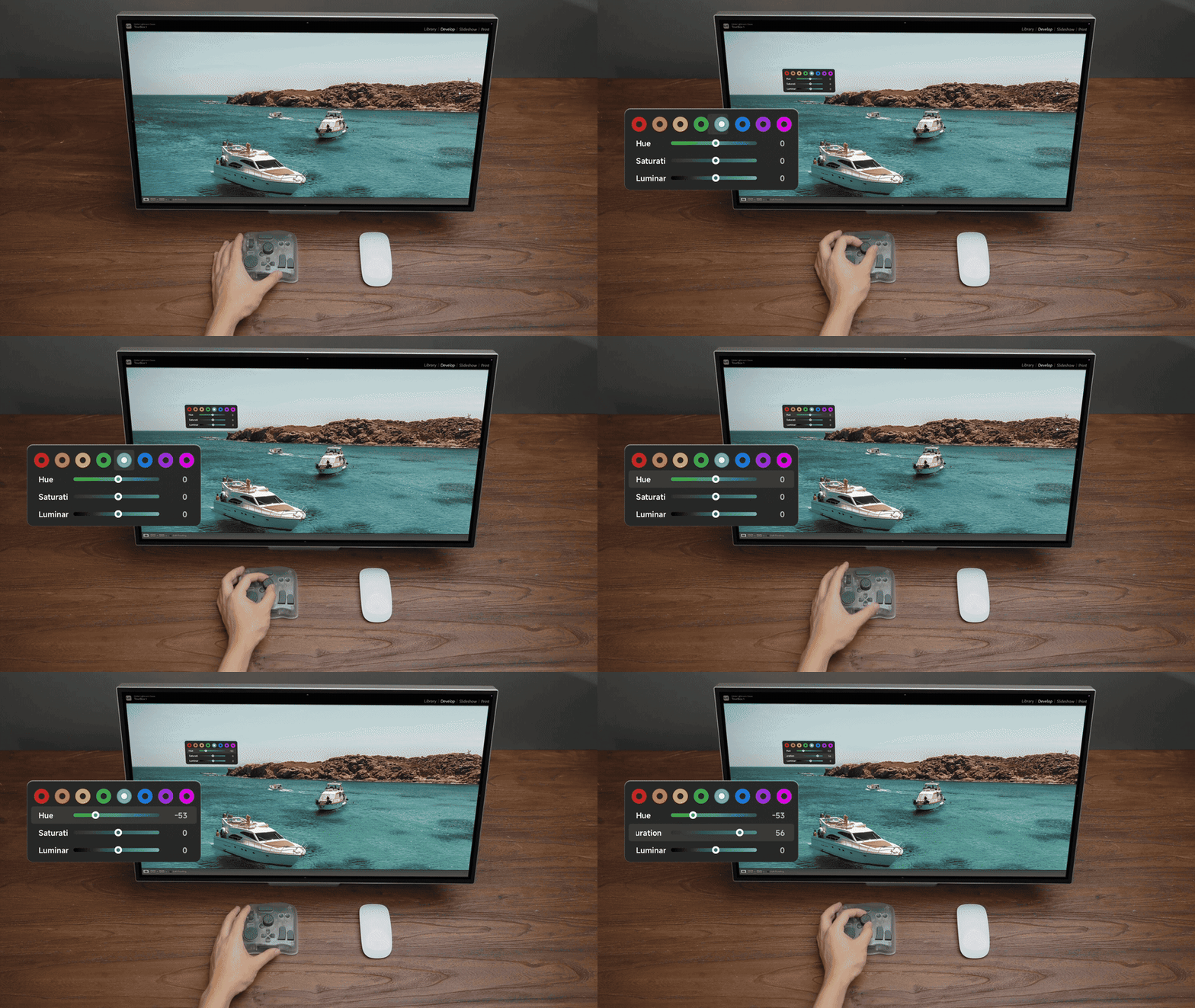
The Dynamic Panel integrates tightly with the TourBox controller. Use knobs and dials to control HSL directly. Turn a knob to pick a color on the wheel. Scroll up/down to tweak H, S, or L.
This is great for portraits and selective color work. It cuts down switching between LrC subpanels and keeps your editing flow smooth.
Your hand and the visual feedback work together for a very responsive color-tuning feel.
6. 1:1 Native Mirroring: What You See Is What You Change
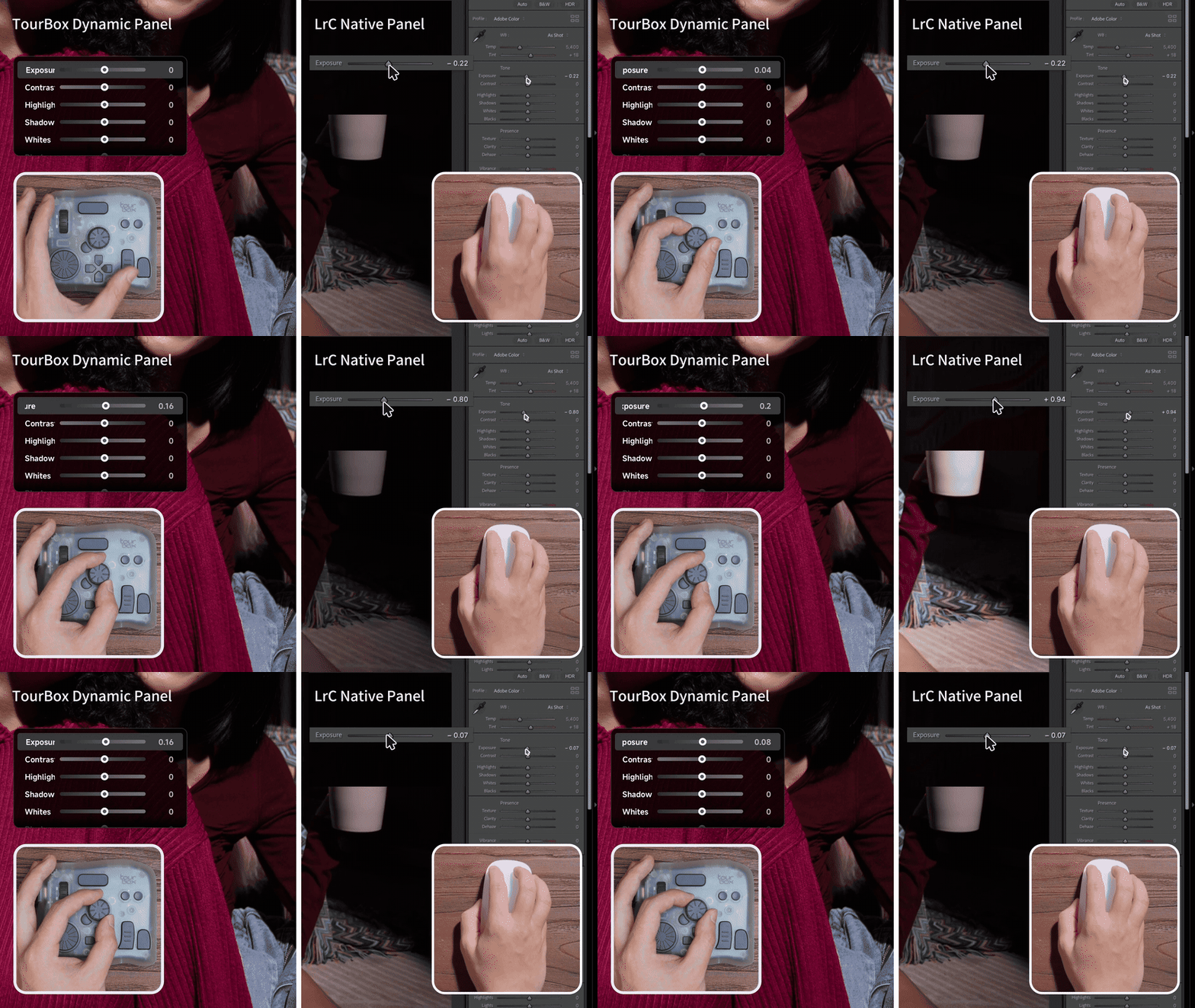
When you move the Exposure slider in the Dynamic Panel to three-quarters, the LrC slider moves to the same spot. Values and visuals match exactly. This removes the uncertainty caused by interface mismatches.
The Dynamic Panel's sliders can also be adjusted by dragging with your mouse, and the value boxes let you type numbers using your keyboard or a virtual numeric keyboard.
7. "Swing" Micro-Adjustments with Knobs
Compared with the floaty feel of mouse dragging, TourBox knobs let you make small back-and-forth tweaks — a "swing" motion — until you land on the perfect value. It's easier to lock in the right tone with physical dials.
8. Intelligent Workspace Recognition
When you enter a mask or an erase tool, the matching color panel opens automatically. TourBox will also change functions and panels depending on the workspace you're using.
You flow straight into the right tools without interrupting your edit.
Beyond Speed — We Care About Quality
The value of TourBox Dynamic Panel isn't just cutting steps or saving time. By moving the color controls off the main image, photographers and creators can spend more focused time judging details and color in a full-frame view.
Paired with the TourBox's intuitive hand controls, you get an experience that lets you see the whole picture, make steadier, more accurate adjustments, and work more naturally.
By removing the hassle and errors of traditional LrC panel-based grading, the Dynamic Panel shifts your attention back to the image, and that often leads to better final results.
If you're a TourBox user who edits photos in Lightroom Classic (LrC), this feature should get you excited. Update TourBox Console now to try the new Dynamic Panel — it's fun and useful.

If you haven't used TourBox yet but like what you've read, click the link above to find the TourBox model that fits you best!
To learn more about the Dynamic Panel, click the link to our Detailed Page.


