

您已成功订阅!
您可以进一步的选择希望收到的推送消息类型。您可以进一步的选择希望收到的推送消息类型。

There are a total of 14 buttons and knobs on the TourBox, which include:
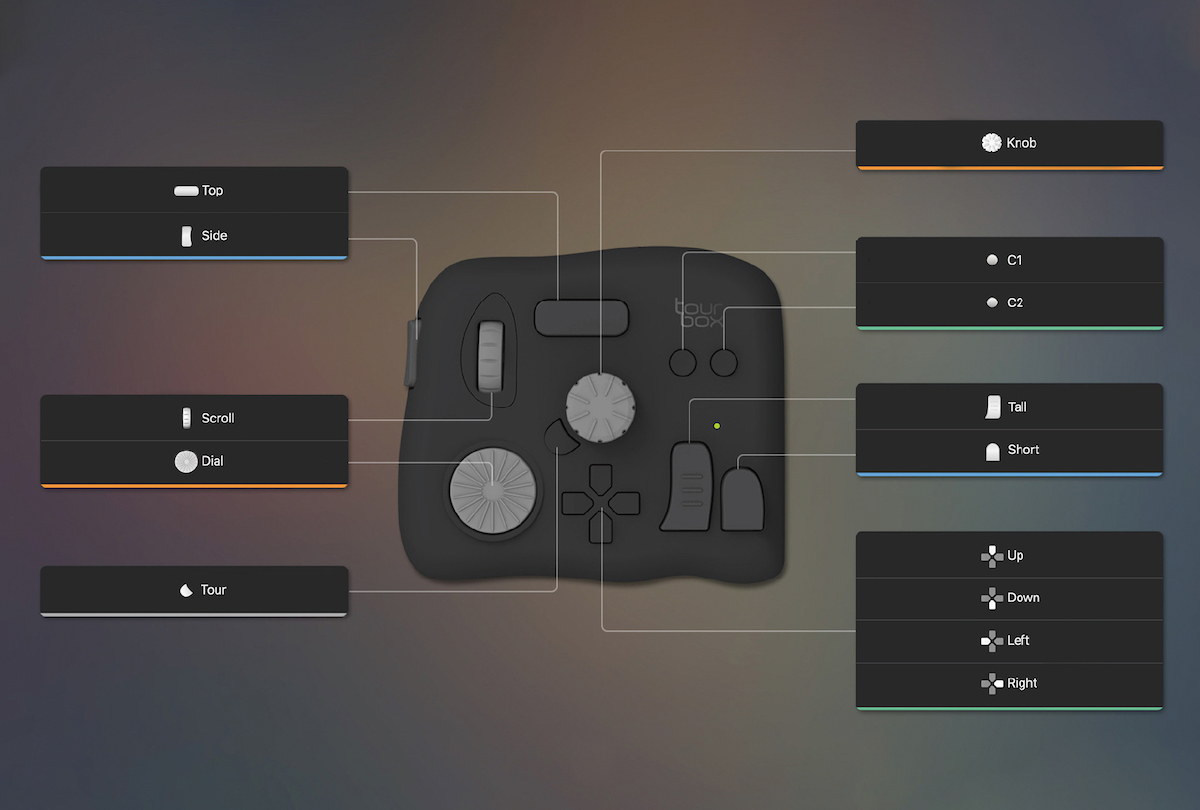
After mapping the built-in function on any button through TourBox Console, you may send a specific value to Max when clicking the corresponding button.
Different types of button actions output different values. These actions include pressing/releasing a button, turning the dial/knob clockwise/counter-clockwise, and scrolling the wheel up or down. See attached table for the fixed values in Max.
On TourBox Console, find the preset list section, click  at its top right to create a blank Max preset, and custom it to your workflow.
Here’s an example. If we want to output the value of 2 when pressing the Top button and output the value of 130 when releasing it, we could assign the built-in function of “press [2]/ release [130]” to the Top button. Here’s how.
Click here to download the zip folder TourBox_MaxMsp.zip and unzip it into your working directory. This folder includes two files - startSevies.js, which is the support file, and max_project.maxpat, which is the example file for running Max.
Please be noted that,
TourBox handles the data interaction with Max through the Socket service. To enable the Socket service, open the sample file max_project.maxpat and click [ script start ]. When you see a green prompt that says "Process Running" (inside the [ Debug Tool ] window on the right), that means the TourBox and Max are successfully connected.
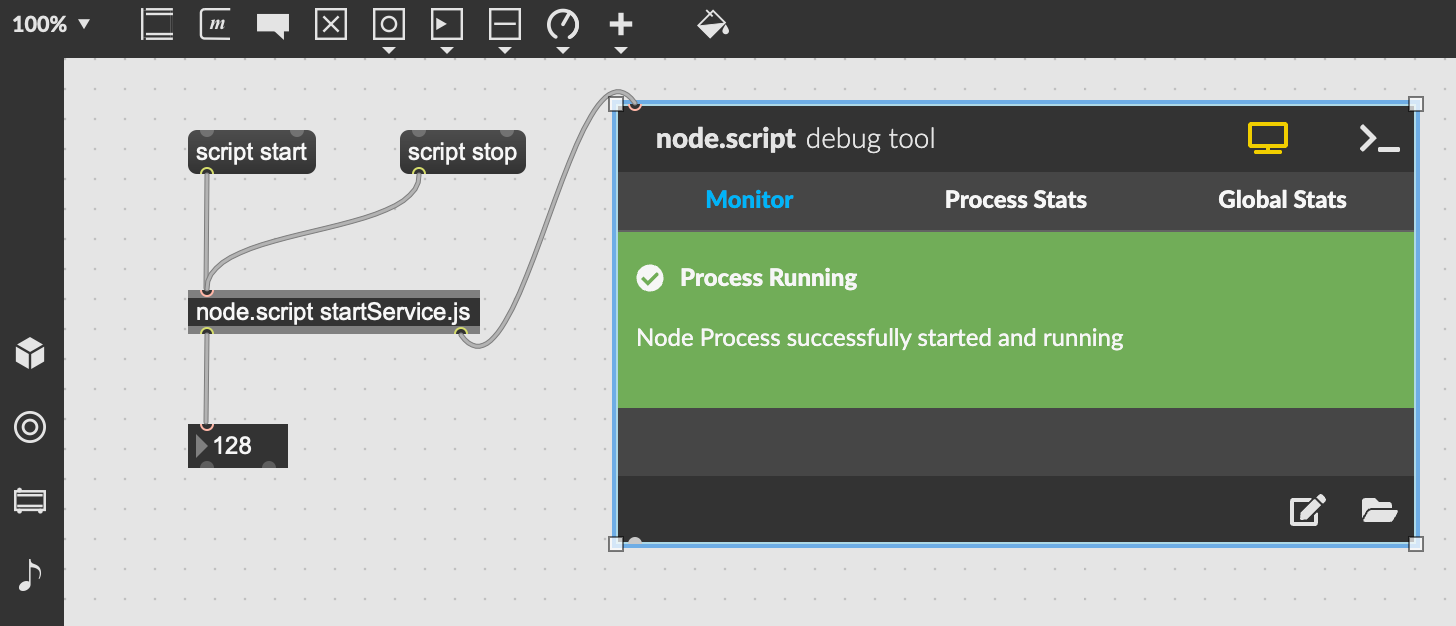
When you click the corresponding button on the TourBox, you may view the output in [Number Object] in the sample file. Click [ script stop ] to end data interaction between TourBox and Max.
To apply built-in functions in the newly-created Max project through TourBox, simply copy [script start], [script stop], [node.script startService.js] and [number object (output  ) ] to the new Max project interface.
Please be noted that,
|
|
Clockwise spinning or scrolling up |
Anti-clockwise spinning or scrolling down |
|
Knob |
196 |
132 |
|
Scroll |
201 |
137 |
|
Dial |
207 |
143 |
|
|
Press |
Release |
|
Knob |
55 |
183 |
|
Scroll |
10 |
138 |
|
Dial |
56 |
184 |
|
Tall |
0 |
128 |
|
Short |
3 |
131 |
|
Top |
2 |
130 |
|
Side |
1 |
129 |
|
Up |
16 |
144 |
|
Down |
17 |
145 |
|
Left |
18 |
146 |
|
Right |
19 |
147 |
|
Tour |
42 |
170 |
|
C1 |
34 |
162 |
|
C2 |
35 |
163 |
Get the latest news from TourBox

您已成功订阅!
您可以进一步的选择希望收到的推送消息类型。您可以进一步的选择希望收到的推送消息类型。
订阅语言
选择您希望接收的内容