TourBox Console 5.12.0: Dynamic Color Picker for CLIP STUDIO PAINT
TourBox Console 5.12.0 for PC was released as a beta version on March 30, 2026. If no other issues are found with the new features within 10 business days, it will become the official release on April 13, 2026.
In this update, we are bringing several very useful new features. Especially for digital artists who use CLIP STUDIO PAINT, the new feature can be a real help in your creative process. So let us get straight to it. Read our blog for a quick look at what is new in version 5.12.0.
1. New CLIP STUDIO PAINT Feature: Dynamic Color Picker
The first time you use Dynamic Color Picker, you need to turn on Connect to Smartphone in CLIP STUDIO PAINT. We need to get the QR code to enable this feature. But do not worry. We will guide you with pop-up steps, and you can finish the setup in just 2 steps.
You can read our blog post below to learn the full setup process and how to fix a few common issues that may come up.
Further Reading:
(1) What Is It?
When you want to pick a color in CLIP STUDIO PAINT, you no longer need to go to the color wheel in the lower-left corner of the software. Just press the TourBox button set up for Dynamic Color Picker, and a color picker panel will pop up right next to your pen tip.
You can choose colors directly with your pen on the panel, or use the TourBox dials to adjust colors quickly. This reduces hand movement.
Dynamic Color Picker offers two modes: Color Wheel and Luma-Based Palette, so you can choose the one that fits your needs.
When the Dynamic Color Picker is active, you can press the Tour button, with your pen hovering over the Dynamic Color Picker, or click the switch button in the upper-right corner of the panel, to change modes.
Each color mode also offers two panel styles. You can switch between them by clicking the button in the lower-right corner of the Dynamic Color Picker. The color you are currently using will be shown in real time in the lower-left corner of the panel.
(2) What Is Color Wheel Mode?
Color Wheel mode matches the native color picker in CLIP STUDIO PAINT. It lets you choose and adjust colors quickly with a color-picking workflow that already feels familiar.
Compared with the native picker, Color Wheel mode appears right next to your pen tip, and with TourBox controls, picking colors becomes much more efficient.
This mode offers two panel styles. You can switch between them by clicking the button in the lower-right corner of the panel:
- HSV: square inside the color wheel
- HSL: triangle inside the color wheel
(3) What Is Luma-Based Palette Mode?
The Luma-Based Palette mode shows other colors with luminance levels close to the color you sampled. It helps you quickly explore different hue shifts while keeping the same general luminance, so you can spend less time testing colors over and over.
This mode can be turned on or off, and you can switch freely between the two views by clicking the button in the lower-right corner of the panel:
- Focused Palette: only shows colors with luminance close to the color you sampled. The luminance slider shows only part of the range, which means there are nearby colors within the current luminance range.
- Full Palette: shows the full color and luminance range, so you can choose colors freely.
(4) How to Set It up?
In the CLIP STUDIO PAINT preset in TourBox Console, choose the button you want to use and open the settings page. Then switch to the CLIP STUDIO PAINT page and go to the Dynamic Color Picker settings. You can also click the settings button in the lower-right corner of an active Dynamic Color Picker panel to open the settings page at any time.
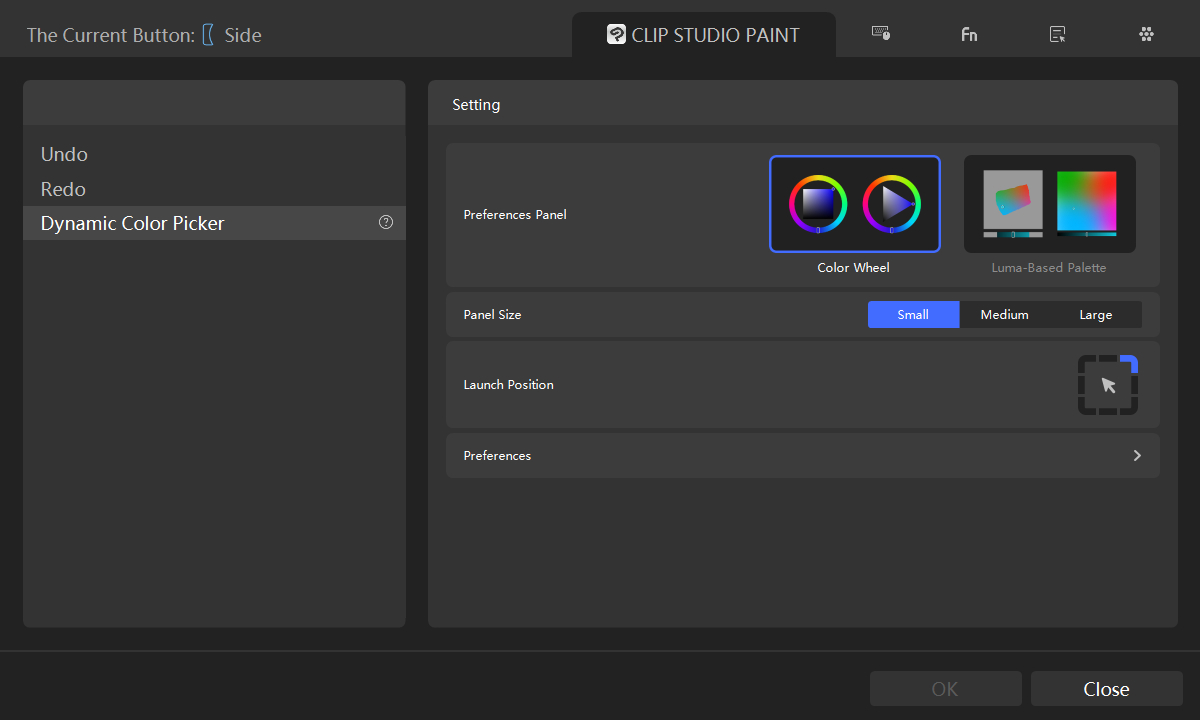
On this page, you can customize how the Dynamic Color Picker looks and how it works. This includes:
- Preferences Panel: Set the default color mode that appears when you open the Dynamic Color Picker.
- Panel Size: Choose from small, medium, or large to fit different use cases.
- Launch Position: Choose from 8 positions. You can place the color panel in any direction around the eyedropper.
- Preferences: Set the key used to switch color modes, as well as the dial used to adjust the slider, based on your own habits.
Please visit our dedicated page to learn more about Dynamic Color Picker, see how it works, and discover how it can help you work more efficiently in CLIP STUDIO PAINT:
Dedicated Page:
2. New Feature for DaVinci Resolve
In this update, we expanded HoverAdjust support in DaVinci Resolve. It now officially works on the Edit page. You can use HoverAdjust for most controls in the Video, Audio, Effects, Transition, and Image sections in the Inspector.
Just hover your mouse over a control and turn the TourBox dial to adjust its value.
3. New Feature for Lightroom & Lightroom Classic
We added a beginner's guide on the Lightroom Classic settings page to help users get familiar with Dynamic Panel more quickly.
We also added several new options to the Dynamic Panel settings in Lightroom Classic and Lightroom:
- It now supports dial haptic feedback, dial speed, and reverse direction.
- It also supports a custom key to close all panels.
4. Improvements
We optimized the display logic for TourMenu and Dynamic Panel. They will now show again when you return to the linked software.
5. Fixes
- Fixed an issue on macOS where the Adobe Photoshop Virtual Numeric Keyboard would pop up unexpectedly when creating a new layer group.
- Fixed an issue on Windows where DaVinci Resolve might not recognize the color wheel correctly after switching from the Edit page to the Color page during use.
- Fixed an issue on Windows where DaVinci Resolve would fail to auto-switch sub-presets after Import Timeline.
- Fixed an issue on Windows where Max/MSP could not connect successfully.


