New Feature! Dynamic Color Picker for Photoshop: A Complete Guide
For digital artists, changing brush colors in Photoshop is something you do all the time. Of course, you can click the color picker icon and choose a color in the panel. But if you need to switch colors often, that kind of workflow can break your creative flow and feel a bit tedious.
So, is there a simpler way to do it with TourBox — one that lets a small color picker pop up right where your mouse or pen is?
Actually, Photoshop already supports a pop-up color picker. We also shared before how to use TourBox to activate the color picker in Photoshop. You can check out that blog here: [TourBox Tips] How to Activate the Color Picker in Photoshop?
But you may have already noticed that even with TourBox making the steps easier, Photoshop's native pop-up color picker still has some problems:
- The pop-up appears in a fixed spot, so it can get in the way of what you are working on.
- Color picking and the pop-up picker use different shortcuts, and you need to press the shortcut again to close it, which makes the process feel a little clunky.
- The shortcut combo is fairly complex, and it cannot be customized.
To solve these pain points that digital artists run into while painting in Photoshop, we developed a color picker that combines color sampling and color picking in one tool. It helps users pick colors in a faster and more direct way. This built-in TourBox feature is called Dynamic Color Picker. We first brought it to CLIP STUDIO PAINT, and now Photoshop supports it too.
In TourBox Console v5.12.0 Beta 5 and later, you can go to the settings page by choosing any button in the Photoshop preset, then find this built-in function in the Photoshop function list.
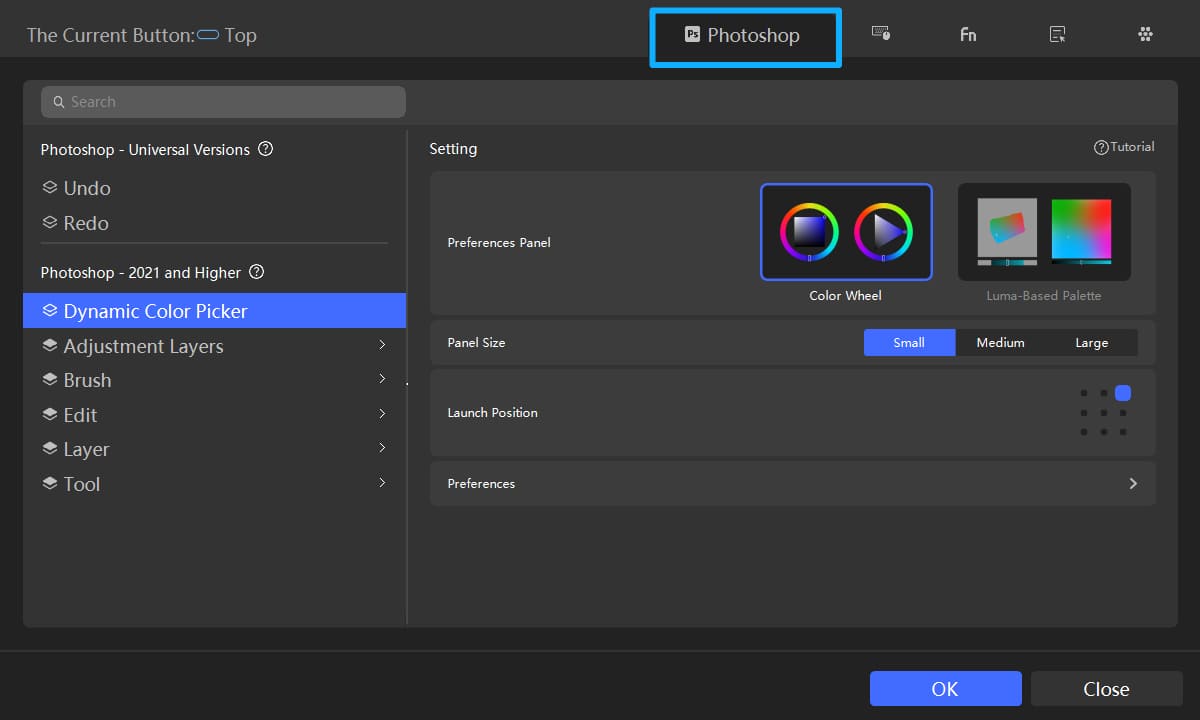
How to Use the Dynamic Color Picker in Photoshop?
After you open a Photoshop project, just press the TourBox button you set to Dynamic Color Picker, and the picker will pop up near your pen tip. You can pick a color directly on the panel with your pen, or use the TourBox dial to adjust the color quickly. This helps reduce extra hand movement and makes color picking smoother and faster.
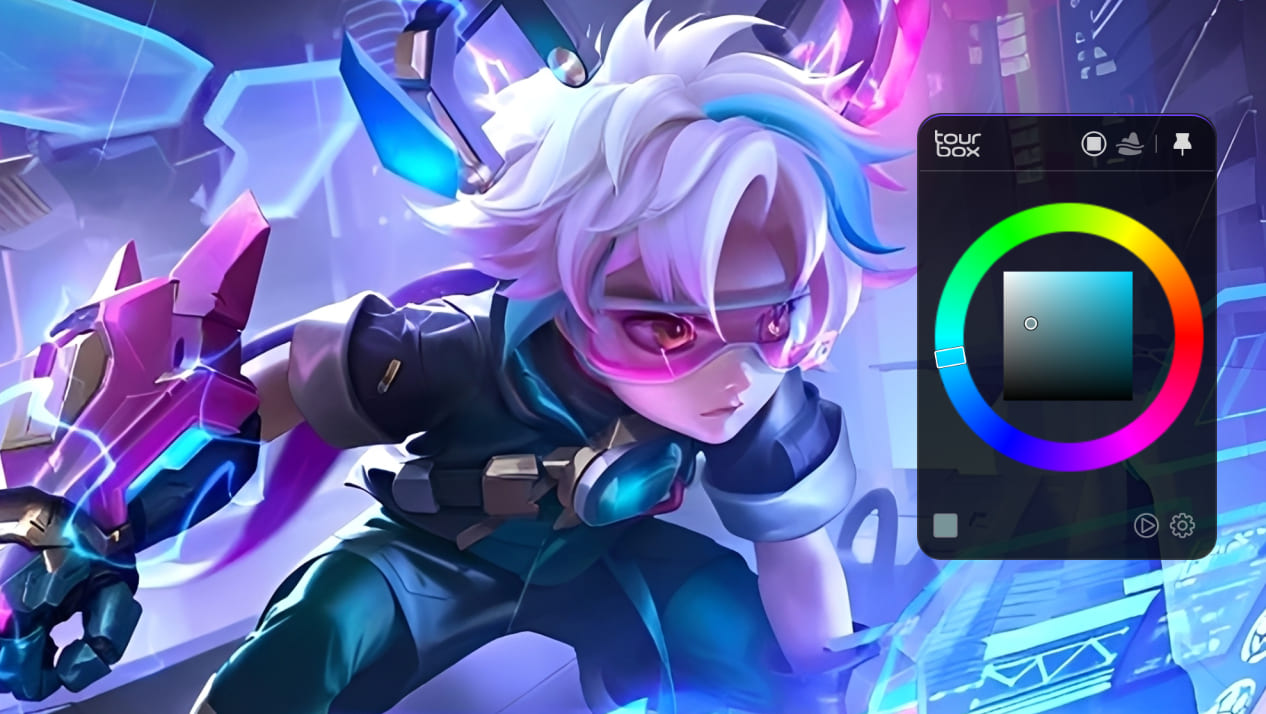
Dynamic Color Picker has two modes: Color Wheel and Luma-Based Palette. You can switch between them anytime, so you can use the one that fits your workflow best.
First, let's look at how to switch modes. When Dynamic Color Picker is active, hover your pen over the panel and press the Tour button, or click the switch button in the upper-right corner of the panel. That will change the mode.
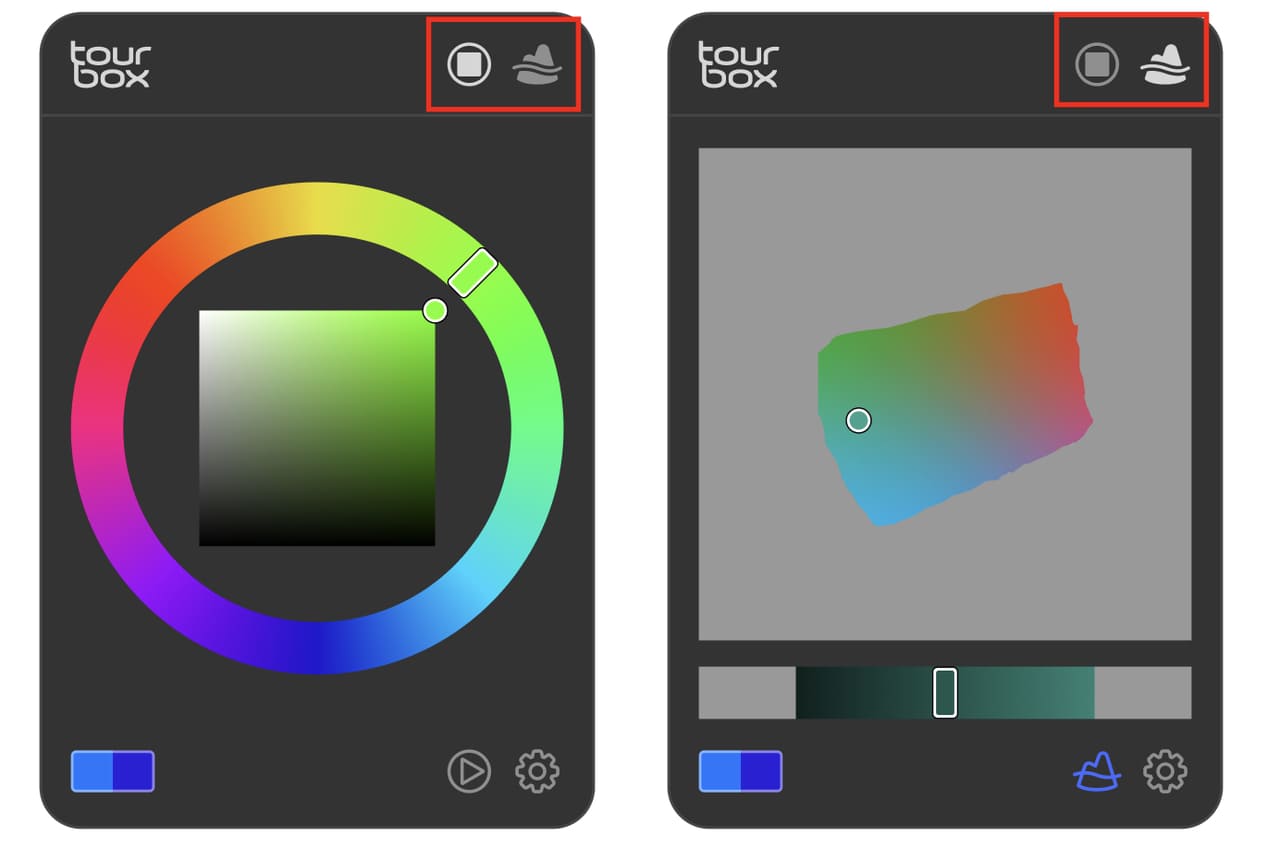
Now, let's take a closer look at what makes each mode different.
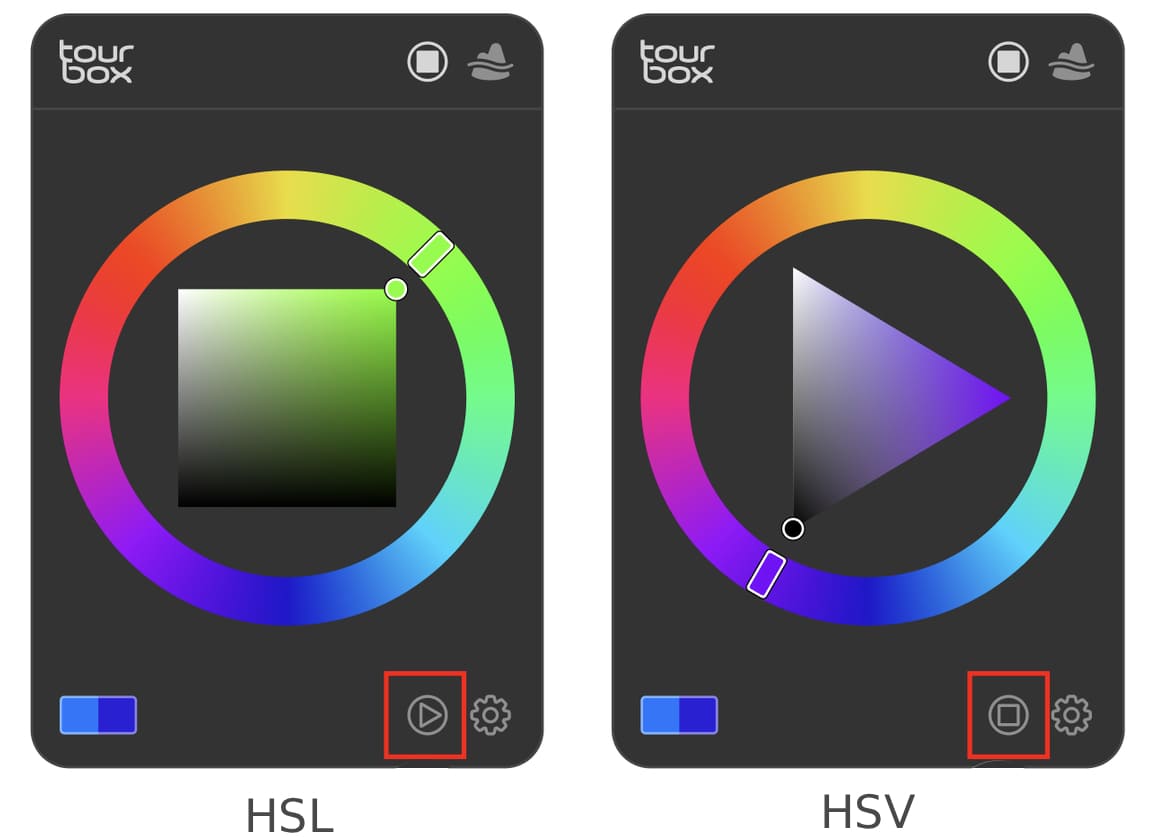
Color Wheel works like Photoshop's built-in color picker, so you can keep using a familiar way to choose and fine-tune colors.
This mode also gives you two panel styles. You can switch between them by clicking the button in the lower-right corner of the panel:
- HSL: shows a square inside the color wheel
- HSV: shows a triangle inside the color wheel
Luma-Based Palette shows other colors with brightness levels close to the color you sampled. It helps you quickly explore different shades while keeping the brightness similar, so you spend less time testing colors over and over.
This mode also has two view options. You can switch between them by clicking the button in the lower-right corner of the panel:
- Focused Palette: shows only colors with brightness close to the sampled color. The brightness slider shows only part of the range, which makes it easier to find nearby colors quickly.
- Full Palette: shows the full range of colors and brightness, giving you more freedom to choose.
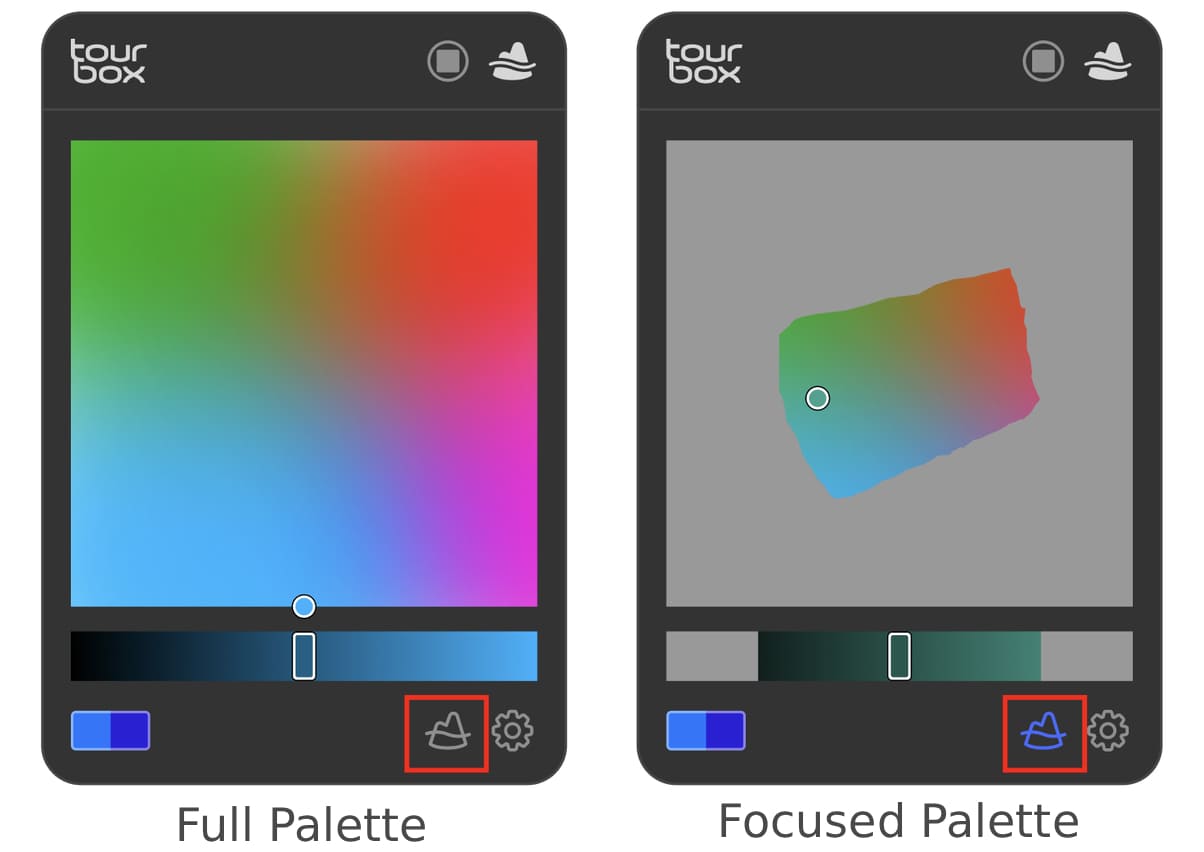
Now that we have covered these two color-picking modes, there are a few small features worth mentioning too.
First, when you use your mouse or pen to pick a color in Dynamic Color Picker, a small color wheel will appear to help you compare the color before and after picking it.
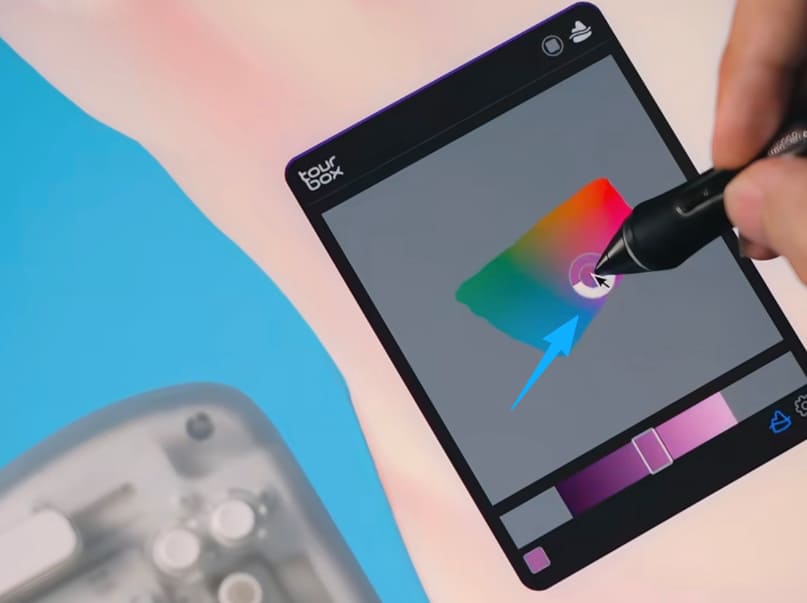
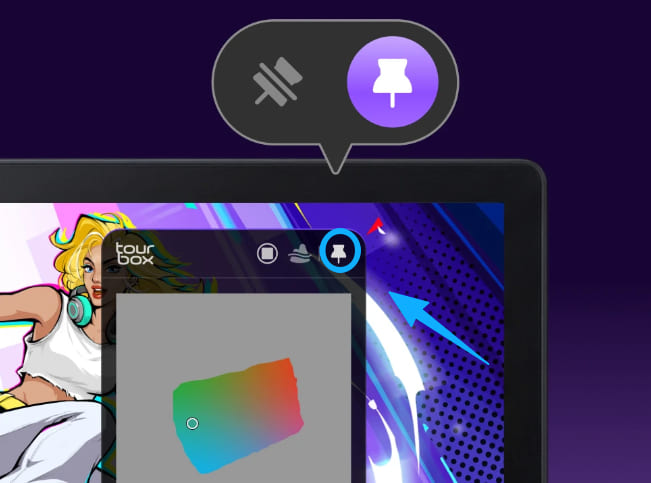
Dynamic Color Picker also offers two display modes: Follow Mode and Pin-on-Screen Mode. In Follow Mode, the panel moves with your pen tip. In Pin-on-Screen Mode, the panel stays fixed in one spot on the screen. You can also mix and match them based on your needs.
For example, you can use Follow Mode for Color Wheel and Pin-on-Screen Mode for Luma-Based Palette. Everything can be set up to match the way you like to work.
Still Have Questions?
Now that this feature is available, do I still need to set an Alt / Option color-pick shortcut?
No. Dynamic Color Picker can fully replace the old shortcut-based color sampling. It combines "Alt / Option color sampling" and "open the color picker" into one step. So you can simply replace the TourBox button you previously set to Alt / Option with Dynamic Color Picker.
Which software and operating systems does Dynamic Color Picker support right now?
It currently supports CLIP STUDIO PAINT and Photoshop on Windows and macOS. We plan to support more drawing apps and more systems in the future, so stay tuned.
Which TourBox models support Dynamic Color Picker?
All TourBox models support this feature.
Learn More
A text-only blog can only show so much, and it is not as clear as seeing it in action. So if you are interested in the Dynamic Color Picker and want to learn more about using TourBox for digital art in Photoshop, take a look at the YouTube video below and visit our Special Page for more details.


