How TourBox Works with DaVinci Resolve: Is It Worth Buying?
If you are a DaVinci Resolve user, you should have considered getting an editing keyboard or controller to speed up editing or color grading. TourBox might be one option you're considering.
But does TourBox have a learning curve? Can it match your editing and color grading workflow in DaVinci Resolve? Is it worth buying?
If you have questions about using TourBox with DaVinci Resolve, read this article to see whether TourBox fits you.

In this article, you will learn:
- How TourBox Works with DaVinci Resolve?
- Does TourBox Have a Learning Curve?
- Is TourBox Just a Shortcut Mapper?
- Conclusion
How TourBox Works with DaVinci Resolve?
You might start by creating a DaVinci Resolve preset in our companion software, TourBox Console.
This preset contains seven sub-presets: Media, Cut, Edit, Fusion, Color, Fairlight, and Deliver. Each sub-preset corresponds to one Resolve workspace page. When you switch pages in DaVinci Resolve, TourBox will automatically detect the current page and switch to the correct sub-preset.
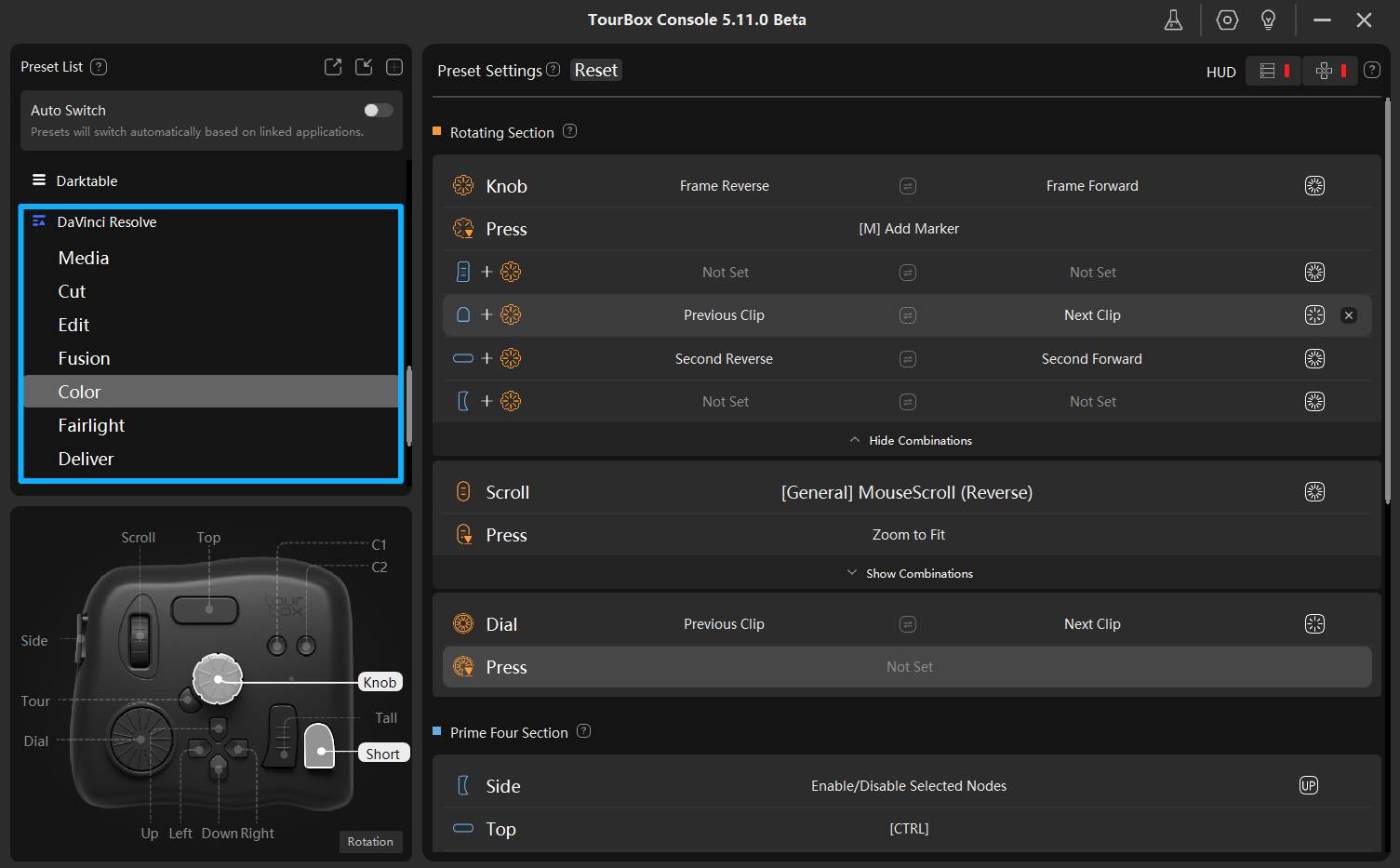
In each subpage, we have preconfigured a set of controls based on most users' habits and workflows. You don't need to spend time setting it up. You can use it right away. The only thing you need to do is get familiar with the operation logic.
At first, you may not be used to TourBox. For example, you might forget what command is assigned to a button. In that case, turn on the HUD feature to get real-time reminders of TourBox button assignments.
If you don't like our DaVinci Resolve preset, you can change any setting in each sub-preset. You can customize button and knob assignments for every Resolve page.
You can map your frequently used shortcuts to TourBox's physical buttons and knobs. We also provide some built-in functions. Like customizing a game controller, this process is very simple.
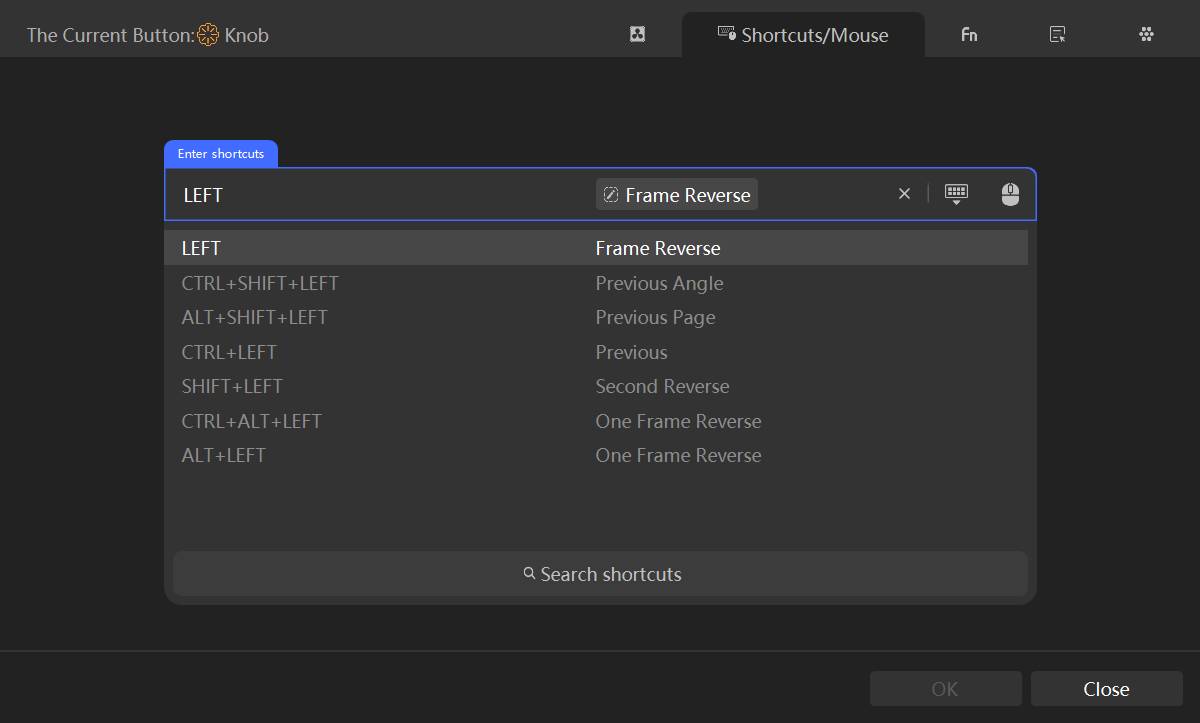
Does TourBox Have a Learning Curve?
We believe any editing keyboard or controller on the market needs some time for users to learn. TourBox is no exception. You may need to try it a few times before you feel familiar with how it works.
But as we described above, we provide a ready-made Resolve preset. You can also customize that preset to match your habits. The only real learning hurdle is the initial unfamiliar feeling when you switch from traditional keyboard shortcuts to TourBox.
Is TourBox Just a Shortcut Mapper?
No. TourBox is not just a simple shortcut mapper. The core value of TourBox has never been "map more keys."
Instead, it turns commonly used steps that need fine control into intuitive, low-interruption actions. That saves the time spent switching tools and moving the mouse.
So, based on user feedback and creators' needs, we keep updating our proprietary algorithm features to improve your creative experience. For example, our TourMenu and macro features are popular with advanced creators.
In the TourBox Console 5.10.0 update, we added three useful features: HoverAdjust, Shuttle Browse, and Shuttle Playback. These three features make editing and color grading in DaVinci Resolve feel as natural and smooth as driving.
Further Reading:
TourBox for DaVinci Resolve: HoverAdjust, Shuttle Browse & Playback
Simply put:
- HoverAdjust: When this feature is enabled, hover the mouse cursor over a color wheel, slider, curve, or parameter, then use TourBox's knob or wheel to adjust. Press a button to reset. We also added a Color Wheel Indicator for HoverAdjust. When you change hue on the color wheel, a small TourBox dot appears on the rim to show the color under the cursor.
- Shuttle Browse: Turn the knob to scroll the timeline left or right with inertia. This solves the slow and clumsy problem of dragging the scrollbar on long timelines. It also prevents interrupting your workflow by switching between the mouse and keyboard.
- Shuttle Playback: Rotate the knob to play forward or backward and control playback speed. If you often use J, K, and L to control playback in DaVinci, you will like this feature.
For more demos of TourBox in DaVinci Resolve, please watch the video below.
Conclusion
Through the text and video above, you should now have a clear idea of how TourBox works with DaVinci Resolve. If you plan to look for a more affordable alternative to a Resolve Speed Editor or Edit Keyboards, TourBox is definitely a perfect alternative.

Whether you are editing or color grading, TourBox can greatly improve your efficiency and your workflow experience. If you're interested, click our link to check out our latest offers!


